Using Manager of Vehicles in Joomla Car dealer software - Vehicle manager
Vehicle Manager is Joomla Car dealer software. In this article we will show you how to Using Manager of Vehicles in Joomla Car dealer software - Vehicle manager and see how an administrator can use that interface to Publish, Unpublish, Rent or Return Vehicles.
In the Admin backend, go to Components > Vehicle manager > Vehicles. From the Manager of Vehicles you can select one or multiple vehicles (checkmarks in front of the titles) and then apply actions to them with the icons in the top bar.
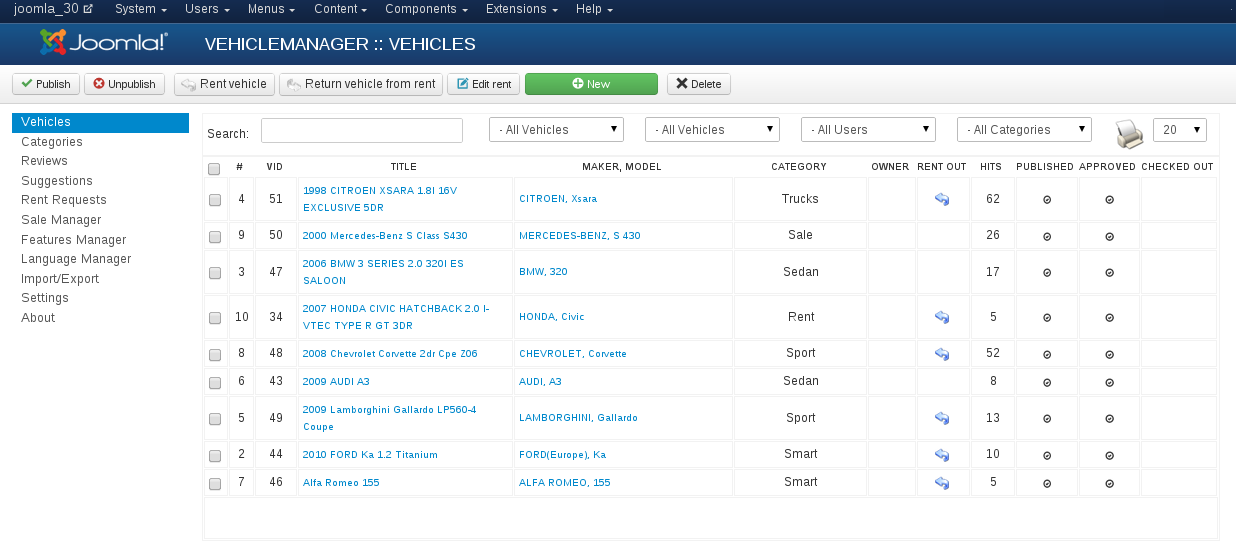
- Publish. Publish selected Vehicles. When the vehicle published in front of its name is a green check mark.
- Unpublish. Unpublish selected Vehicles. When the vehicle published in front of its name is a red cross.
- Rent vehicle. When you click on this button opens new page, that shown below.
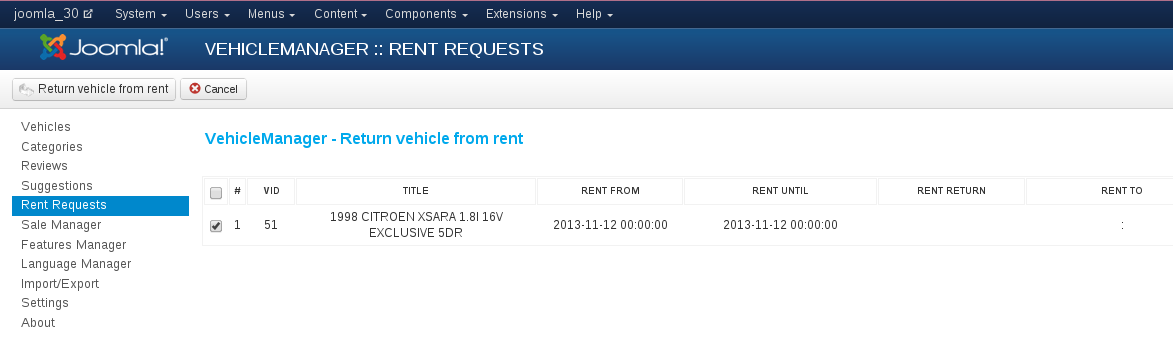
- Return vehicle from rent. When required return vehicle from rent click the Return Vehicle from rent button, than select vehicle and click Return Vehicle from rent yet.
- Edit rent. On this page you can change the vehicle data.
- New. Create a new Vehicle entry.
- Delete. Deletes the selected vehicles.
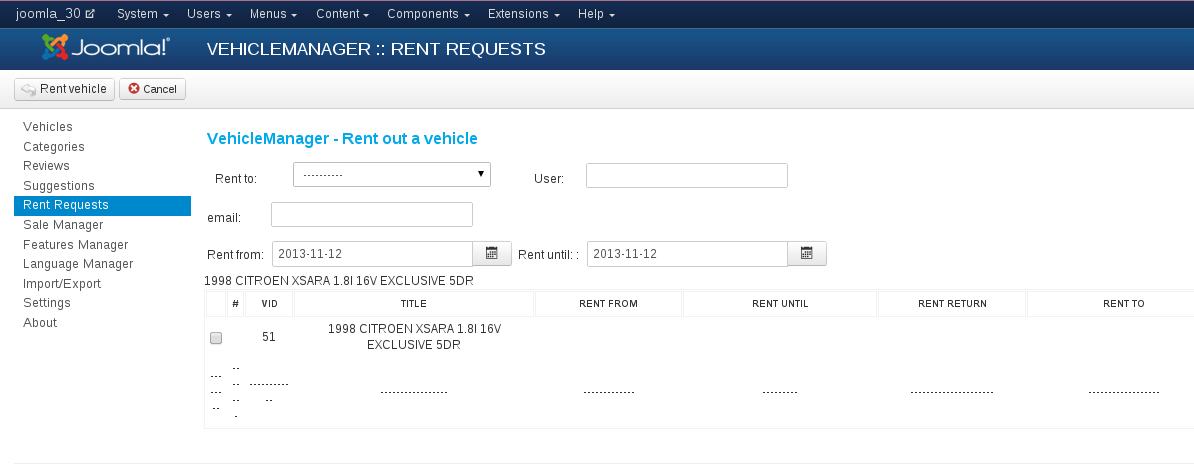
Rent to: Just select the user from the dropdown box
User: Fill in username
e-mail: Fill in user email
Rent until: Select the return date by clicking on the button (will show a calendar pop-up)
When you have filled in the details, click the [Rent vehicle] button in the top bar.
Documentation of Vehicle Manager - Car rental Dealer software for build a car website
- Vehicle Manager - Joomla car rental dealer software, for rent and sell cars
- How to install Vehicle Manager - Joomla car rental dealer software, for rent and sell cars
- How to configure settings of Vehicle Manager - Joomla car rental dealer software
- How to create menu entry in Vehicle manager - Joomla Car dealer software
- How to create and edit vehicle categories in Vehicle manager - Joomla Car rental software for build car rental website
- Frontend Category View in Vehicle Manager - Joomla Car dealer software
- Frontend Vehicle List View in Vehicle Manager - Joomla car rental dealer software, for rent and sell cars
- Front End Vehicle Details Page in Vehicle Manager - Joomla car rental software
- Submitting Reviews in Vehicle Manager - Joomla Car rental software
- How to Manage and edit reviews in Vehicle Manager - car rental dealer software, for rent and sell cars
- Submitting Rent Requests in Vehicle Manager - Joomla car rental dealer software, for rent and sell cars
- Managing Rent Requests in Vehicle Manager - Car rental software
- Vehicle Search in the Vehicle Manager - Joomla car rental dealer software, for rent and sell cars
- Entering Vehicles manually in Vehicle manager - Joomla car rental dealer software, for rent and sell cars
- How to print reports in Vehicle Manager - Joomla car rental dealer software
- How to Export Vehicles to CSV, XML and full XML in Vehicle Manager - Joomla car rental dealer software
- Importing vehicles from CSV, XML, full XML into Vehicle Manager - Joomla car rental dealer software, for rent and sell cars
- How to add a new language to Vehicle manager - Joomla car rental dealer software, for rent and sell cars
- CAPTCHA in Vehicle Manager - Joomla car rental dealer software
- How to upgrade Vehicle Manager - Joomla car rental dealer software, for rent and sell cars
we support payment systems