30. Export product from Book Library to Virtuemart, Joomla bookstore software
In this article we will look at the option to add product in Book Manager in Book Library.
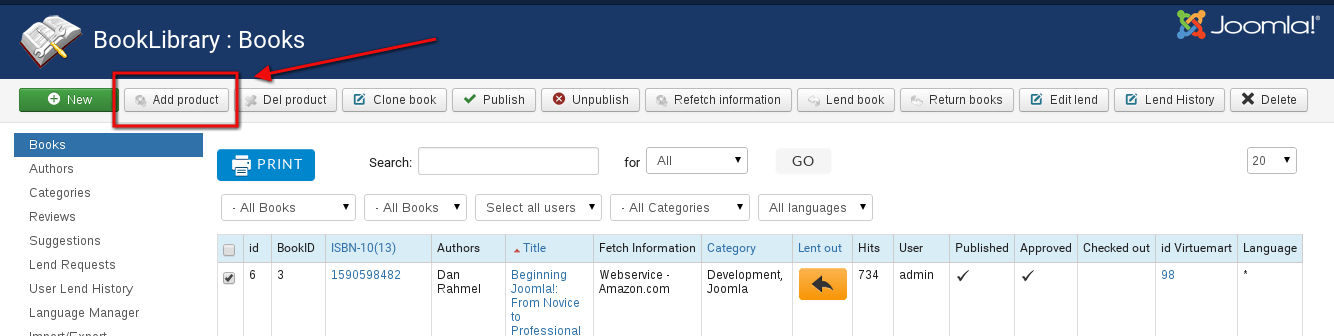
In the Admin backend, go to Components -> Book Library -> Books In the Books Manager select one or multiple Books (checkmarks in front of the titles) which you want to export to Virtuemart. Then click the Add Product Button this will export product from Book library to Virtuemart, Joomla bookstore software.
Then you will see this:
In Virtuemart you can edit all what you want, add price, pictures, categories and ect.
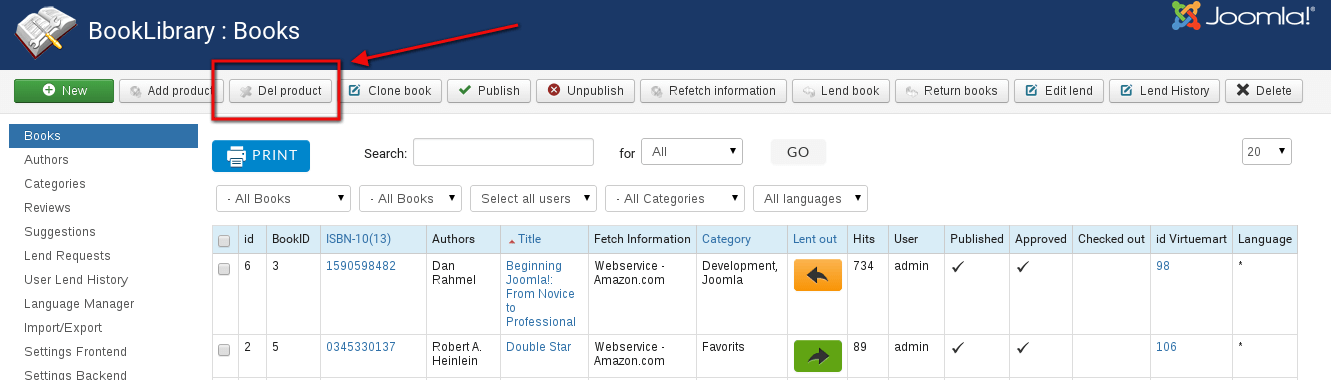
If you want delete Book from ViertueMart click the Del Product Button.
If you want edit price, pictures, categories and ect. click on id VirtueMart
29. Help, Book Library does not fetch my book descriptions!
In this article we will take a closer look at why the fetching of book descriptions from Amazon only works consistently from the US site, and inconsistently from other Amazon sites. It all has to do with copyright restriction at Amazon, not with Book Library programming...
The problem:
Book descriptions are only returned consistently from Amazon.COM.DE, FR, UK, JP and CA will not return book descriptions to queries many times. So these Amazon sites return book descriptions every now and then, without consistency.
The answer:
We write in the Book Library Shop features overview that the book description fetching only works reliably from Amazon.com. And we do that for a good reason, we almost went bonkers trying to figure out why it did not work for the other Amazon sites. So to summarize the rules for which descriptions are available through Amazon Web Services:
Only Editorial Reviews that are listed on amazon.com as [Editorial Review] are available via AWS.
It is not unusual, especially in non-US locales, for this data to not be available. This is often due to legal or contractual limitations imposed upon Amazon by the data provider.
Amazon can display editorial reviews on their own HTML pages, because they have received permission from the appropriate copyright holders to publish these reviews. The permission to publish copyrighted material does not include permission to serve as a republisher of the same material (i.e., provide the data via AWS)
More explanation:
The Amazon Web Services developer blog is full of questions (since 2002/2003…) pertaining to why the book description is not returned on Amazon DE, FR, UK etc. Just go to http://developer.amazonwebservices.com/ and search for editorial, review, editorial review, book description, description, review. I have read through them all, but I will give you the lowdown based on the few proper responses from Amazon staff.
Quotes from the horse’s blog:
The lowdown from Amazon
The problem descriptions
Copyright issues
Technical specification Editorial Reviews
REST issues
Possible Amazon server issues
The lowdown from Amazon
Just to clarify: only Editorial Reviews that are listed on amazon.com as [Editorial Review] should be available via AWS. We currently researching issue why some reviews even though written by Amazon.com are not available via AWS. When we fix the issue , reviews that are not written by Amazon.com will still NOT be available via AWS at present.
When the data is available it is usually under Editorial Review. It is not unusual, especially in non-US locales, for this data to not be available. I believe this is often due to legal or contractual limitations imposed upon Amazon by the data provider. Legal restrictions prevent us from providing all editorial reviews. This is mentioned in section 3.2 of API and Integration Guide and repeated below.
Amazon attempts to return as much data as possible for each query. In those cases where Amazon is not the primary owner of the data (such as third-party reviews), we may not be legally able to release that data. Our goal, however, is to return as much product information as we can.
Currently, any review written by Amazon.co.uk (or .com) should be available throughAWS (note that this does not necessarily include all reviews that you may see on the retail site). If you see a discrepancy between AWS responses and the retail website, this may be a bug. Posting specific examples will help in determining this
Amazon can display editorial reviews on their HTML pages, because (presumably) Amazon has received permission from the appropriate copyright holders to publish these reviews. The permission to publish copyrighted material does not include permission to serve as a republisher of the same material (i.e., provide the data via the AWS feed to all comers). Note that since Amazon.com holds the copyright for all of their HTML pages, (see the Copyright Section of http://www.amazon.com/exec/obidos/tg/browse/-/508088/102-6202356-3181709 ), the HTML pages do not serve as a republishing source.
Editorial Reviews are only available via AWS when written by Amazonians. Good way to check --look at the website: http://www.amazon.com/exec/obidos/ASIN/0399238611. If you see: Editorial Reviews Amazon.com --it is a good indication that review should be available via AWS.
Problem descriptions:
I'm suffering the same problem but the whole copyright issue seems a bit contradictory: Take the book "The Acne Cure" for example (ASIN: 0446692417):-Editorial Reviews show up in my UK a store ( http://astore.amazon.co.uk/megavista-21/)-Editorial Reviews show up on amazon.com (many)-Editorial Reviews shows up on amazon.co.uk (few)-Editorial Reviews are AVAILABLE in .com XML-Editorial Review are missing from .co.uk XML That seems strange to me if this is supposed to be a copyright issue. How can US associates be allowed to display review data on external sites without breaching this copyright? (no reviews for this book mention they are by Amazon). The .com XML only contains the book description and not all the reviews on the .com site but this is better than nothing.
I'm using the UK version of AWS and no editorial reviews or features are being returned, despite using the "EditorialReview" and "ItemAttributes" response groups.
OK, I'm getting the impression from this and other threads; UK coverage in this area is patchy at best, i.e. not to be relied on. Well, I'm sorry to say this has been the situation for years. I think we can assume it will be the situation for years more.
We are trying to sell Amazon products -and develop systems to allow others to sell Amazon products -but Amazon doesn't seem too bothered about giving us the tools to do so. AWS has a lot of potential -but I believe Amazon need to commit a little bit more effort in order to make it really live up to that potential. I appreciate that the Amazon staff in here probably can't do anything until we show them something that doesn't work as 'expected'. The problem is that they (Amazon) and Us (associates) have different expectations. If it works according to spec -to Amazon, it isn't broken. To us the associates -it is not the implementation that is broken, the spec itself is broken -it doesn't conform to our expectations. Too few products have usable Amazon.co.uk reviews. I re-iterate my opinion that we could do with greater coverage of Amazon.co.uk reviews.
Is it possible to receive either the Publisher or Amazon.com Editorial reviews via AWS?
I get product description but not consistently . Most products are listed without product description. Also please let me know if no product description is available then can I get editor review?
Copyright issues:
Most "Book Descriptions" are supplied by the publisher of the book, and therefore Amazon.com does not have permission to use it in our XML documents. The same is true for our third party editorial reviews.
The "Book Description" is from the publisher and is copyrighted. It is sometimes called "From the Inside Flap" or "Synopsis". You won't find it in AWS--only Reviews written and owned by Amazon are available in AWS.
You can get product descriptions written by Amazon.com via AWS. However, AWS will not return product descriptions or editorial reviews written by third parties, such as Publishers Weekly or Library Journal due to copyright issues. This means that the Product Description element will only be returned for items for which Amazon has provided an editorial review or description.
Is it not time--and past time--that those amorphous "issues" got resolved? The reviews appear on Amazon's own site, so _some_ permissions, or some application of the "fair use" doctrine, are already in place. Whatever forbids associates, who are effectively an extension of Amazon's site, from using that material? Amazon's lawyers should look at this, and settle it that the material--often quite important (for example, often the only way to find out what's in a story collection or an omnibus volume) *is* usable. (My strong suspicion is that no one has ever sat down and said, "Look, you can't do this"--rather, that no one has ever sat down to actually decide, so everyone's just playing it safe.) The failure to take the minimal time and effort needed clarify the ability of Amazon associates to display material that Amazon can and does display is just another sign of how high associate concerns do (or don't) rank within Amazon.
Product descriptions and reviews are different things. In this thread, we are discussing product descriptions, which are general synopses or descriptions of products written either by Amazon or by third party content providers Amazon has formal partnerships with. Reviews are what Amazon customers write about products. Through AWS, you can retrieve the first three customer-written reviews for any product. At the present time, it is not possible to retrieve all the reviews written by a specific customer. It is only possible to retrieve reviews by product.
Amazon does not own all the editorial content that appears on the retail site and some of it is licensed from third parties who limit the ways in which their intellectual property is allowed to be reproduced. As a result, we need to filter out some editorial reviews from public responses.
Amazon only had the right to use descriptions like these themselves and not to let others (like associates as us) use them. I assume that on a per seller basis this is being administered and that items for which this isn't cleared yet, Amazon doesn't provide this information yet.
It is in the Editorial Review response group when it exists. Here is an example. The Source value will be your cue.
Product DescriptionA bite-sized version of our famous Victoria Toffee is ideal to enjoyanywhere. Almost everyone loves this crisp, smooth, crunchy combinationof butter brickle, milk chocolate and almonds. Net Wt. 1 lb. CertifiedKosher
REST issues
It seems to me that the problem has been and still is that Product Description is NOT being returned via REST/XML.
The answer you provided to the previous post on this issue does not answer the question of why the Product Description would not be returned for service (REST). If the case were just that "AWS will not return product descriptions or editorial reviews written by third parties, such as Publishers Weekly or Library Journal due to copyright issues" -then obviously the Product Description would not be available via either SOAP or REST. It seems to be a tech/programming issue and not a copyright one.
I've been experiencing the same problem with the 'ProductDescription'. I was trying to find books in the category '1201358' via the 'BrowseNodeSearch'. However, of the 190 books returned, only 38 have a product description. The books were retrieved with locale=de (German). This is the same no matter how I retrieve them -with REST/XML or SOAP (schema3 used) -even when trying an 'ASINSearch' the description is still not shown.
I have found that getting the EditorialReview for toy items is non-existent. I have tried several things. When I run my code against a DVD product, I get the data. Can someone explain why? The toy products on the Amazon site (US) indeed have EditorialReviews. In my opinion, this is one of the most important pieces of data, as most people refer to this as the "description" of what they are buying.
It looks to me like the response from A2S is in line with the data available on the amazon.fr site. You'll find additional customer reviews by including the Reviews response group in your A2S request.
I've experienced, and read multiple complaints about, issues where there is simply no Editorial Reviews available in the SOAP Responses when they are clearly available on the website in the UK locale. Based on other complaints, this is obviously wide-spread across other locales and everyone has the same exact complaint: that the Editorial Reviews are available when using US locale, but not the others. And every single Amazon rep who has answered this has given some lame response that "they" are seeing it fine. Is that in any way a professional response. This is quite obviously a very REAL issue and every time it's brought up, an Amazon rep acts like there is nothing wrong. Are you kidding me? Use the service like anyone else has and you'll see... there are definitely issues with the Editorial Reviews for locales other than US. I know it's so hard to believe guys, but trust the numbers... WE ARE ALL HAVING THIS ISSUE!!! IT'S REAL!!! Please fix it, please. Pretty please. People have been complaining about this issue for years and I'm shocked there is nothing but open-ended questions on these boards.
Possible Amazon server issues
Amazon uses a huge number of servers behind one DNS name. Sometimes information that is available through SOAP or REST will be returned to the query, sometimes it will not be returned.
Database consistency not the same over all servers?
Server too busy does not return all results?
I have not seen a comment on this problem. Could I at least get a confirmation that there is something wrong on that end and I am not doing something incorrectly? Thanks. The problem of missing Editorial Reviews is still consistent. In some instances I get only one editorial review when on Amazon there are multiple editorial reviews. But for the most part, they are missing all together. Someone of AMZ technical ability and insight please comment on the issue.
Amazon, August 2006: fix for editorial reviews is out, and you should be able to see Amazon.com editorial reviews as well as product descriptions via AWS. Reminder: To check whether particular editorial review should appear in AWS, please look at the source of the review on the website. If source is either "Amazon.com" or "Product Description" / "Book Description", review most likely should appear in AWS (there are some exclusions from this rule -we'll need to check individually if you come across such review).
So there you have it. This is a general issue that everyone is experiencing with Amazon, through SOAP and REST requests, through BookLibrary or another tool. It has too do with Amazon policies, not with BookLibrary coding errors. Sure, we could parse html web pages and grab the results, but that would again be a copyright infringement.
Conclusion:
Book descriptions can be pulled in from Amazon.com (US) consistently.
For ALL other Amazon sites, we cannot guarantee anything. If you get some descriptions, you're already lucky. This means you will have to manually copy & paste for those descriptions in other languages, but be aware of possible copyright infringements! We do not take responsibility for that, that responsibility is your own only!
Amazon decides which reviews and descriptions to make available through their Web Services, not Book Library...
The good and the bad
Let's not forget that Amazon is providing us with a FREE service, by allowing access to their databases. Of course they want to sell products through affiliates, but they still allow ANYONE with a developer's key access through SOAP or REST to their databases, and they have a wonderful, very advanced API for that.
Please try to remember that it is already fantastic to be able to pull in as much data as we do automatically, it really beats doing everything by hand! Also, Amazon is one of the VERY FEW book sites which have an API out for this purpose at all. Most other book stores force their affiliates to only create links in very cumbersome ways in the exact way they specify. So let's count our blessings, shall we?
28. Upgrade instructions for Book Library, Joomla elibrary solution
In this article you will find the instructions on how to upgrade from a previous version of Book Library (Joomla elibrary solution) while still preserving all your existing Book Library data.
When you make Full export, all lend record can be lost. Please save them.
General Guidelines (common sense)
Always test upgrades first in a test environment, never in your live environment
Always make sure you have a good, recent backup before making changes
Make regular XML exports of all categories in your Book Library installation (to preserve your book entries)
Recommended Upgrade Procedure of Book Library, Joomla elibrary solution
Fresh installation
Make XML exports of every category in your current live installation, and save with the category name
Copy your book covers, ebooks, media to a local directory from
go to [Book Library] [Settings Backend] and set [Update] to “YES”
Then uninstall Basic component and install Pro version.
Upgrade Instructions from previous Book Library versions
To keep your Book Library books data when upgrading from a previous version (deinstall-reinstall), please follow the instructions below. This will restore all existing book data (including descriptions and reviews) to your new Book Library installation.
Using FTP client or similar, copy the book covers from /components/com_booklibrary/covers/ somewhere safe.
Write down your category and subcategory names and structure.
IMPORTANT! To keep all your edited book descriptions in the new Book Library, make very sure you set [Information from] for EVERY single book to "On your own".
Do XML exports (do NOT use CSV for this!) from each of your book categories. Right-click the XML-url and save with the category name.
Repeat the process until you have XML exports for all your categories somewhere safe.
Deinstall the old version of Book Library.
Install Book Library with the Joomla component installer.
Recreate each of your categories and subcategories using the Book Library Category Manager.
IMPORTANT! If you want to keep your original book descriptions, please do the following. In Configuration Backend set the Default Host to "On your own".
Import each of the exports you made earlier into the proper book categories.
Copy the previously saved book covers to /components/com_booklibrary/covers/
Set the rights on the covers you just copied to 0644
Set options in Settings Backend and Settings Frontend. There are quite a few new options, so please check them.
Publish the books in Book Manager.
Your frontend will now have all Categories and the books in them again with all the original data.
WARNING / IMPORTANT:
As mentioned, Book Library Shop now also fetches Book Descriptions (Editorial Reviews) from Amazon. This means that whenever you do Refetch Information for a book from Amazon, your edited Book Description will get overwritten! To avoid this, set books (after editing your descriptions) to "On your own" in the Edit Book interface for each book. This will prevent changes to your book details.
The current versions of Book Library, Joomla elibrary solution, also supports Full XML exports, so future upgrades will be relatively painless. Still, we recommend using the XML export-import method, as it gives you much greater control over what goes where in your new installation.
Total backups within the same Book Library version
27. How to add a new language to Book Library, ebook library manager
This article will describe how to add a new language file to the Book Library component for Joomla
Obtaining or creating language files
Many Language files for the Joomla Book Library component (if not already included in the Pro version) can be obtained from the OrdaSoft website. But if your language isn't there yet, you can translate Book Library yourself and add your language. Once you have it, please share it on the OrdaSoft website to help others!
How to translate language variables of Book Library, eBook library manager
If you find your language in language pack of Book Library (and you use free version of BL), to translate component you should:
Unzip it, choose needed language and upload it in your_website/components/com_booklibrary/language
Go to Book Library -> Language Manager and click on button Load languages.
Component will be translated to the language of website (if several languages is uploaded).
If you can't find your language in the pack, you can translate component by yourself.
First, find the file called english.php, either in your installation(it located {your site}/components/com_booklibrary/language/) or in the zip archive of the component(it located /site/language/). Or download the latest English language file for Book Library from the Book Library languages section of the website. In the BookLibrary installation it is located in the directory /components/com_booklibrary/language/.
Next, make a copy of english.php and rename it to your own language, for example dutch.php. Now open dutch.php with a text editor which is capable of handling UTF-8. We recommend PSPad if you are on a Windows operating system.
WARNING:
All Joomla files need to be saved as UTF-8. WordPad or Notepad can NOT handle UTF-8, so they are NOT FIT to create or edit these files with! Try PSPad instead (http://www.pspad.com/), and set it under Format to UTF-8before you edit and save your files.
A partial example of what you will see:
/**
*
* @package BookLibrary
* @copyright Andrey Kvasnevskiy-OrdaSoft(
This e-mail address is being protected from spambots. You need JavaScript enabled to view it
); Rob de Cleen(
This e-mail address is being protected from spambots. You need JavaScript enabled to view it
);
* Homepage: http://www.ordasoft.com
* @version: 3.5 FREE
*
*/
if (!defined('_VALID_MOS') && !defined('_JEXEC')) die('Direct Access to ' . basename(__FILE__) . ' is not allowed.');
$LangLocal = array('lang_code'=>'en-GB', 'title'=>'English');
$constLang = array();
$constLang[] = array('const'=>'_BOOKLIBRARY_TITLE', 'value_const'=>'BookLibrary');
$constLang[] = array('const'=>'_BOOKLIBRARY_DESC', 'value_const'=>'Our library with suggestions for books for you to enjoy.');
$constLang[] = array('const'=>'_BOOKLIBRARY_SEARCH_DESC1', 'value_const'=>'Search books');
You translate the text portions only, so ONLY the parts between the single quotes (marked with this color). Language tag should be changed in format xx-XX, see all language tags here
Example translation for Dutch (NL) would look like this:
/**
*
* @package BookLibrary
* @copyright Andrey Kvasnevskiy-OrdaSoft(
This e-mail address is being protected from spambots. You need JavaScript enabled to view it
); Rob de Cleen(
This e-mail address is being protected from spambots. You need JavaScript enabled to view it
);
* Homepage: http://www.ordasoft.com
* @version: 3.5 FREE
*
*/
if (!defined('_VALID_MOS') && !defined('_JEXEC')) die('Direct Access to ' . basename(__FILE__) . ' is not allowed.');
$LangLocal = array('lang_code'=>'nl-NL', 'title'=>'Dutch');
$constLang = array();
$constLang[] = array('const'=>'_BOOKLIBRARY_TITLE', 'value_const'=>'BookLibrary');
$constLang[] = array('const'=>'_BOOKLIBRARY_DESC', 'value_const'=>'Onze bibliotheek met suggesties voor boekendie je misschien leuk en nuttig vindt.');
$constLang[] = array('const'=>'_BOOKLIBRARY_SEARCH_DESC1', 'value_const'=>'Boek zoeken');
Continue to translate all language variables in your language.
Adding your language file to the Joomla Book Library installation
You can either do the operations on the component archive and then re zip and install, or edit the necessary files in place inside an existing installation.
Place your language file inside the directory
/components/com_booklibrary/language/ using an FTP client or similar(if you are on a shared hosting account, please use internal Joomla FTP or eXplorer or similar to preserve the file ownership).
Please file: /language/en-GB/en-GB.com_booklibrary.sys.ini
rename and copy to your language
/language/--langcode--/--langcode--.com_booklibrary.sys.ini
For example for Dutch, on your site you would add like this:
/language/nl-NL/nl-NL.com_booklibrary.sys.ini
Exactly same you will need add for /administrator/language/en-GB/en-GB.com_booklibrary.sys.ini
or in install archive you will need add it to folder: language, and re zip it.
In the file booklibrary_j3.xml in the directory: /administrator/components/com_booklibrary/ add the language entry for your language.
This goes right after the entryen-GB/en-GB.com_booklibrary.sys.ini. So if you use for example Dutch and Spanish on your site you would add those, like this: en-GB/en-GB.com_booklibrary.sys.ini nl-NL/nl-NL.com_booklibrary.sys.ini es-ES/es-ES.com_booklibrary.sys.ini
You need add this 2 times for admin and frontend parts
To ensure the languages you use are visible inside the dropdown boxes in the administration part for selecting, you will need to add the language entries to every language file in use in your installation. In each language file, find the part marked //Languages and add your language there.
Save each file.
Remember to translate the entries according to the language file you are editing. That's it, you're done!
For translate Bool Library menu in admin part, You need in booklibrary_j3.xml - find below code and translate it.
<menu img="class:dm_component" >Book Library</menu>
<submenu>
<menu img="class:module" >Books</menu>
<menu img="class:dm_credits" link="option=com_booklibrary§ion=categories">Categories</menu>
<menu img="class:move" task="lend_requests">Lend Requests</menu>
<menu img="class:writemess" task="users_lend_history">Users Lend History</menu>
<menu img="class:writemess" link="option=com_booklibrary§ion=language_manager">Language Manager</menu>
<menu img="class:download" task="show_import_export">Import/Export</menu>
<menu img="class:config" task="config_frontend">Settings Frontend</menu>
<menu img="class:config" task="config_backend">Settings Backend</menu>
<menu img="class:info" task="about">About</menu>
</submenu>
For add change to menu - you will need reinstall component with new booklibrary_j3.xml
Before edit every file, Please backup it.
Sharing your created language files with the community
Once you have a working translation for Book Library ready, please share it on the website to help others! You will receive full credits for your work in the Book Library Languages Section, as well as a link to your website.
Submitting language files for Joomla Book Library can be done in way of attaching the file in a forum post. When submitting your language file, please mention:
version of Book Library the language translation is for
your name as you want it mentioned in the credits
the website you want mentioned in the credits
Thank you in advance for sharing your efforts with the rest of the Book Library users!
26. How to use Language Manager in Book Library Joomla?
In this article we will describe how Book Library handles languages and how Language Manager can be used for editing words and word combinations.
Joomla Book Library and language behavior
The Book Library component for Joomla comes with full language support. And with Arabic, Danish, Dutch, English, Farsi, French, German, Greek, Italian, Japanese, Lithuanian, Persian (Farsi), Portuguese, Russian, Serbian, Spanish, Turkish language files included. What does this mean?
All Book Library language variables are stored in one file.
That file can be translated to add other languages.
Constant values can be changed in Language Manager
Once you have put a language file for a language into Book Library Joomla, then the language chosen as default in Joomla will automatically be picked up by Book Library.
On multilingual sites with JoomFish, Book Library will automatically pick up the language chosen in the frontend.
How to use Language Manager in Book Library Joomla?
Words and word combinations in Book Library Joomla can be changed with help of Language Manager in the admin frontend.
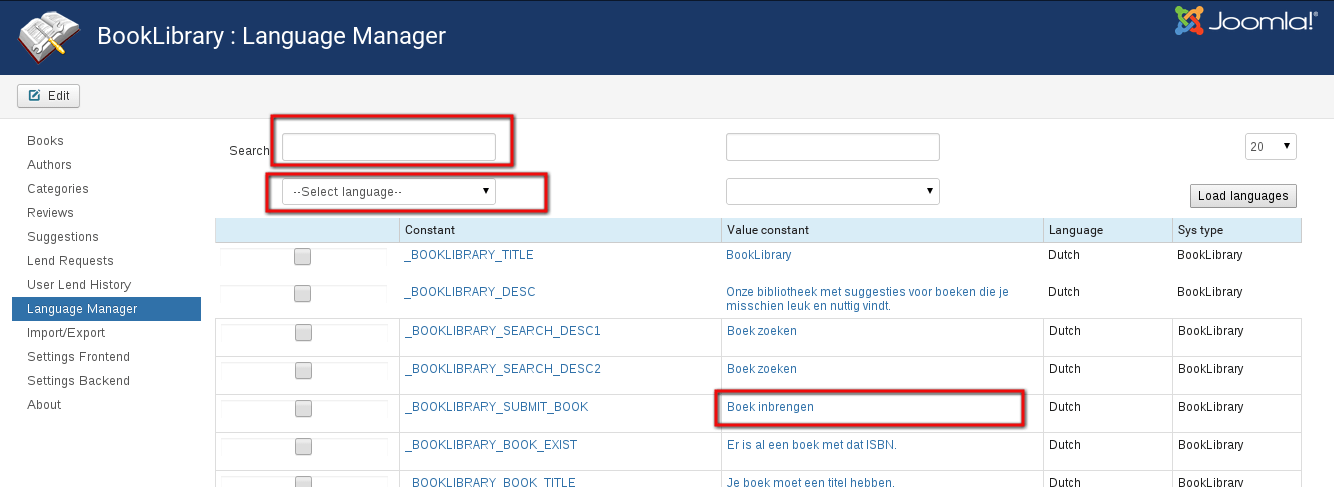
Go to Components -> Book Library -> Language Manager
Language Manager in Book Library Joomla
Choose your language in drop-down list Select language
Insert word that should be edited in Search field and press Enter