Joomla Overrides
Overrides are one of Joomla's most powerful features. They allow you to customize how content looks on your website 'without changing core files'. This means your customizations stay safe when Joomla, templates, or extensions are updated. Overrides are needed if you want full control over design and layout.
What Are Overrides in Joomla?
An 'override' is a copy of a core or extension layout file that you edit inside your template. Joomla uses your custom version instead of the original one.
- Original file stays untouched;
- Updates won't overwrite your changes;
- You control the HTML structure and layout.
Overrides are mainly used for: Articles, Categories, Modules Components, Extensions.
Why Use Overrides?
Overrides help you to change HTML structure, add or remove elements, customize layouts, improve design flexibility, avoid hacking core files.
Where Overrides Are Stored
Overrides are saved inside your template folder:
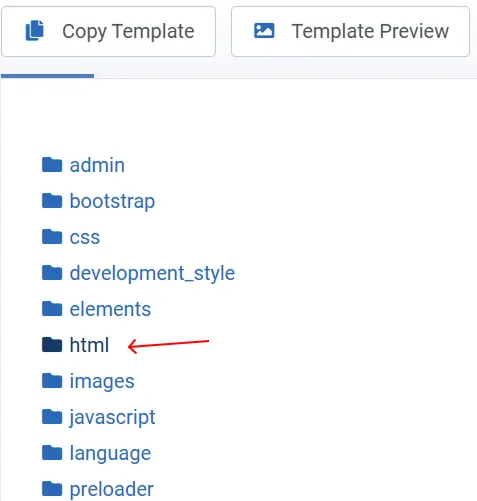
/templates/your_template/html/
Each component, module, or layout has its own subfolder.
/templates/your_template/html/com_content/
How to Create Overrides (The Easy Way)
Joomla lets you create overrides directly from the admin panel.
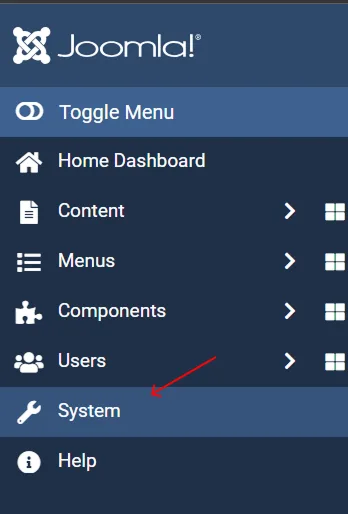
- Go to 'Administrator → System';
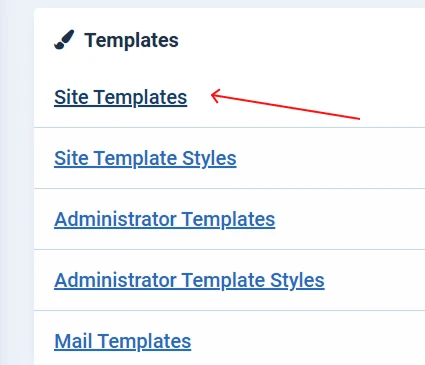
- Click 'Site Templates';
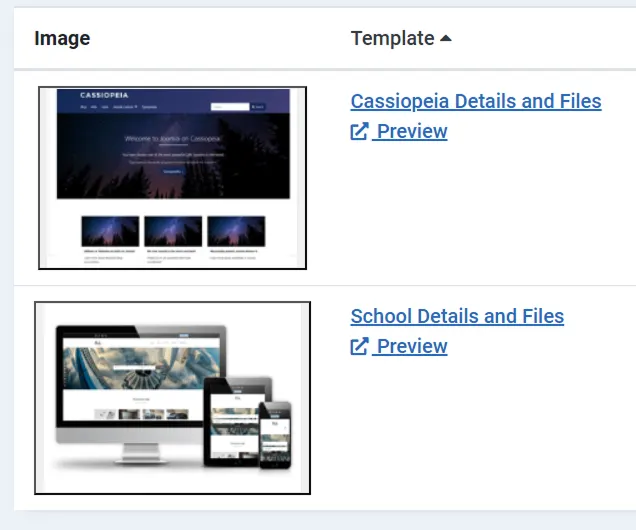
- Select your 'active template';
- Open the 'Create Overrides' tab;
- Choose what you want to override;
- Click the item you want.
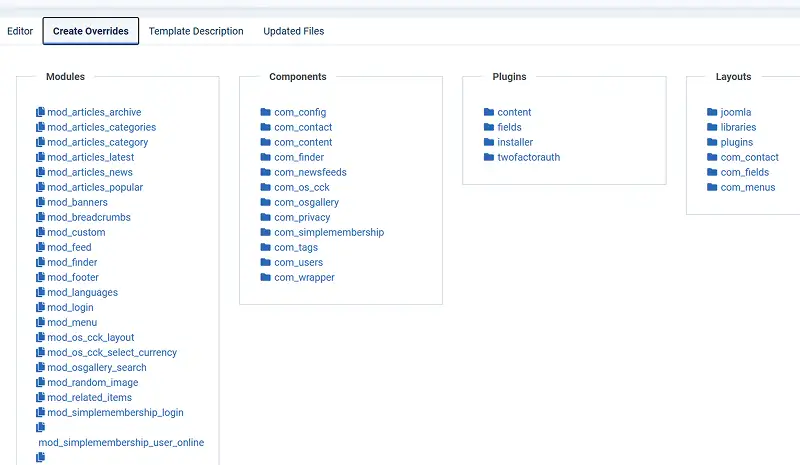
You can override: Components (Articles, Categories, etc.), Modules, Layouts.
Common Overrides Examples
1. Article Override. Used to change how articles look.
/html/com_content/article/
You can edit: Title placement, Metadata display, Images, Custom HTML structure.
2. Category Blog Override. Used to customize blog layouts.
/html/com_content/category/
Great for: Custom grids, Card layouts, Modern blog designs.
3. Module Override. Used to change module output.
/html/mod_module_name/
- Custom menu layouts;
- Styled login modules;
- Custom sliders.
4. Layout Overrides. Joomla allows layout overrides without touching PHP logic.
- Small layout changes;
- Cleaner customization;
- Faster development.
Editing Override Files
Once created:
- Go to 'System → Site Templates';
- Open your template;
- Navigate to 'html/' folder;
- Edit the override files using the built-in editor or FTP.
Always back up before editing.
Tips for Overrides
- Use overrides instead of editing core files;
- Comment your code;
- Keep overrides organized;
- Test changes after updates;
- Avoid unnecessary overrides.
When NOT to Use Overrides
- For simple styling → use CSS;
- For content changes → use articles/modules;
- For logic-heavy changes → consider plugins or extensions;
Overrides vs Template Overrides vs Layout Overrides
- Component Override → Change full layouts;
- Module Override → Customize modules;
- Layout Override → Small layout tweaks;
- CSS → Styling only.
Overrides give you 'full control over Joomla layouts' while keeping your site safe and update-proof. Once you understand overrides, Joomla becomes extremely flexible. Perfect for custom designs and professional websites.