How to Use Positions in Joomla
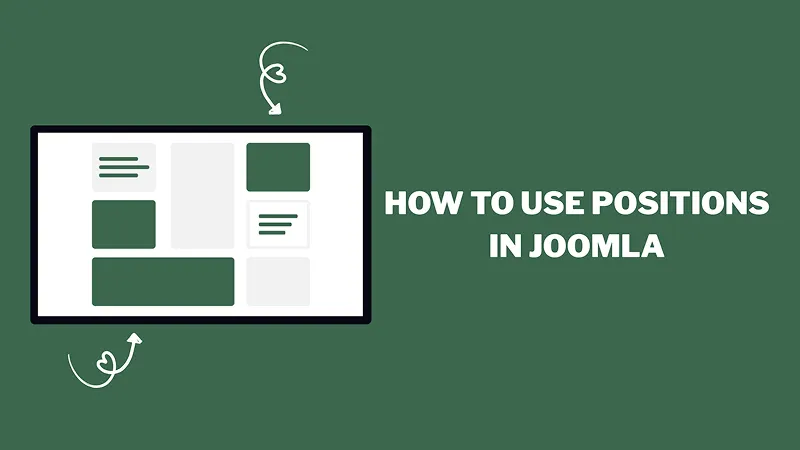
In Joomla, positions are areas in your template where modules can be displayed. Think of them as placeholders in your website layout - like header, sidebar, footer, or top bar. If you want to control where things appear on your site (menu, login form, banners, contact info, etc.), understanding module positions is essential.
What Are Positions in Joomla?
A position is a predefined location inside a Joomla template where you can publish a module.
- header;
- top;
- menu;
- sidebar;
- footer;
- bottom.
Each template has its own set of available positions.
What Is a Module?
A module is a small content block that can be placed in a position.
Examples of modules:
- Main Menu;
- Login Form;
- Search Bar;
- Custom HTML block;
- Latest Articles;
- Contact Info.
Modules + Positions = Website Layout.
How to See Available Positions
- Go to: Administrator
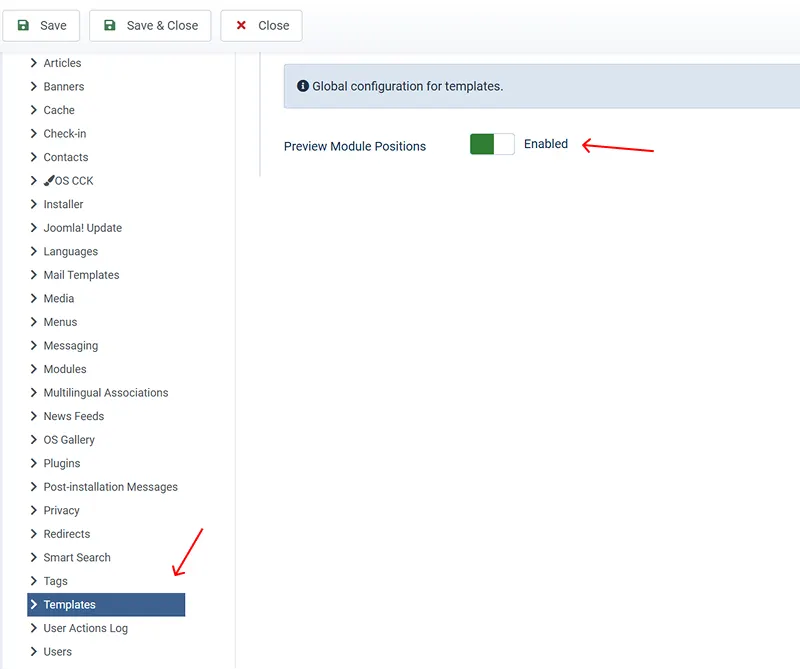
- Click: System → Site Templates.
- Click: Options.
- Enable Preview Module Positions.
- Save
- Add: "?tp=1" to your website URL. (yourwebsite.com/?tp=1).
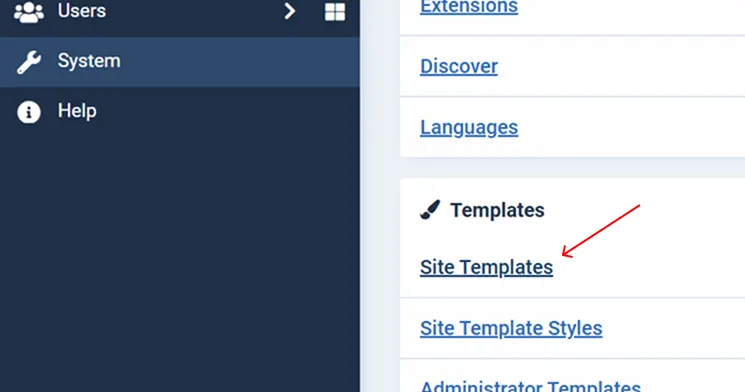
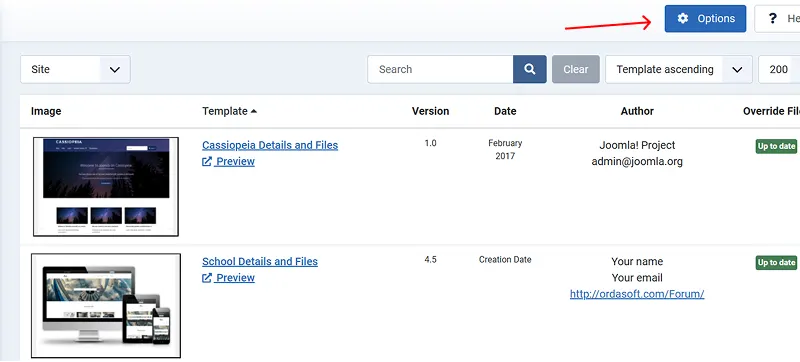
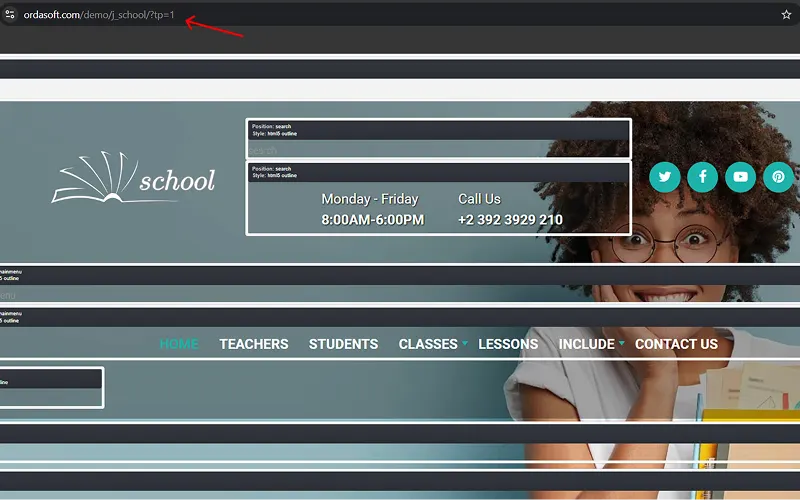
You'll now see all available positions visually on your site.
How to Assign a Module to a Position
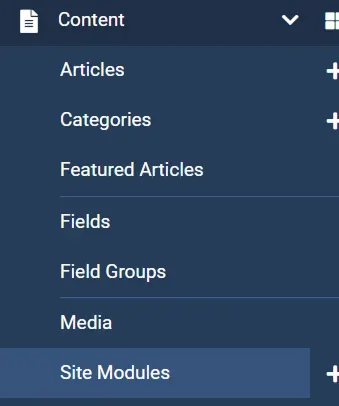
- Go to Content → Site Modules.
- Click: New.
- Choose a module type (example: Custom, Menu, Articles).
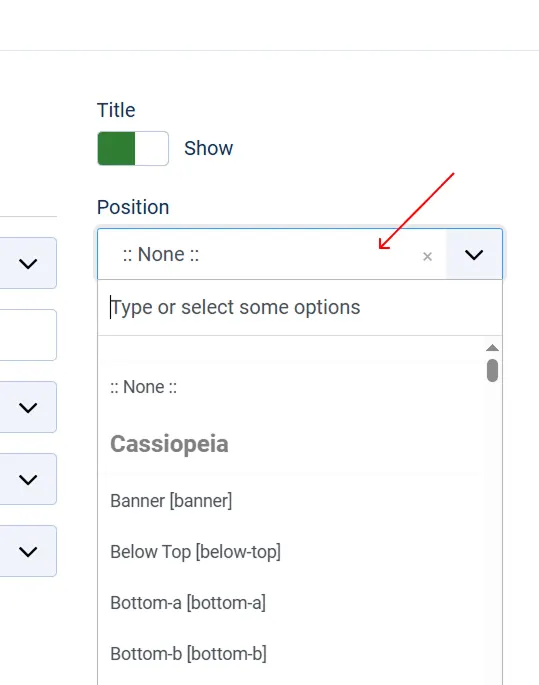
- In the Position field select a position from dropdown or type the position name manually.
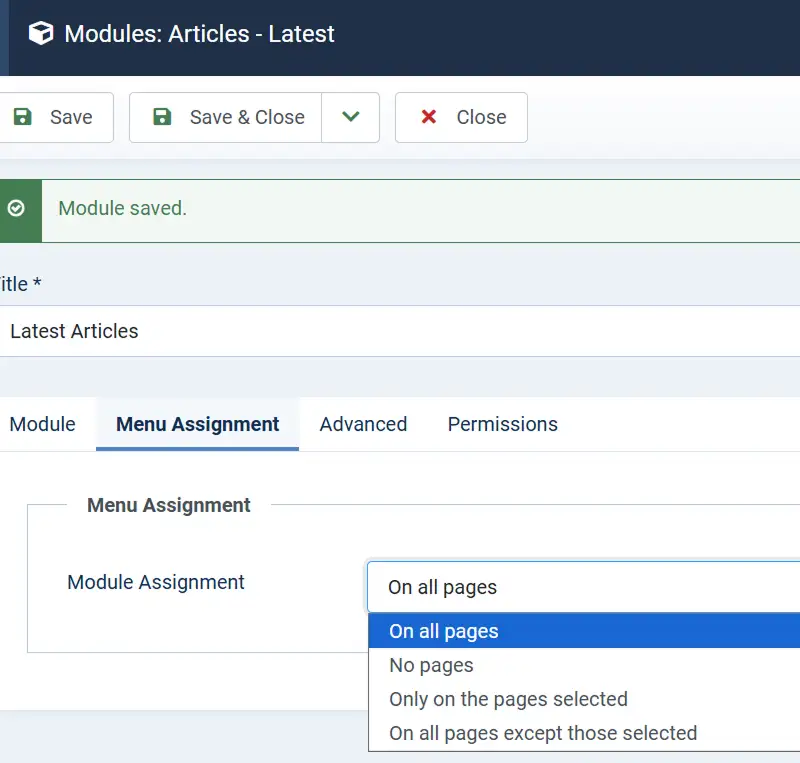
- Choose menu assignment (where it should appear).
- Click: Save & Close.
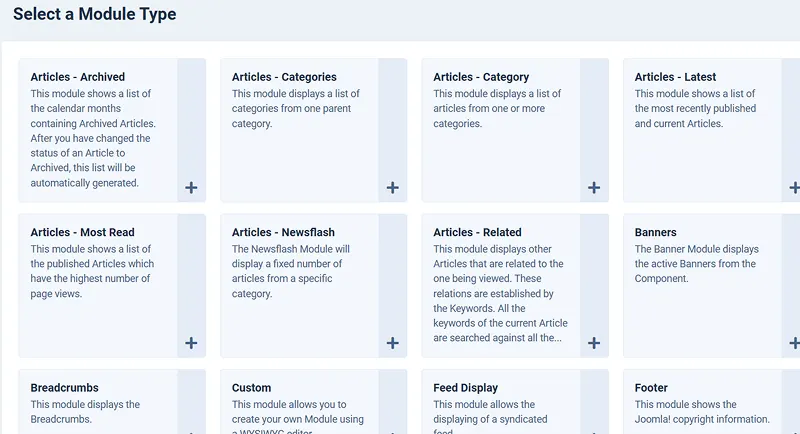
Your module will now appear in that position.
Example: Add Content to Sidebar.
- Create a Custom Module.
- Select position: 'sidebar' (or similar).
- Add your content.
- Save.
Now your content appears in the sidebar.
Custom Positions
If you need a new position:
Open your template's 'templateDetails.xml'. Add xml:
<position><newposition</position>
Add the position in your template 'index.php'. Clear cache. This is more advanced but useful for custom designs.