How to Install Extensions in Joomla

Joomla is a powerful and flexible content management system (CMS) that allows you to enhance its features by installing extensions. These extensions include components, modules, plugins, templates, and languages that add new functionality to your website - like contact forms, galleries, sliders, or SEO tools.
Joomla extensions are add-ons that expand what your Joomla site can do. There are five types:
- 1. Components - Large features (e-commerce systems, forums).
- 2. Modules - Smaller blocks (menus, login forms).
- 3. Plugins - Background functionality (content filters, editors).
- 4. Templates - Control the look and layout of your site.
- 5. Languages - Add multi-language support.
IMPORTANT: Make a backup of your Joomla site. Ensure you're using a compatible version of the extension (Joomla 4.x, Joomla 5, etc.).
Download the extension in '.zip' format from a trusted source.
Install from Web (Easiest Way)
- 1. Login to Joomla Admin ('yourdomain.com/administrator')
- 2. Go to System → Install → Extensions.
- 3. Click on the 'Install from Web' tab.
- 4. Browse or search for the extension you want.
- 5. Click Install and confirm.

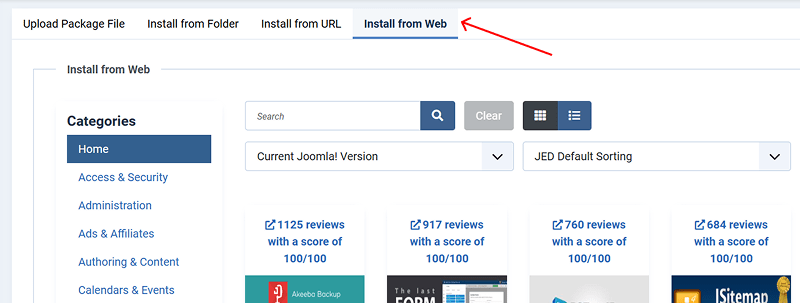

Joomla will download and install the extension automatically.
Upload Package File
Use this method when you've downloaded the extension manually.
- 1. Go to System → Install → Extensions.
- 2. Click the 'Upload Package File' tab.
- 3. Drag and drop the '.zip' file, or click Browse for File.
- 4. Joomla will upload and install it automatically.
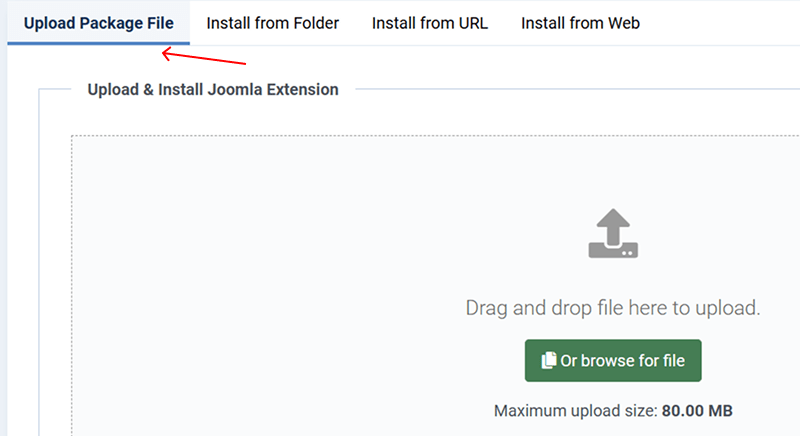

This is the most reliable method for custom or premium extensions.
Install from URL
If the extension provider gives you a direct URL to the package:
- 1. Go to System → Install → Extensions.
- 2. Click on 'Install from URL'.
- 3. Paste the URL of the extension's '.zip' file.
- 4. Click Check & Install.

Useful for developers or advanced users installing from private repositories.
Install from Folder (Advanced)
Use this if you've uploaded the unzipped extension via FTP.
- 1. Upload the unzipped extension folder to: '/tmp/' or a directory on your server.
- 2. Go to System → Install → Extensions.
- 3. Click 'Install from Folder'.
- 4. Enter the folder path (e.g., '/home/user/public_html/tmp/my-extension')
- 5. Click Install.
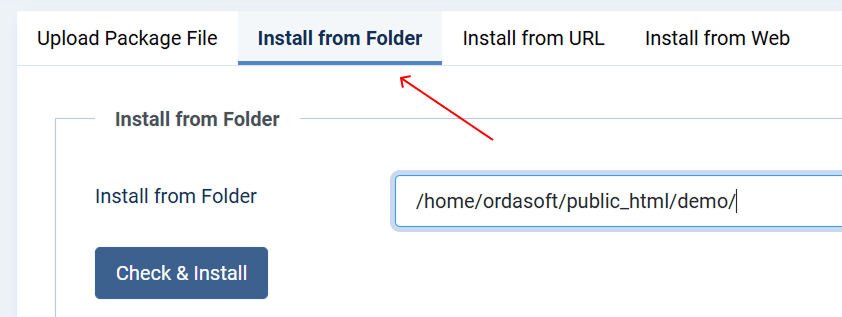
Only use this method if you are comfortable working with your server's file system.
Post-Installation Steps
- Go to Components, Modules, or Plugins to configure the extension.
- Some extensions require enabling after installation (e.g., plugins).
- You may need to assign modules to specific positions in your template.
- Check for any dependencies or updates.
Troubleshooting Installation Issues
Unable to find install package - Ensure the file is a valid Joomla extension and zipped.
Maximum upload file size exceeded - Increase PHP 'upload_max_filesize' in 'php.ini', or use FTP.
White screen or 500 error - Check error logs; disable conflicting plugins if needed.
Security Tip
Only install extensions from trusted developers or the Joomla Extensions Directory. Poorly built or outdated extensions can compromise your site's security and performance.
Installing Joomla extensions is a simple way to customize and expand your website's functionality. Whether you're adding a gallery, SEO tool, or e-commerce system, Joomla makes it easy through multiple installation methods.
Always back up before making changes, and take a moment to configure and test each extension after installation.