How to create and edit vehicle categories in Vehicle manager - Joomla Car rental software for build car rental website
Vehicle Manager is Joomla car rental software for build car rental website. This car rental software with powerful Car Management features and can be used for build a Car selling website, Car rental website and other In this article we will show you how to create and edit vehicle categories in Vehicle manager - Joomla Car rental software.
In order to enter vehicles in Vehicle Manager - Joomla Car rental software, you will first need to create categories which will hold the vehicles. Go to Components > Vehicle Manager >Categories.
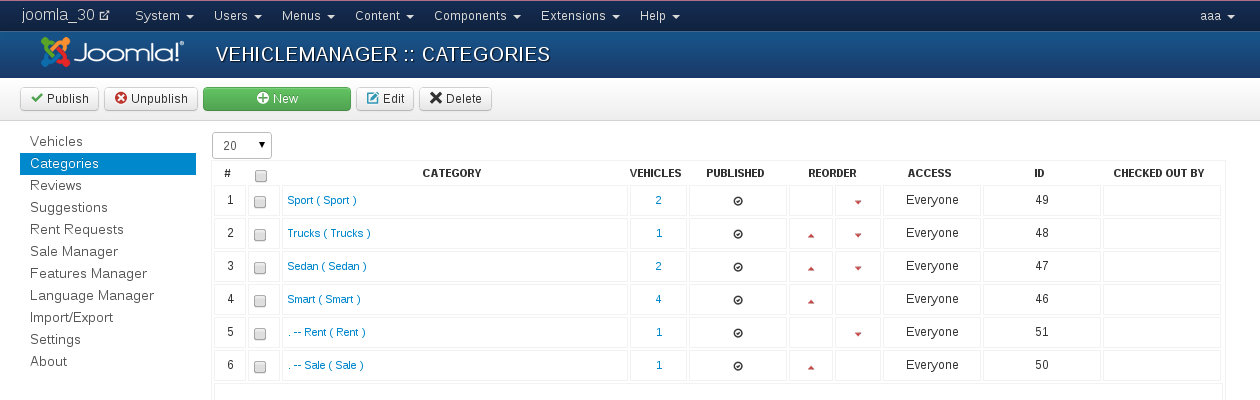
Remark:
Categories will only be shown in the frontend if there are vehicles inside it and those vehicles are published.
Remark:
The Checked Out By column indicates if the category is currently being edited by another Administrator.
Next click the button New
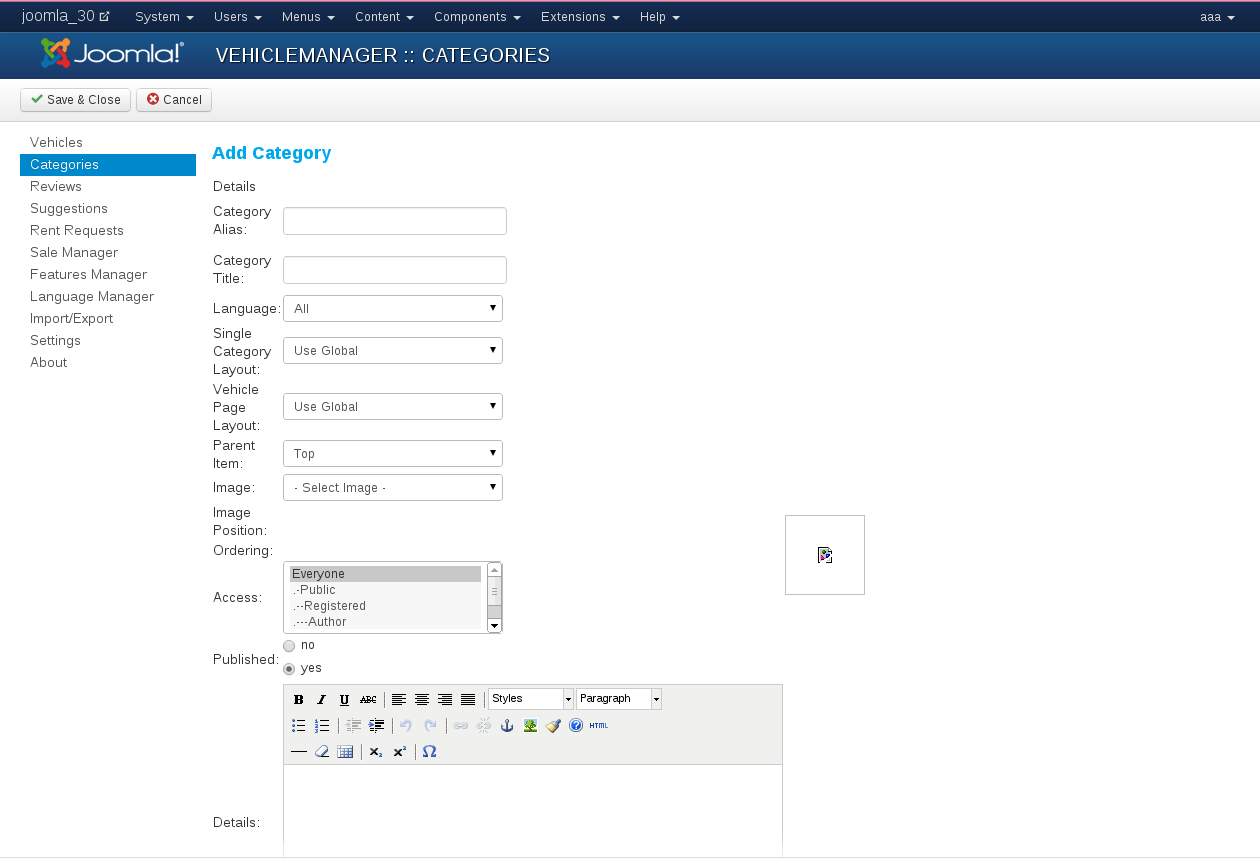
- Fill in the details for your vehicle category:
- Category Alias. The Category Alias is what will show in the frontend of your website.
- Category Title. The Category Title is what is used in the database for this vehicle category.
- Parent item. Vehicle Manager software for build a car rental website supports unlimited subcategories. If you have created categories already, you can select which main category the new one should belong to. Of course, if you don't have any main categories yet, you can't assign a parent item.
- Image. Here you can assign an image for the vehicle category. This will show on top of the vehicles list in that category.
If you have chosen to have Custom Category Images > YES in Settings Frontend, then each vehicle category will have its own particular icon in the category list (image is set in each category). If set to NO, all vehicles categories will have the standard folder icon in the list. - Image Position. The alignment of the Vehicle category image. Choose between left or right.
- Ordering. Select which position the new category will have in the category order. You can always adjust this later on.
- Access. Set the user rights level which will have access to this Vehicle category.
- Published. Set whether or not this Vehicle category is published.
- Details. Here you can fill in a description for the Vehicle category if you want, for example: "This category holds vehicles which are rented". This description will then show on top of the Vehicle list in the category next to the category image and also in the main category list in the main Vehicle Manager entry in the frontend.
Remark: optimum size for category images is 48x48 pixels
When you are done, Save (button in right corner) your category entry.
Remember:
Categories will only show up in the frontend if there are Vehicle inside it and those vehicles are published!
Documentation of Vehicle Manager - Car rental Dealer software for build a car website
- Vehicle Manager - Joomla car rental dealer software, for rent and sell cars
- How to install Vehicle Manager - Joomla car rental dealer software, for rent and sell cars
- How to configure settings of Vehicle Manager - Joomla car rental dealer software
- How to create menu entry in Vehicle manager - Joomla Car dealer software
- Frontend Category View in Vehicle Manager - Joomla Car dealer software
- Frontend Vehicle List View in Vehicle Manager - Joomla car rental dealer software, for rent and sell cars
- Front End Vehicle Details Page in Vehicle Manager - Joomla car rental software
- Submitting Reviews in Vehicle Manager - Joomla Car rental software
- How to Manage and edit reviews in Vehicle Manager - car rental dealer software, for rent and sell cars
- Submitting Rent Requests in Vehicle Manager - Joomla car rental dealer software, for rent and sell cars
- Managing Rent Requests in Vehicle Manager - Car rental software
- Vehicle Search in the Vehicle Manager - Joomla car rental dealer software, for rent and sell cars
- Entering Vehicles manually in Vehicle manager - Joomla car rental dealer software, for rent and sell cars
- Using Manager of Vehicles in Joomla Car dealer software - Vehicle manager
- How to print reports in Vehicle Manager - Joomla car rental dealer software
- How to Export Vehicles to CSV, XML and full XML in Vehicle Manager - Joomla car rental dealer software
- Importing vehicles from CSV, XML, full XML into Vehicle Manager - Joomla car rental dealer software, for rent and sell cars
- How to add a new language to Vehicle manager - Joomla car rental dealer software, for rent and sell cars
- CAPTCHA in Vehicle Manager - Joomla car rental dealer software
- How to upgrade Vehicle Manager - Joomla car rental dealer software, for rent and sell cars
we support payment systems