How to submit Book reviews in Book Library Management Software
Book Library Management Software is a best eBook software for library management, create public library website or any book store website. In this article we will show you How to submit Book reviews in Book Library Management Software.
In the website frontend (providing you have allowed it in the configuration), users can submit their own reviews of the books in your Book Library Management Software by clicking the Add Review button. On the book details page, they are then presented with the following form:
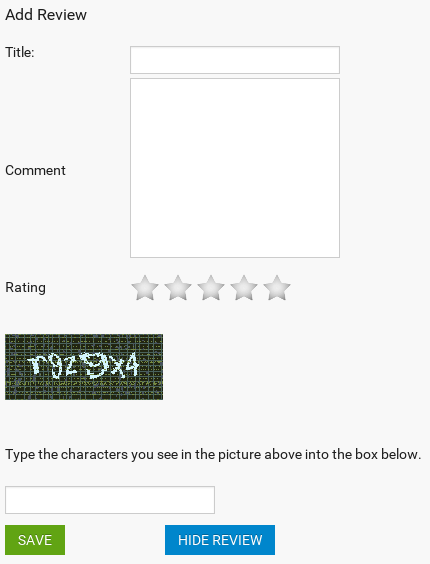
Form for submission reviews. Screenshot is made from Classic Book Library Joomla template
- Title
Title for the user's book review. - Comment
The user's text for the book review. - Rating
The user's rating of the book. Rating is required in order to save the review! - CAPTCHA
The CAPTCHA will only show for Guest users. If you specified Guest users are allowed to enter reviews at all of course in [Settings Frontend]. If the user enters a wrong CAPTCHA, the review is preserved through the session cookie of the user, so the user can try again without losing the typed review. Maximum 3 tries. See the article about Book Library CAPTCHA and session save path in the Manuals section for explanation. - Save
Saves the review. It will immediately show in the frontend. - Hide Review
Hides the Add Review form on the book details page.
When done, click Save to submit the review.
Review sorting:
Currently the User Submitted Book Reviews are sorted by date of entry in eBooks store software. If you should desire a different sorting method, there is hack described in the Support Forums for achieving sorting by Review Title Or Review Text first word.
In the next article you will know how to manage submitted reviews.
Frontend Layouts and Views in Book Library - best eBook software for create book library website
Book Library - best eBook software for create online book library website, create public library website or any book store website.In this article we will look at different frontend layouts and views of Book Library - best eBook software.
In Book Library there are a lot of layouts and views which you can create simply by adding menu entries:
- All Authors (Default and Photo)
- All Categories
- All Books (Default and List)
- My Books
- Owners List
- Search Books
- Single Category (Default and List)
- Single User Books
- View Author
- View Book
All Authors Layout in Joomla eBook software
In Joomla eBook extension for create book library website two layouts for displaying All Authors are available: default (with names and A–Z index) or photo layout (with names, photos of authors and A–Z index). It can improve search rankings of your online book collection or library website. In Components -> Book Library -> Settings Frontend you can set Width and Height of Author photo size and specify Authors on the page (number of book per page).
HINT: While creation a menu entry, don't forget to check tab Params to set layout and some other options for menu entry.
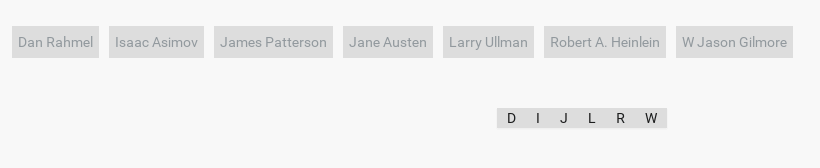
Default Layout of All Authors. Screenshot is made from Classic Book Library Joomla template
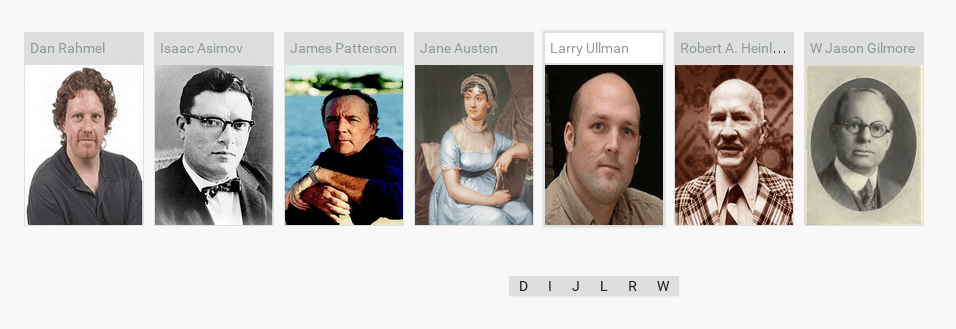
Photo Layout of All Authors. Screenshot is made from Classic Book Library Joomla template
All Categories Layout in Book Library - best software for create book library website
There is one default layout for All Categories at the moment, but in Params you can set layout of single category. So after user clicks on some category in All Categories layout, he will enter Single category with default or list layout (as you set it).
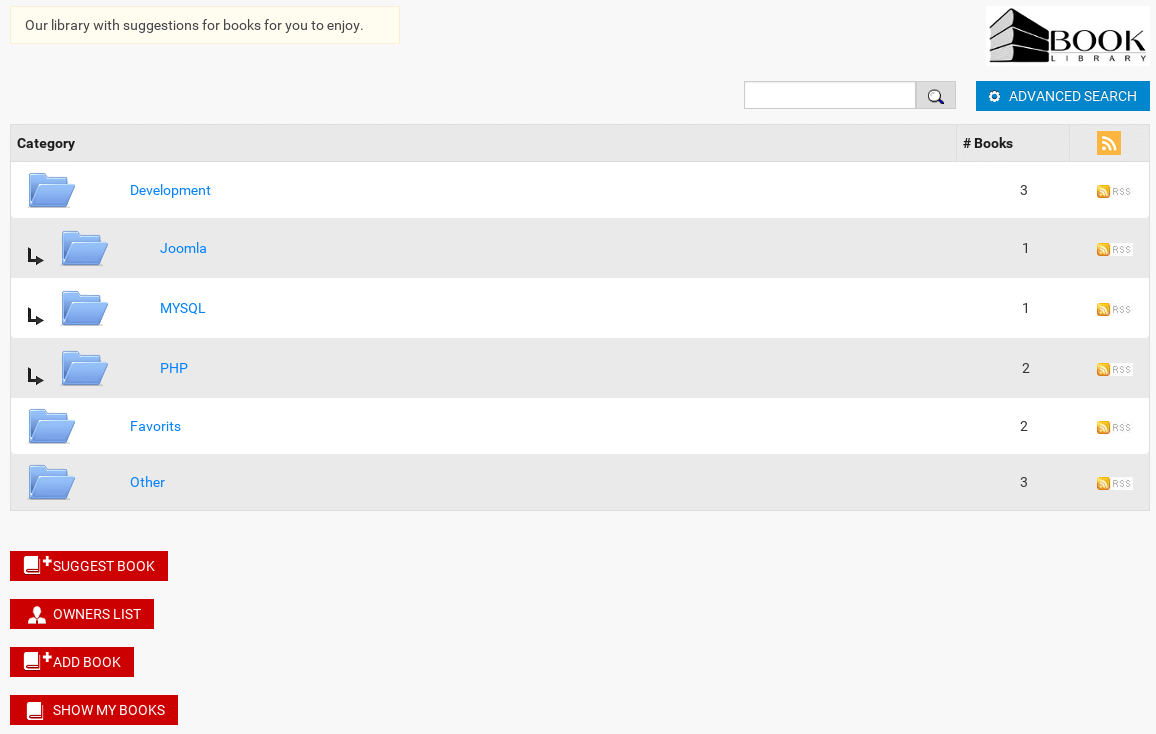
All Categories. Screenshot is made from Classic Book Library template
- Books
Comes from the menu entry name you created for Book Library - best eBook software. - Library Description
The text "Our library with suggestions for books for you to enjoy" can be found and changed to your liking in Components -> Book Library -> Language Manager - Book Image
The image of the book can be found in the directory /components/com_booklibrary/images/. The file is called book.png and can be replaced with a different image if you like, just call it book.png and place in that directory. - Categories & Subcategories
The categories created for your books show here, together with the number of books in them. If you have set Show Subcategory to YES in Components -> Book Library -> Settings Frontend, then subcategories are also shown. - Category folder icon
When Custom Category images is set to NO in Settings Frontend you will see these default folder icons in the categories. When you set that to YES, then each category will show the image here which you specify in the Category itself (through category edit in the backend). - Search field and advanced search button
Search field will be shown if option Show search field is set to YES in Components -> Book Library -> Settings Frontend. Advanced Search button will show up if option Show advanced search is set to YES in Settings Frontend. - Buttons
The buttons will show up if Show button Suggest Book, Show owners list, Show Add book button, Show button [Show My Books] is set to YES in Components -> Book Library -> Settings Frontend. It allows the user groups you specified to enter book suggestions for inclusion in your library, view the list of owners, add book from frontend and view the user's books. - RSS
RSS will be shown and activated if Show RSS in Components -> Book Library -> Settings Frontend is set to YES.
Remember: Categories will only show up in the frontend if there are books inside it and those books are published!
HINT: The optimum size for category images is 48x48px.
Remember: When you apply these options, the changes will also touch Single Category layout.
All Books (Default and List) Layouts in Book Library - best eBook software
Choose default or list layout for All Books menu entry. A layout can be chosen in Params while creating menu entry. In Components -> Book Library -> Settings Frontend you can set Width and Height of Book cover size and specify Page items (number of book per page).
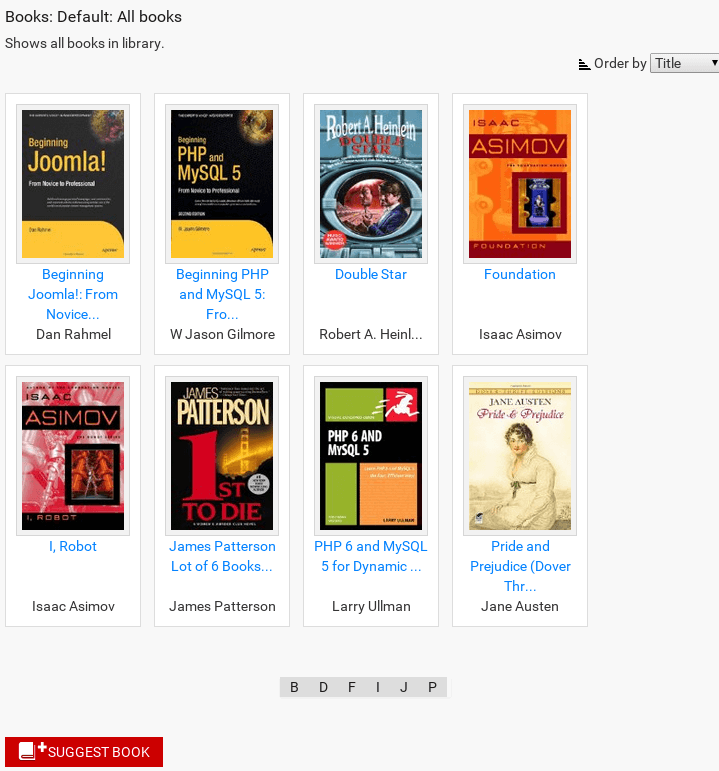
Default Layout of All Books. Screenshot is made from Classic Book Library template
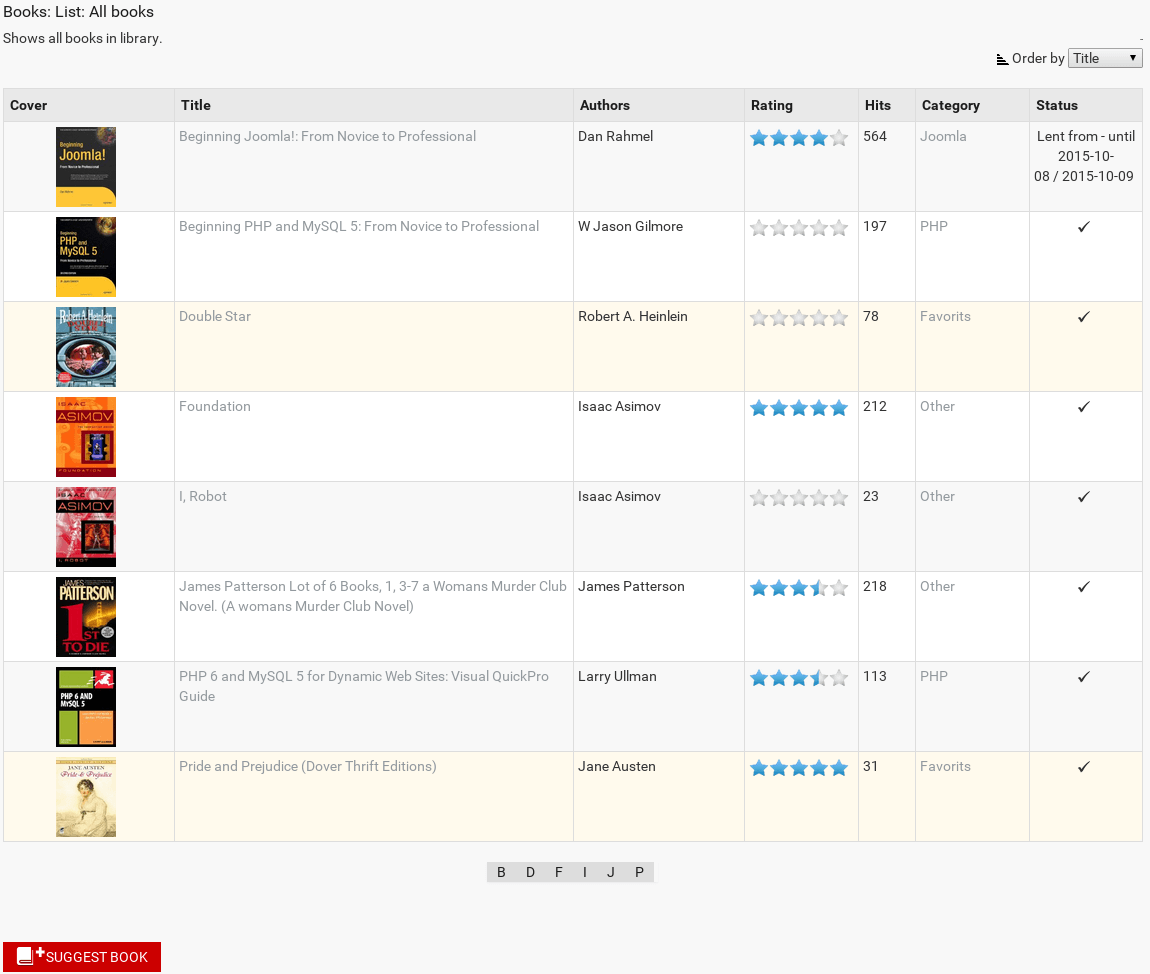
List Layout of All Books. Screenshot is made from Classic Book Library Joomla template
My Books Layout in Book Library software for create online book library website
My books layout allows to view and edit books from frontend. It is possible to add/delete books,publish/unpublish books, lent/return from lent books.
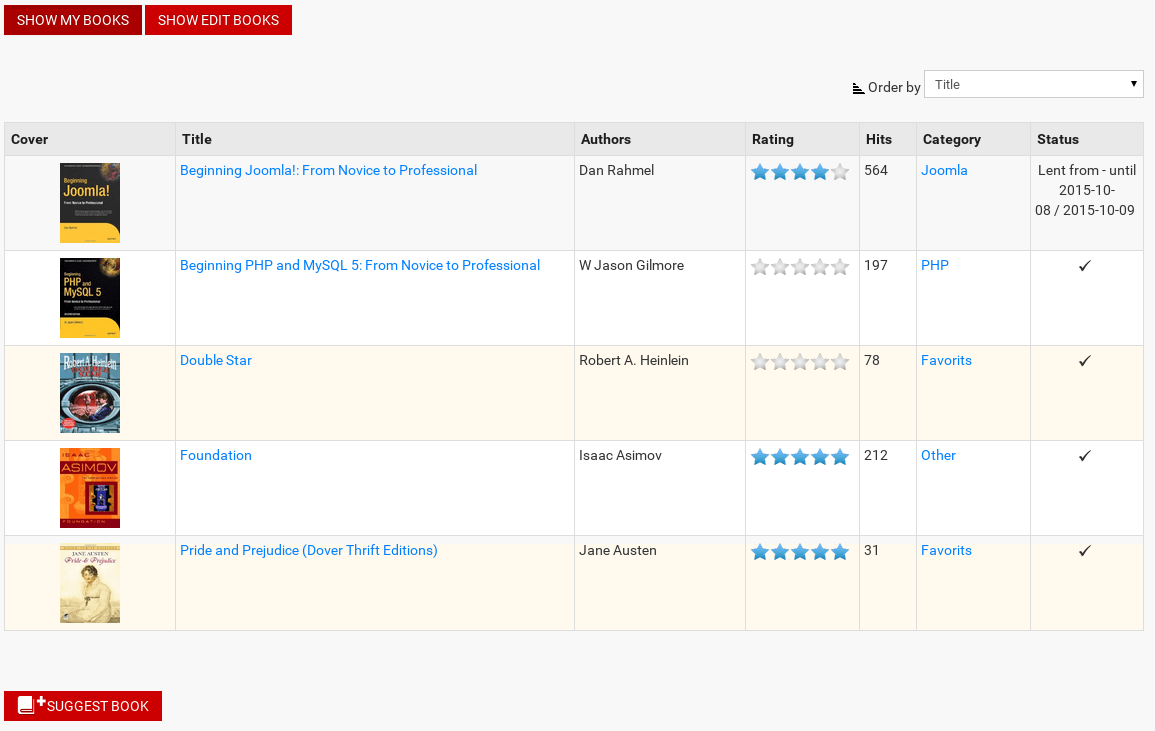
My Books: show books. Screenshot is made from Classic Book Library Joomla template
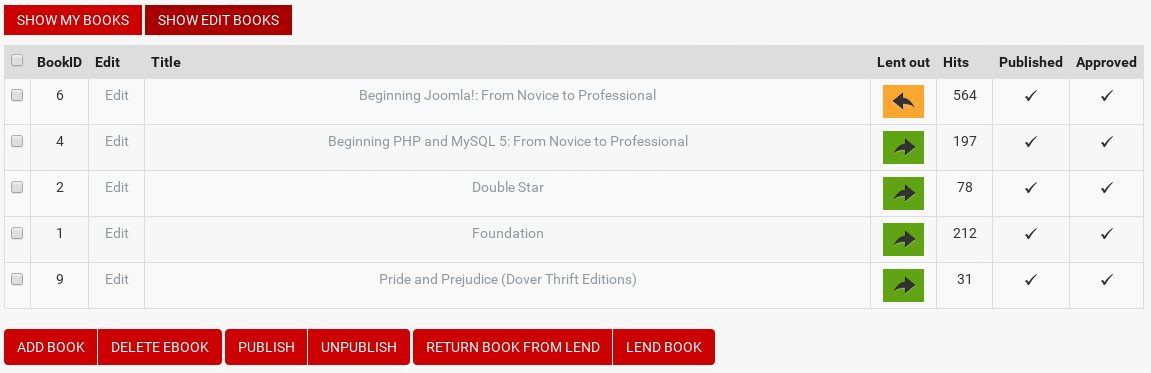
My Books: edit books. Screenshot is made from Classic Book Library Joomla template
Owners List Layout in Book Library - Joomla eBook extension
Owners List layout helps to display list of book owners in the frontend.

Owners List. Screenshot is made from Classic Book Library Joomla template
Search Books Layout in best eBook software
Search layout allows to search books by keywords (in title, ISBN, authors and description), price and category.

Search Books. Screenshot is made from Classic Book Library Joomla template
Single Category (Default and List) Layouts in book library - best eBook software
Default or List layout can be chosen for Single Category in Params while creating menu entry.
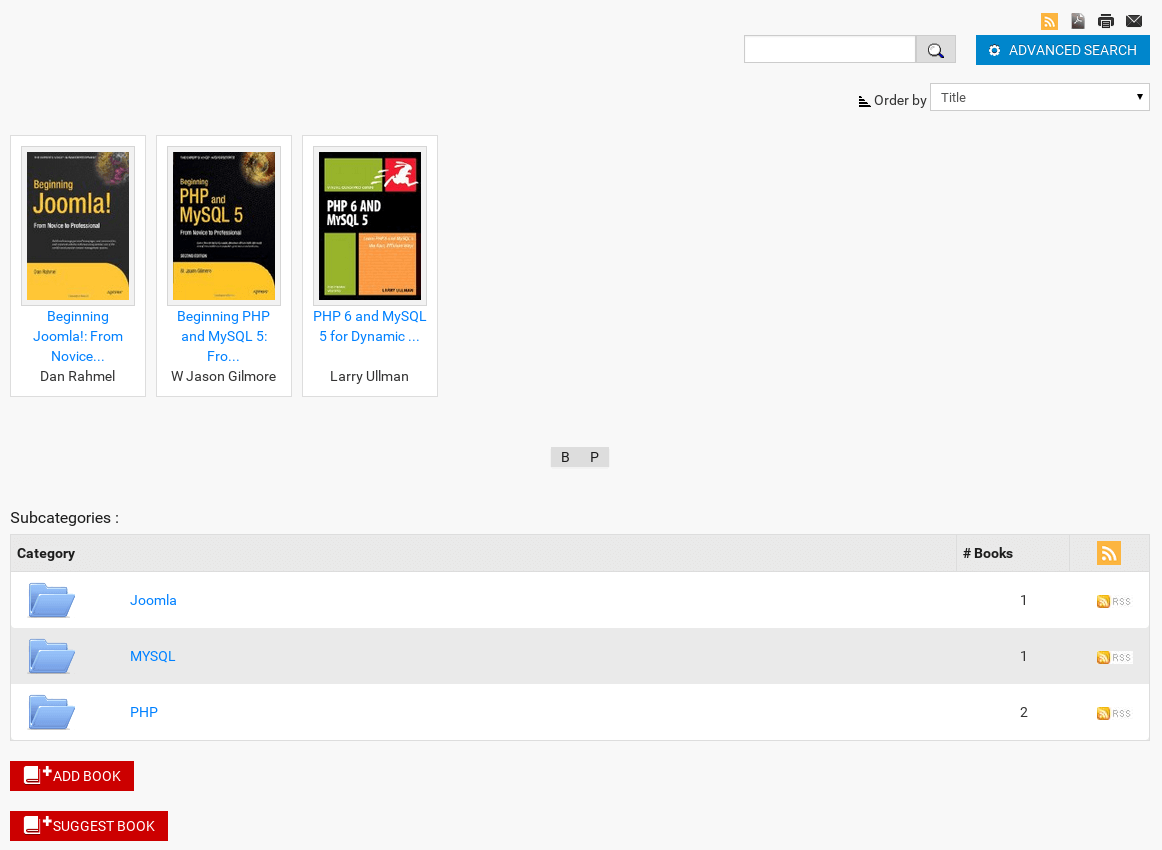
Default Layout of Single Category. Screenshot is made from Classic Book Library Joomla template
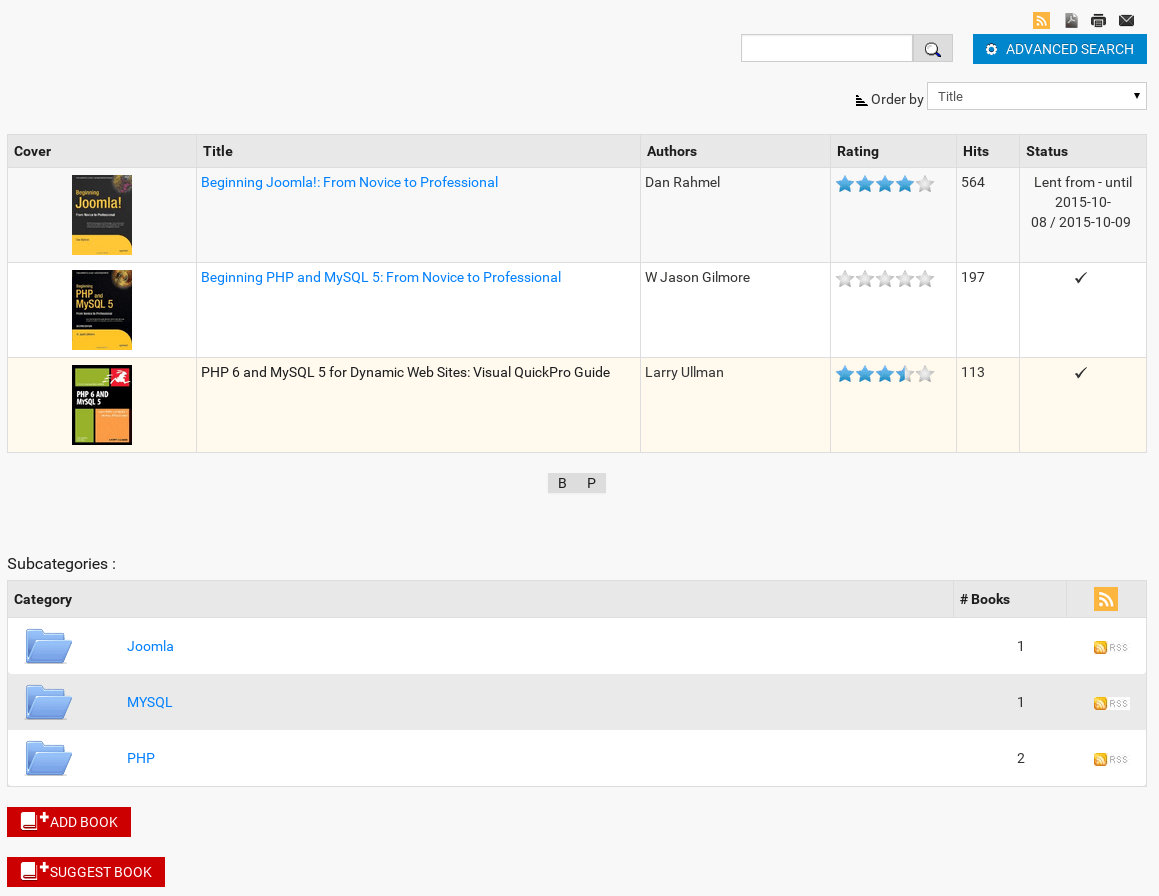
List Layout of Single Category. Screenshot is made from Classic Book Library Joomla template
You can show or hide these elements in Components -> Book Library -> Settings Frontend for Single Category:
Remember: All changes that are applying for Single Category also will be applied to All Categories Layout.
- RSS
RSS will be shown and activated if Show RSS in Components -> Book Library -> Settings Frontend is set to YES. - PDF, Print, E-mail icons
These icons will be visible if options Show button [print PDF], Show button [print View], Show button [send Link] is set to YES in Components -> Book Library -> Settings Frontend. - Search field and advanced search button
Search field will be shown if option Show search field is set to YES in Components -> Book Library -> Settings Frontend. Advanced Search button will show up if option Show advanced search is set to YES in Settings Frontend. - Buttons Suggest Book, Add book
The buttons will show up if Show button Suggest Book, Show Add book button is set to YES in Components -> Book Library -> Settings Frontend. It allows the user groups you specified there to enter book suggestions or add new book from frontend.
Single User Books Layout in Book Library, software for create online book library website
in Book Library, software for create online book library website, Single User Books layout helps to display books of selected user. User can be selected for this menu entry in Params.
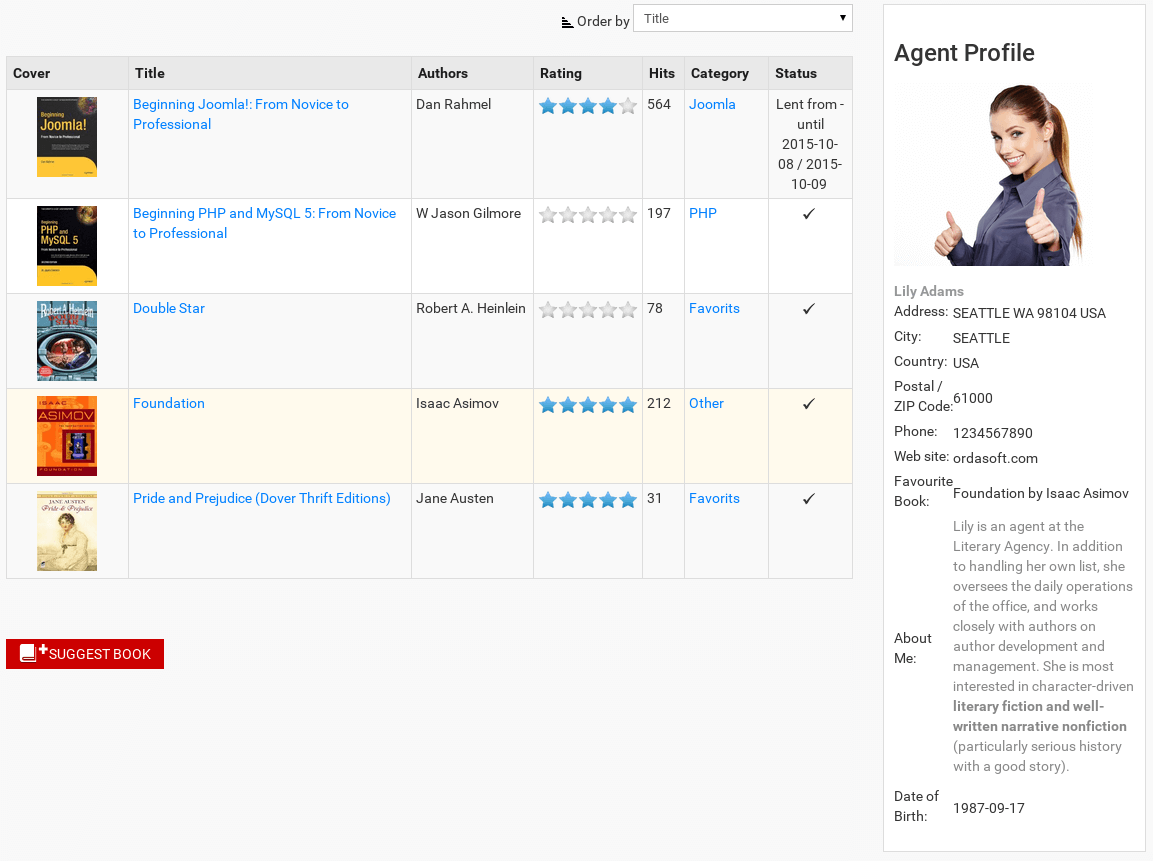
Single User Books. Screenshot is made from Classic Book Library Joomla template
View Author Layout in Book Library - software for create book library website
Author can be selected for this menu entry in Params while creating or editing menu entry. In Book Library - software for create book library website, the following information can be added: Name, Description, Photo. Also all books written by the author will be displayed on his page automatically with text:
This Author {author_name} - has books at our site {books_titles}
The text can be changed in Language Manager

View Author. Screenshot is made from Classic Book Library Joomla template
View Single Book Layout in best eBook software
In Book Library - best eBook software, Single User Books layout helps to display books of selected user. User can be selected for this menu entry in Params.
- Book Details
This shows all book details and the book cover, retrieved from Amazon by ISBN or entered manually in Edit Book in the Book in the backend. - Buy Now
The Buy Now button shows up when you have enabled this option in Settings Frontend. You can decide there for which categories you want to show this button. You can select multiple categories by using CTRL + click in Settings Frontend. When enabled, the button shows an internal Joomla link, which when clicked changes to the Amazon page for the book, with your Amazon Associates affiliate ID in it. This protects the affiliate link from showing when hovering over the button. The affiliate link is also hidden from download managers. If you want, you can change the button by replacing the image file, called buy_now.png. It can be found in the directory /components/com_booklibrary/images/amazon/. - Add to cart button The button is added using the Book Library cart module. Shows Book Library buying cart and displays the products that you intend to buy.
- Ebook
In Settings Frontend can be set whether Show ebooks download link or not. Different formats are possible: epub, fb2, txt, pdf and so on. You can allow needed formats by yourself using option Format File Settings in Settings Frontend. To show license after clicking link to download, set option Show ebook download license to YES. - Lent from - until
This field will show from when until when the book is lent out. Only if you have enabled Show Lend Status for the frontend of course. - Book Description
This shows the book description entered in Edit Book in the Book Manager in the backend. This can either be retrieved from amazon.com automatically (only works reliably from amazon.com, for copyright reasons!) or entered manually. Once edited, please remember to set the books Fetch Information from: field to "On your own" in the backend. This will prevent further overwrites through Information Fetching. In the Book Library Shop book descriptions, the use of external plugins is allowed and provided for. You can for example use the SUS Amazon plugin on your site to set additional links to other Amazon sites in the book description. Or use any other external plugin for that matter. - Book owner
Set Show owner in Settings Frontend to YES if you want to display it on the View Book layout. - Lend Request
This button will provide your users with the ability to submit lend requests for the book listed in this detail page by pressing the Lend Request button. In Settings Frontend you can set the rights to determine who is allowed to submit Lend Requests for books on your site. You can select multiple user groups in Settings Frontend by using CTRL + click. - Add Review button
This button provides your users with the ability to add a review or comment about the book shown. Only if you have set the option Show Reviews in Settings Frontend of course, and only for the user groups which you have set to allow this option to. If also enabled for Guest users, then the form will be accompanied by a CAPTCHA screen as an anti-spam measure. In Settings Frontend you can select multiple user groups by selecting CTRL + click.
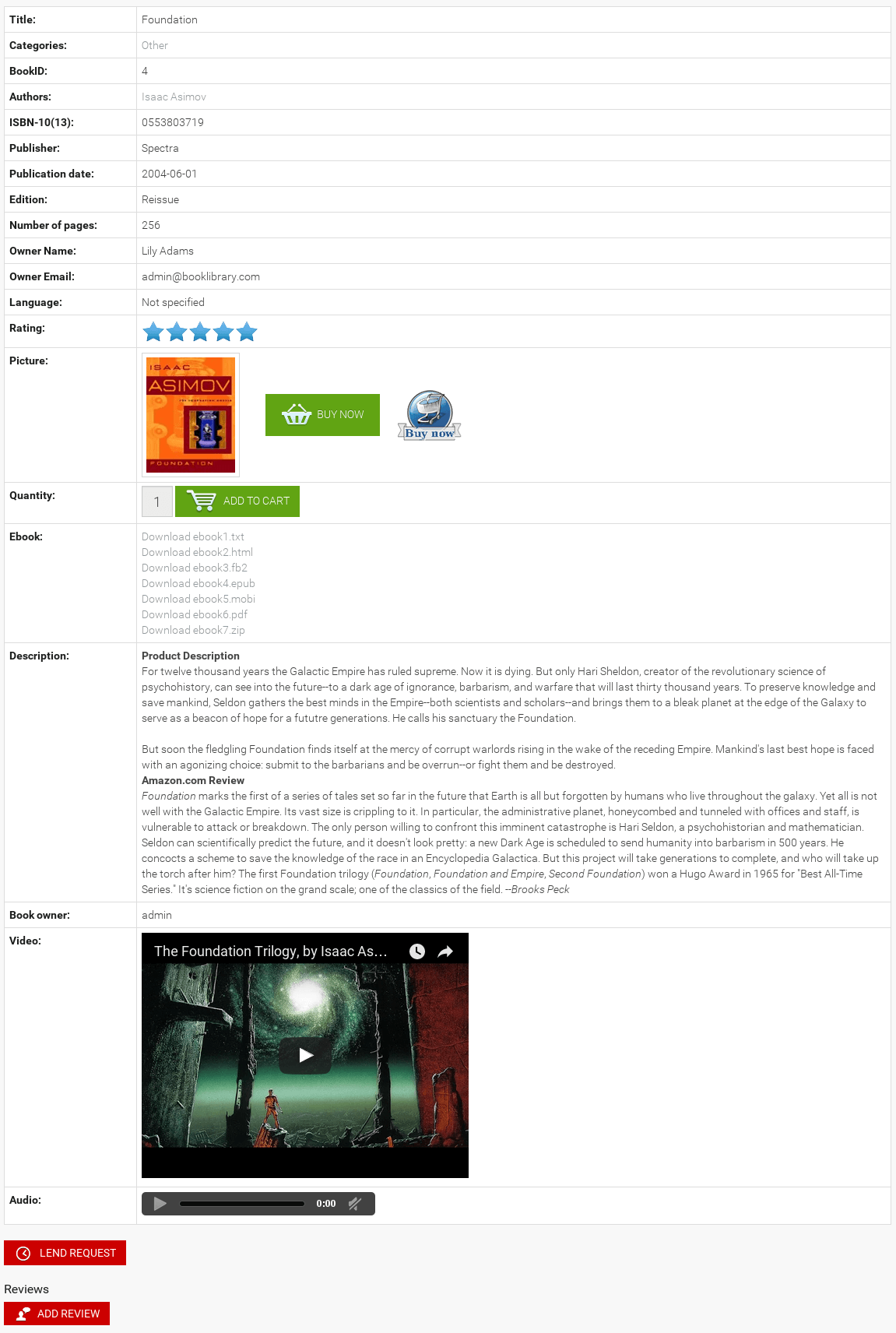
View Book. Screenshot is made from Classic Book Library Joomla template
In the next article will be described the process of submitting Book Reviews in Book Library
6. Creating Book Categories in Book Library, book lending software
In this article we will look at creating and editing book categories in Book Library, book lending software
After creation menu entries for Book Library, we should create categories for future books.
In order to enter books in Book Library, you will first need to create categories which will hold the books. We will create categories first. Go to Components -> Book Library -> Categories.
HINT:
Categories will only show up in the frontend if there are books inside it and those books are published.
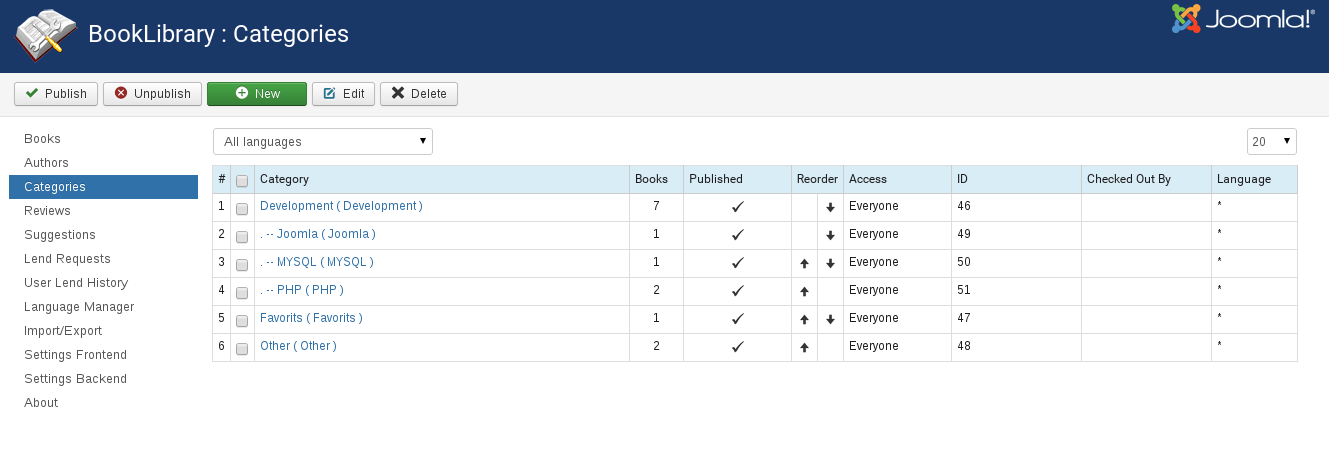
Checked Out By column indicates if the category is currently being edited by another Administrator.
Now click on the New icon. You will get following screen:
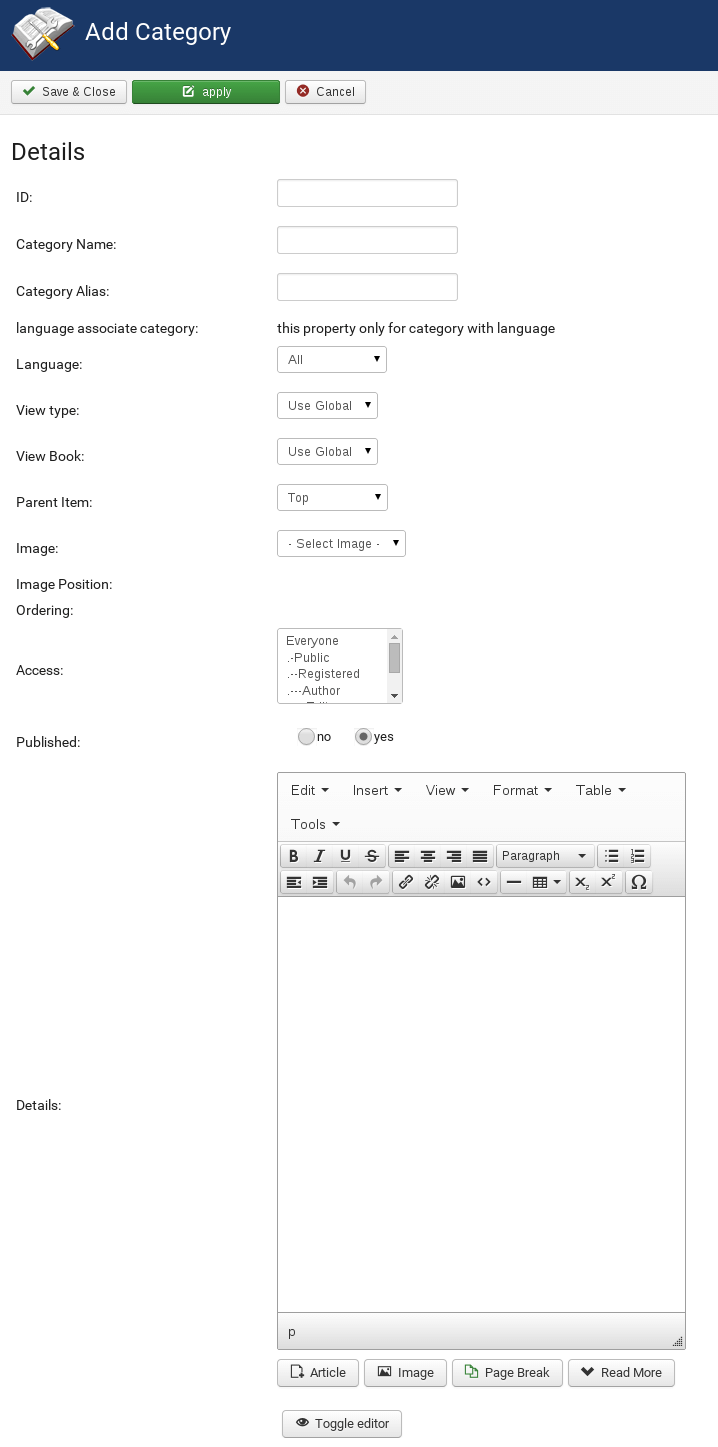
Fill in the details for your book category:
- ID
ID is unique identification number of a category. - Category Name
The Category Name is what is used in the database for this book category. - Category Alias
The Category Alias is what will be shown in the frontend of your website. - Language associate category
You can associate category of different language if you have several languages on your website. - Language
Choose the language of the category. - View type
Choose default or list type for category. - View Book
Choose view for books in category. - Parent item
Book Library, book lending software, supports unlimited sub-categories. If you have created categories already, you can select which main category the new one should belong to. Of course, if you don't have any main categories yet, you can't assign a parent item. - Image
Here you can assign an image for the book category. This will be shown on top of the books list in that category. If you have chosen to have Custom Category Images YES in Settings Frontend, then each book category will have its own particular icon in the category list (image is set in each category). If set to NO, all book categories will have the standard folder icon in the list. - Image Position
The alignment of the book category image. Choose between left, right or middle. - Ordering
Select which position the new category will have in the category order. You can always adjust this later on. - Access
Set the user rights level which will have access to this book category. - Published
Set whether or not this book category is published. - Details
Here you can fill in a description for the book category if you want, for example: "This category holds books related to Search Engine Optimization and Internet Marketing". This description will then show on top of the books list in the category next to the category image and also in the main category list in the main Book Library entry in the frontend.
Remark: optimum size for category images is 48x48 pixels
When you are done, save your category entry.
Remember: Categories will only show up in the frontend if there are books inside it and those books are published.
So all is ready for adding books to Book Library, but before doing this, let's look at Frontend Layouts and Views in Book Library Joomla Software.
5. Create a menu entry for Book Library, book lending software
In this article we will create a menu entry in Joomla for Book Library, book lending software.
Last time we saw into Frontend and Backend settings of Book Library Joomla extension, and now we'll look at menu entries for Book Library.
In order to access Book Library in the frontend of your website, you will need to create a menu item for it.
In the Joomla Admin panel, choose the menu you want Book Library to belong to, for example for the main menu choose Menus -> Main Menu -> Add New menu item, then click on Book Library. You will see following possible menu items for Book Library:
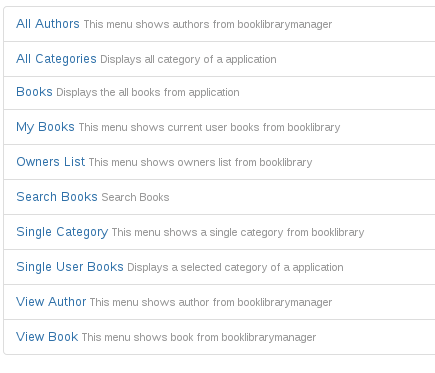
- All Authors
All Authors layout displays all authors from Book Library in the form of default or photo layout (check the Param tab after choosing menu item). Default layout of All Authors includes names and A–Z index, and Photo layout includes names, photos of authors and A–Z index. - All Categories
All Categories layout displays all categories from Book Library in the form of default or list layout (check the Param tab after choosing menu item). - Books
All Books layout displays all books from Book Library in the form of default or list layout (check the Param tab after choosing menu item). - My Books
My Books layout displays all books from Book Library of logged in user. From the frontend user can add/delete books, publish/unpublish books, lent/return from lent books. - Owners List
Owners List layout displays list of owners from Book Library in the form of default or list layout (check the Param tab after choosing menu item). - Search Books
Search Books layout displays Search by keywords, price and category. - Single Category
Single Category layout displays selected category only in the form of default or list layout (check the Param tab after choosing menu item). - Single User Books
Single User Books layout displays books of selected user only. - View Author
View Author layout displays selected author from Book Library. - View Book
View Book layout displays selected author from Book Library.
After choosing menu entry set the detailed settings for this entry:
- Display in
Choose the menu which this link to Book Library will display in. - Parent Item
Choose the parent menu item which you want your Book Library menu item to be under. - Published
Select YES to publish the new Book Library menu item. - Order
Choose where in the list the Book Library entry will appear - Access Level
Set the user rights level which will be allowed to access the Book Library menu item in the frontend. - On Click, Open in
Choose "Parent window with browser navigation"
Save your menu entry. Once it is saved, you are returned to the menu you chose earlier. Now you can rearrange the menu items until you are happy with the ordering. You now have a menu item in the frontend of your website which allow your users to access Book Library. After this it is necessary to create book categories, where books will be placed.
Configure Settings Backend of Book Library - eBook management software for book library management
Book Library - eBook management software for book library management is a best eBook software for create online book library website, create public library website or any book store website. In this article we will look at the various configuration options for Book Library - eBook management software for book library management Settings Backend.
In previous article we described how to Configure Book Library Settings Frontend and now it's time to have a look at Backend Settings in Book Library software.
Go to the Components -> Book Library -> Settings Backend page. You can reach this page either through the top menu or through the horizontal menu bar.
Set the options as you want them. The options are fairly self-explanatory. But if you need more information, you can hover with your mouse over the  at each option and it will show the tool tip for each option with a short explanation.
Review Notification
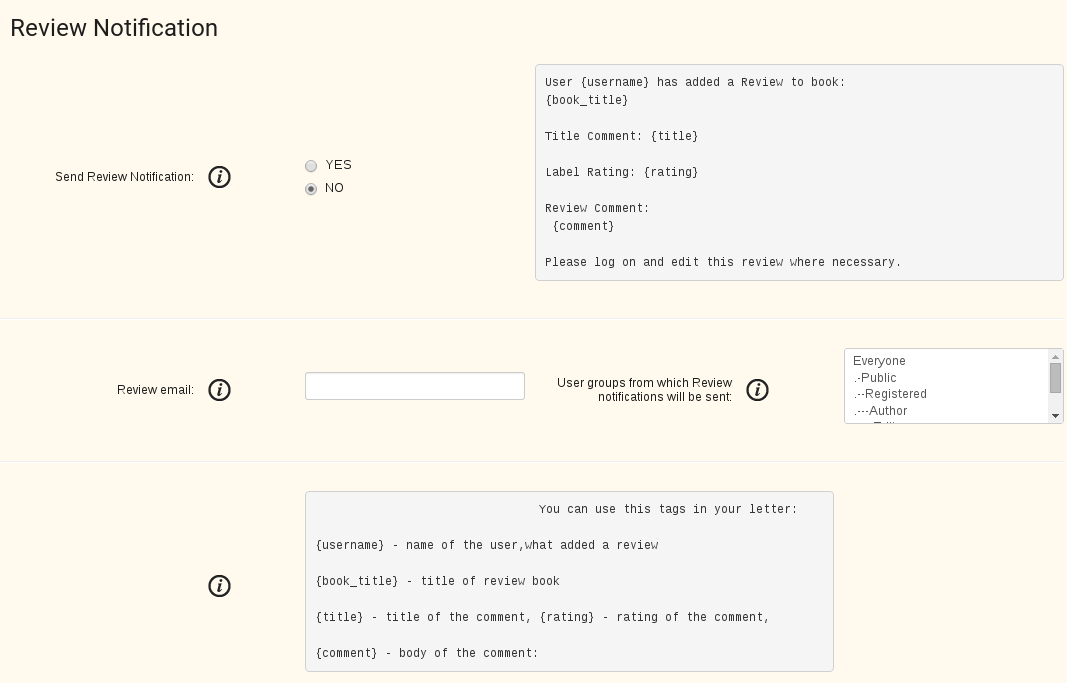
- Send Review Notification
Set to YES if you want to be notified through email when a user adds a Book Review. - Text of letter
You can change text of letter in Book Library -> Language Manager. - Review email
Enter email or emails where notification messages about adding new Review will be sent. You can enter multiple email addresses separated by a comma. - User groups from which Review notifications will be sent
Choose user groups from which Review notifications will be sent You can select multiple user groups for rights settings by using CTRL + click. - Tags
Insert these tags in the letter in Book Library -> Language Manager to get necessary information.
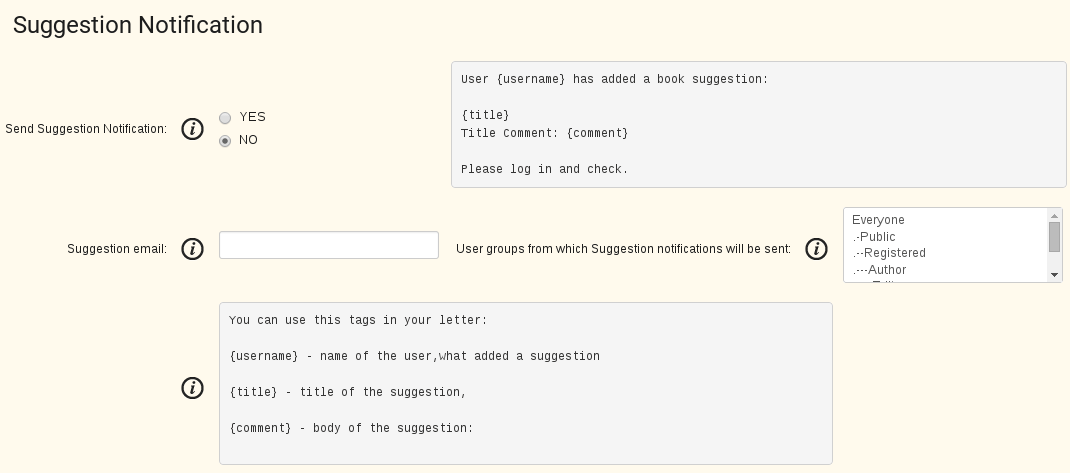
Suggestion Notification
- Send Suggestion Notification
Set to YES if you want to be notified through email when a user adds a Book Suggestion. - Text of letter
You can change text of letter in Book Library -> Language Manager. - Suggestion email
Enter email or emails where notification messages about adding new Suggestion will be sent. You can enter multiple email addresses separated by a comma. - User groups from which Suggestion notifications will be sent
Choose user groups from which Suggestion notifications will be sent You can select multiple user groups for rights settings by using CTRL + click. - Tags
Insert these tags in the letter in Book Library -> Language Manager to get necessary information.
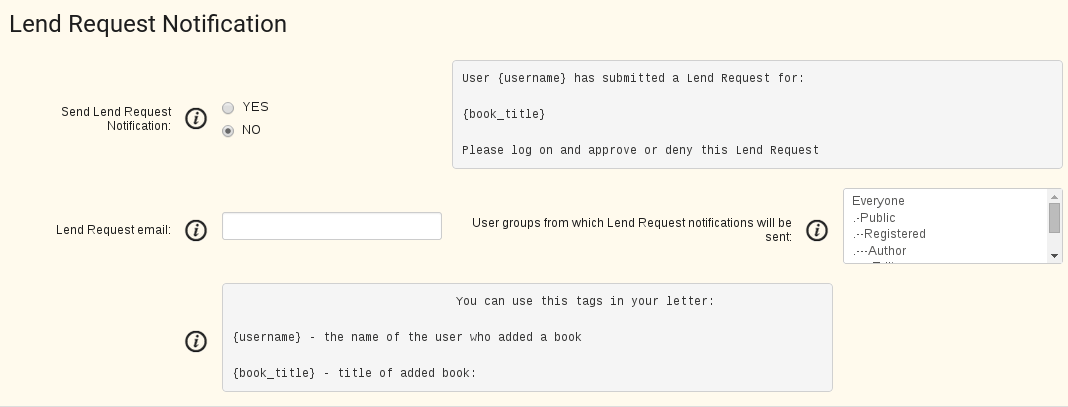
Lend Request Notification in Book Library eBook management software for book library management
- Send Lend Request Notification
Set to YES if you want to be notified through email when a user adds a Lend Request. - Text of letter
You can change text of letter in Book Library -> Language Manager. - Lend Request email
Enter email or emails where notification messages about adding new Lend Request will be sent. You can enter multiple email addresses separated by a comma. - User groups from which Lend Request notifications will be sent
Choose user groups from which Lend Request notifications will be sent You can select multiple user groups for rights settings by using CTRL + click. - Tags
Insert these tags in the letter in Book Library -> Language Manager to get necessary information.
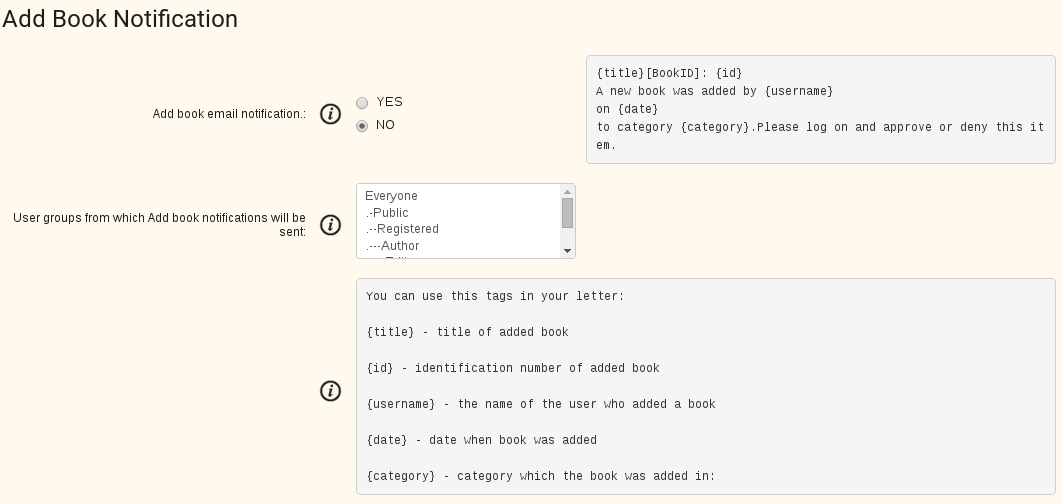
Add Book Notification in Book Library - eBook management software for book library management
- Send Add Book Notification
Set to YES if you want to be notified through email when a user adds a Book. - Text of letter
You can change text of letter in Book Library -> Language Manager. - User groups from which Add Book notifications will be sent
Choose user groups from which Add Book notifications will be sent You can select multiple user groups for rights settings by using CTRL + click. - Tags
Insert these tags in the letter in Book Library -> Language Manager to get necessary information.
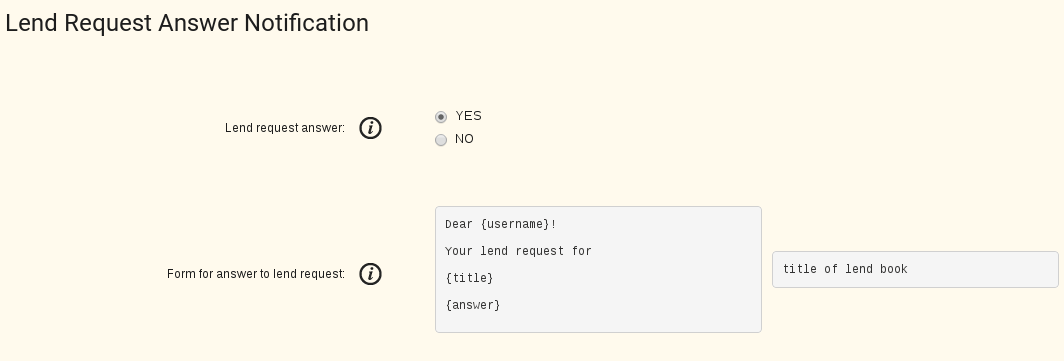
Lend Request Answer Notification
- Lend Request Answer
Send email or not to user about lend request solution. - Text of letter
You can change text of letter in Book Library -> Language Manager.
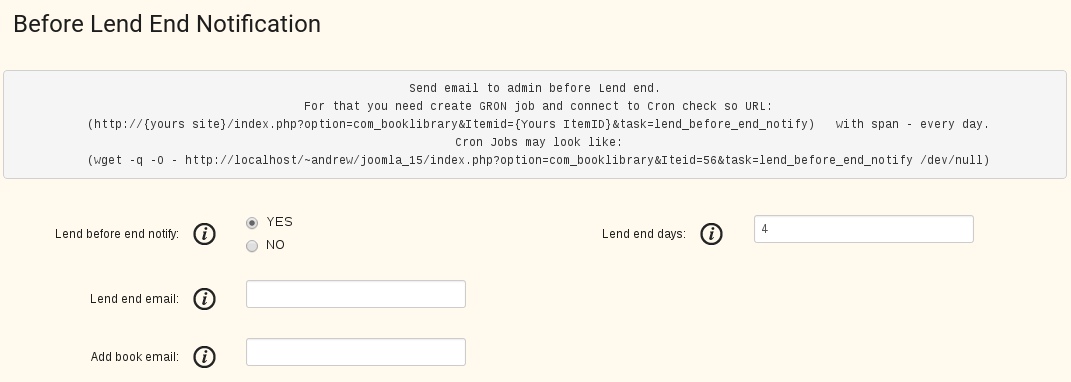
Before Lend End Notification
- Lend before end notify
Send email or not to admin before Lend expires.
For that you need create GRON job and connect to Cron with URL:
http://{yours site}/index.php?option=com_booklibrary&Itemid={Yours ItemID}&task=lend_before_end_notify with span - every day.
Cron Jobs may look like:
wget -q -O - http://localhost/~andrew/joomla_15/index.php?option=com_booklibrary&Iteid=56&task=lend_before_end_notify /dev/null - Lend end days
For how much days before Lend expiration the email will be sent. - Lend end email
Enter email or emails where notification messages about Lend End will be sent. You can enter multiple email addresses separated by a comma.
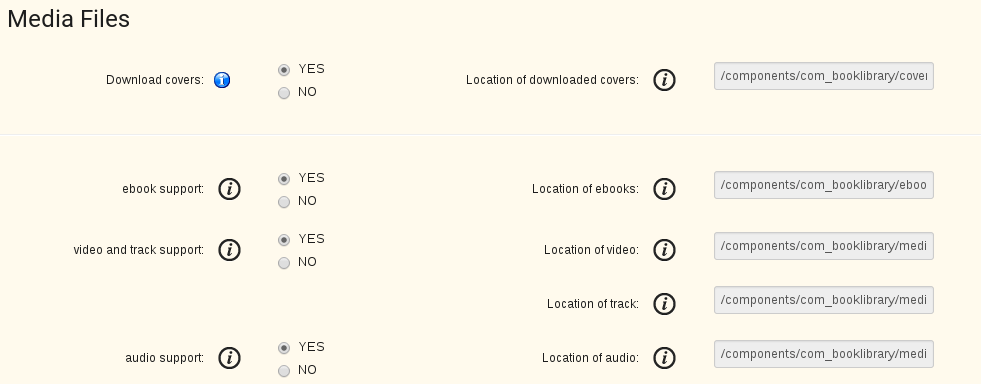
Media Files
- Download covers
YES if you want to download the covers to your webserver. - Location of downloaded covers
The location of the downloaded covers on the server. The path is relative to the main Joomla directory and must start and end with a slash (/). - eBook support
YES if you want to activate eBook support for the administrator interface. - Location of eBooks
The location of the downloaded eBooks on the server. The path is relative to the main Joomla directory and must start and end with a slash (/). - Video and track support
YES if you want to activate Video and track support for the administrator interface. - Location of Videos
The location of the downloaded Videos on the server. The path is relative to the main Joomla directory and must start and end with a slash (/). - Location of tracks
The location of the downloaded tracks on the server. The path is relative to the main Joomla directory and must start and end with a slash (/). - Audio support
YES if you want to activate Audio support for the administrator interface. - Location of Audios
The location of the downloaded Audios on the server. The path is relative to the main Joomla directory and must start and end with a slash (/).
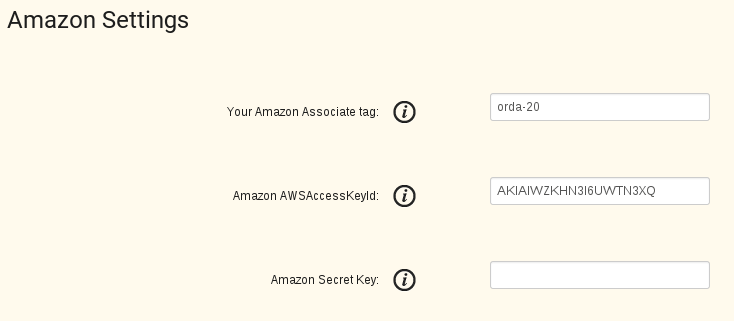
Amazon Settings
For fetch book info from amazon.com to Joomla Book library - we use Amazon Product Advertising API. More details about it you may check: PAAPI5. And you need create Amazon Associates Account.
- Your Amazon Associate tag
Input your own Amazon Associate tag. This gives you the possibility to earn book credits if people buy a book at Amazon by clicking the link on your website. If you do not have your own Associate tag, please support the further development of Book Library and use this instead. - Amazon AWS Access Key Id
In this field you can change the AWSAccesKey for Amazon Web Services (example key: 1DAQJHFZ8ZDWJHR2GR82). - Amazon Secret Key
In this field you can change the Secret Key for Amazon Web Services.
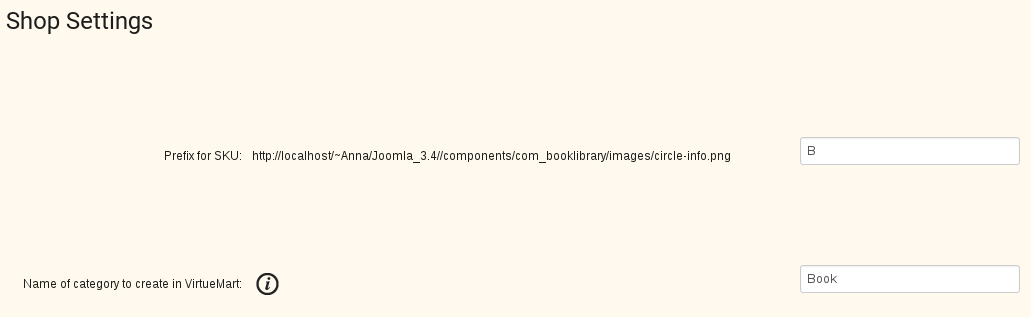
Shop Settings
- Prefix for SKU
Here you will see prefix for SKU. - Name of category to create in VirtueMart
Set the name of the category in which books will be placed in VirtueMart, book store solution. If you leave the field empty, books will be saved in the first category.
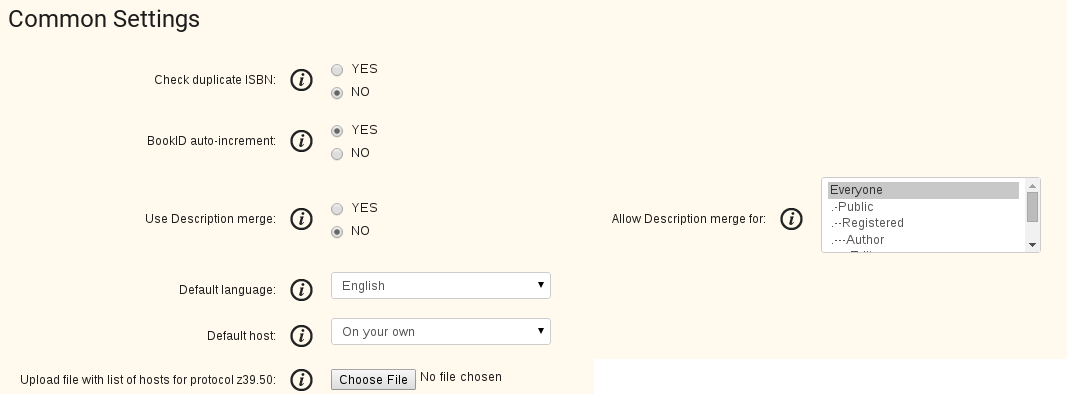
Common Settings
- Check duplicate ISBN
Check for duplicate ISBN numbers. Duplicate entries not allowed. - BookID auto-increment
YES if you want to use BookID auto-increment. NO if you want use manually entered BookID. - Use Description merge
This option permit merge description - what user type with description from Amazon. - Allow Description merge for
Select user category for who Description merge is allowed. - Default language
Set default language for new books. - Default host
Set default Amazon host from which book information will be downloaded for new books. - Upload file with list of hosts for protocol z39.50
Upload file if you want to fetch books from host, that doesn't mentioned in option Fetch Information while adding new book.
In the next article we will talk about how to Create a menu entry for Book Library.
More Articles...
Page 5 of 6

we support payment systems