25. Importing books from Full XML into Joomla Book Library
In this article we will take a look at importing books from a Full XML file into Book Library. This can be from a Full XML Export you did earlier. The Full XML Import will contain all books and categories, but before import it will delete the existing Book Library tables, so be careful when using it.
What does the Full XML Export function say?
First, let's take a good look at what the Full XML Export function says:
- Full XML EXPORT:
- This export will export all Book Library Full XML tables and save all fields and entries
- You can later use these sql files to restore your Book Library data in full
- This subsequent import will overwrite ALL existing entries, so be careful when using it!
- If the user who wrote the original book review does not exist anymore, the review will be assigned to "Anonymous"
What does the Full XML Import function say?
Full XML IMPORT:
- This import will import all Joomla Book Library Full XML and restore all fields and details
- This option will overwrite ALL existing entries, so be careful when using it!
- If the user who wrote the original Book Review does not exist anymore in the system, the Review will be assigned to "Anonymous"
Importing a Full XML file into Joomla Book Library
- Go to Components -> Book Library -> Import/Export and choose the Import tab.
- Choose Full XML for the Import Type
- You do not have to choose a Category to import into since this import type will contain all Categories as well.
- Next use Browse to point to the Full XML file of your choice (.dat file extension).
- Then click the Import Books button on the top bar.
- Click OK if you are sure you want to proceed, and you will see the following screen which gives you the results of the import:
- Click Back in the top bar to return to the Import/Export page, or go to Components -> Book Library -> Books to go to the Book Manager window. You will see the books you have just imported. The published or unpublished information for the books will be EXACTLY like it was specified in the export file from the time the export was made, so you may want to double check that information.
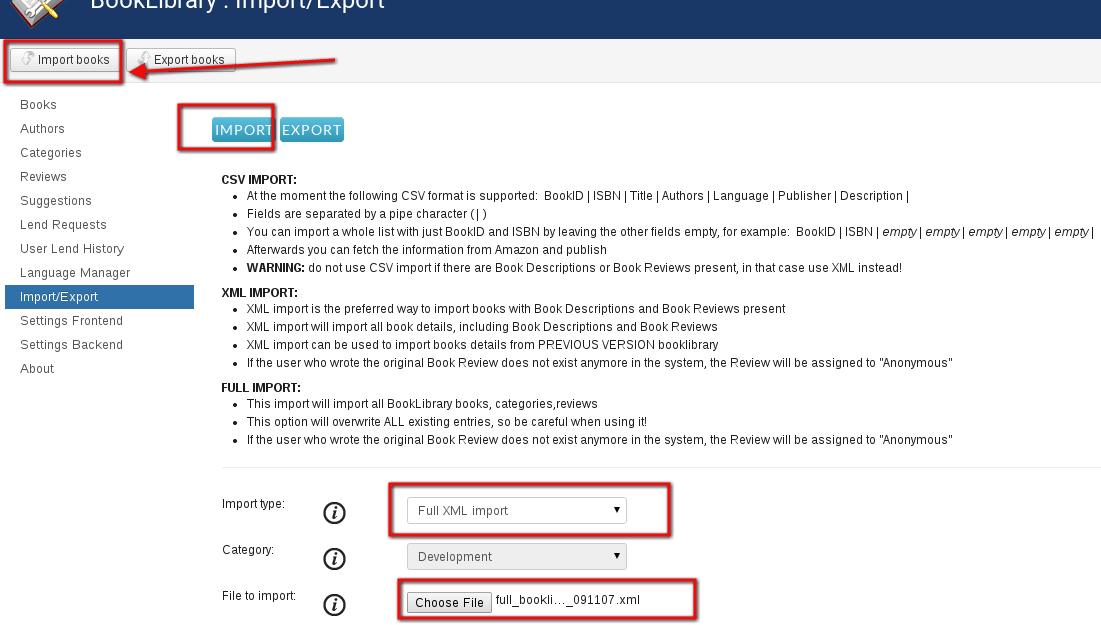
Full XML Import in Joomla Book Library
First you will receive a warning screen, telling you that all existing Book Library tables will be erased by this import:

Results of full XML Import in Joomla Book Library
You will also see in Categories that all Categories in Joomla Book Library have been restored.
Note:
If you are not seeing the import results immediately, you may need to log off and then log on again to see the results. The import was actually successful, but since MySQL Tables Import is a rather extensive operation, it may need this log off then log on again action before showing the results on your screen.
Let's now see how to work with Language Manager
24. Importing books from XML into Book Library, books store software
In previous article we had a look at importing books from CSV to Book Library and now we will take a look at importing books from an XML file into Book Library. This can be from an XML export you did earlier, or from a freshly created XML file. What does the XML Export function say?
First, let's take a good look at what the XML Export function says:
XML EXPORT:
- XML export is the preferred way to export books with Book Descriptions and Book Reviews present
- XML export will contain all book details, including Descriptions and Reviews, ready for later import
What does the XML Import function say?
XML IMPORT:
- XML import is the preferred way to import books with Book Descriptions and Book Reviews present
- XML import will import all book details, including Book Descriptions and Book Reviews
- If the user who wrote the original Book Review does not exist anymore in the system, the Review will be assigned to "Anonymous"
Importing an XML file in Book Library, books store software
- Go to Components -> Book Library -> Import/Export and choose the Import tab.
- Choose XML for the Import Type and a Category to import into.
- Next use Browse to point to the XML file.
- Then click the Import Books button on the top bar.
- There will be a notification that if user that wrote review doesn't exist anymore, the book review will be assigned to anonymous. Click OK.
- Click Back in the top bar to return to the Import/Export page, or go to Components -> Book Library -> Books to go to the Book Manager window. You will see the books you have just imported, still unpublished.
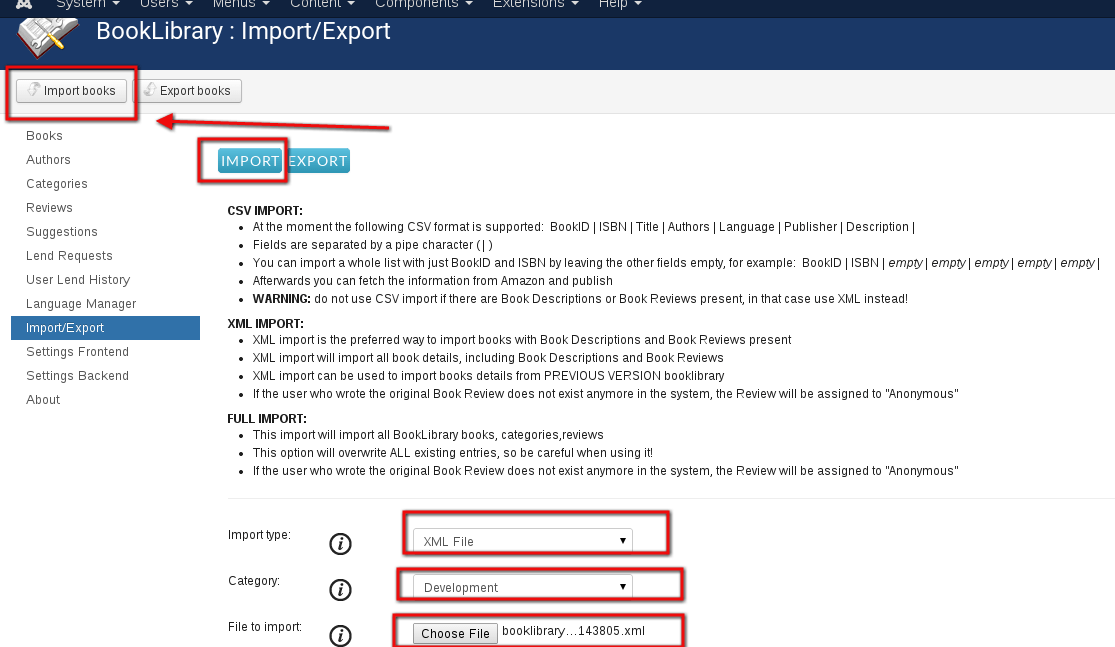
XML Import in Book Library, books store software
You will see the following screen which gives you the results of the import:

Results of XML Import in Book Library, books store software
You can now publish the books, or edit each book as you wish.
The last importing method in Book Library, books store software, is import of books with help of full XML.
23. Importing books from CSV into Book Library, Joomla bookstore software
We already saw how Book Library (Joomla bookstore software) deals with CSV books exporting. In this article we will take a look at importing books from a CSV file into Book Library. This can be from a CSV export you did earlier, or from a freshly created CSV file with only BookID and ISBN to import a large number of books at once.
First, let's take a good look at what the CSV Export function says:
CSV EXPORT:
- CSV export will contain all fields for further editing in a text editor or spreadsheet application
- Please note that for subsequent import, only the following CSV format is supported: BookID | ISBN | Title | Authors | Manufacturer | Release date | Language | Hits | Rating | Price | Url | Image Url | Edition | Ebook Url | Information from | Date | Price unit | Owner email | Number of pages | Comment |
- So, if you want to import later including Book Descriptions and Book Reviews, use XML export instead! What does the CSV Import function say?
CSV IMPORT:
- At the moment the following CSV format is supported:
BookID | ISBN | Title | Authors | Manufacturer | Release date | Language | Hits | Rating | Price | Url | Image Url | Edition | Ebook Url | Information from | Date | Price unit | Owner email | Number of pages | Comment | - Fields are separated by a pipe character (|)
- You can import a whole list with just ISBN by leaving the other fields empty,
for example: BookID | ISBN | empty | empty | empty | empty | empty | - Afterwards you can fetch the information from Amazon and publish
WARNING: do not use CSV import if there are Book Descriptions or Book Reviews present, in that case use XML instead!
Note: You can NOT import from a CSV file without the BookID numbers entered.
So, a CSV Import file without BookID looking like this will produce an error:
|0596006799||||||||
0672324563||||||||
0672324245||||||||
0596005164||||||||
0596006268|||||||
This file will produce an error, because auto-increment does not work with CSV import. And once the first book is imported with an empty BookID, and then the second will produce an error because it will get the same empty BookID.
For a simple import list, you will need at the very least BookID and ISBN. CSV Export and subsequent CSV Import errors? The CSV Export contains many more fields than are supported by the CSV Import. In other words, you cannot just import a CSV export done earlier; you have to adapt the fields before your import! If you try to import a CSV export without adapting the fields, you will receive errors!
Using a CSV list for easily importing a large number of books.
If you have many books to enter into BookLibrary, it can be very handy to create a CSV file and import the books that way, instead of entering each book manually through the GUI interface. You can then retrieve all the relevant book information from Amazon after the import.
A csv file is a simple text file in which the database entries are listed:
- each entry on a separate line
- fields inside the entry separated by a pipe character ( | ) Book Library supports the following format for csv imports: BookID | ISBN | Title | Authors | Manufacturer | Release date | Language | Hits | Rating | Price | Url | Image Url | Edition | Ebook Url | Information from | Date | Price unit | Owner email | Number of pages | Comment |
As mentioned, for a quick import list you will need at the very least BookID and ISBN, and then you can leave the other fields empty. So you need to find out what the starting point is for the BookID and start form there in your list. Or alternatively you can just use fake BookIDs for the import list which you later adapt by hand inside each book.
Example simple CSV list
09000 |0596006799|||||||09000 |0672324563|||||||09000 |
0672324245|||||||09000 |
0596005164|||||||09000 |
0596006268|||||||
etc. Create your list with a text editor and save it with a .csv or a .txt extension.
Tip: When you create the CSV file, do NOT use Notepad, because Notepad insists on ending lines with a Windows line ending, which in Unix translates to a double line endings. It is much better to use WordPad (and then save as plain text), because WordPad saves correct line endings. Or you can use any other text editor (PSPad, Text Pad, Programmer's Editor, etc.). If you have Excel or some other spreadsheet creator, you can create your file in that and then save as csv (just remember to choose | as the separator for the fields).
Importing a simple CSV list in Book Library, Joomla bookstore software
- Go to Components -> Book Library -> Import/Export and choose the Import tab.
- Choose CSV for the Import Type and a Category to import into.
- Next use Browse to point to the CSV file you created earlier.
- Then click the Import Books button on the top bar. You will see the following screen which gives you the results of the import:

CSV Import in Book Library

Results of CSV Import in Book Library, Joomla bookstore software
Click Back in the top bar to return to the Import/Export page, or go to Components -> Book Library -> Books to go to the Book Manager window. You will see the books you have just imported, still unpublished.
You can now fetch the information for the imported books from Amazon, publish the books, or edit each book as you wish, but whatever you do, you have just saved yourself a lot of manual labor...
So let's see how to make import of books from XML into Book Library
22. Exporting books to Full XML in Book Library, library manager software
Book Library has options to export your books using CSV export, XML export and Full XML export. In this article we will explain the Full XML Export and its results.
When you make Full XML export, all lend record can be lost. Please save them.
XML full export is the preferred way to export all categories and books with Book Descriptions and Book Reviews present to selected category
XML full export will contain all categories and all book details, including Descriptions and Reviews, ready for later import.
Full XML Export Explanation
The Book Library Full XML Exports are handy because they contain all the fields from your book details, as well as the categories the books were exported from.
This makes this kind of export an excellent and time saving choice for regular exports to preserve your book data in backups, as long as the Book Library export and import remains inside the same major BookLibrary version.
For safeguarding your book details also over different major versions of BookLibrary we still recommend using XML exports instead, as those will be database structure independent. So with XML exports available, any changed tables structure because of added functionality will not affect the integrity of your subsequent imports.
But for regular backups inside the same major BookLibrary version, Full XML Exports are great.
Full XML Export in Book Library, library manager software
In the Admin backend, go to Components -> Book Library -> Import/Export and then click on the Export tab.
With the dropdown boxes, choose Full XML as the Export Type.
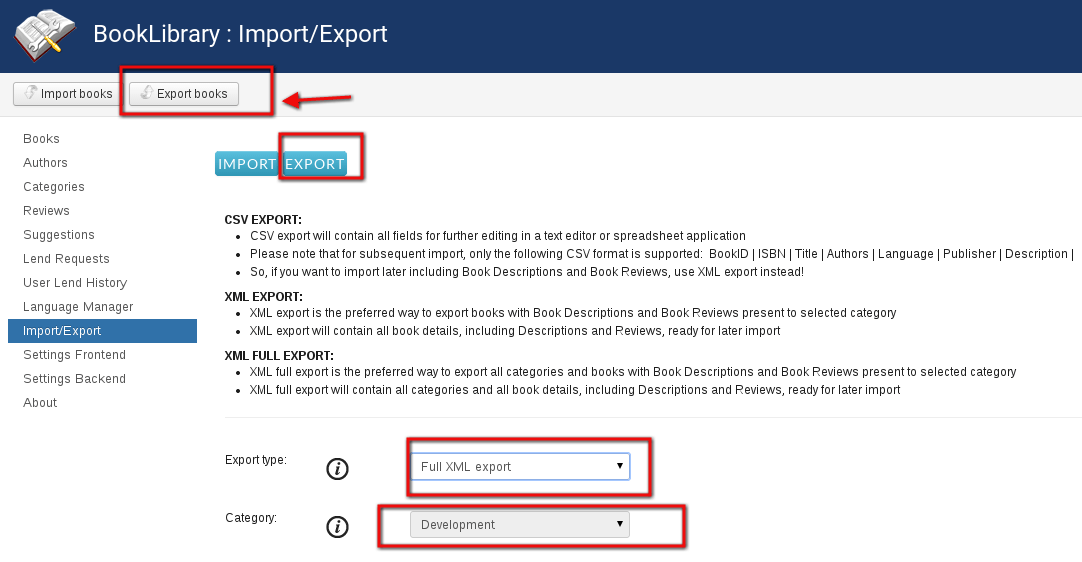
Full XML Export in Book Library, library manager software
Now click the Export Books button in the top bar. You will see the following page:
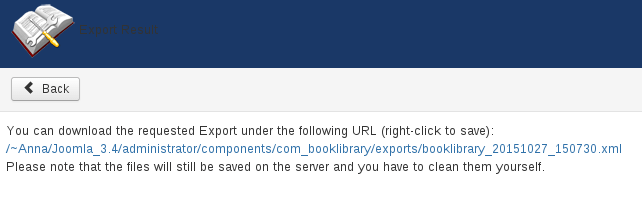
Full XML Export Link in Book Library
By clicking on the link, you can save the export file you just made to your local workstation. The name of the export will be something like: booklibrary_20080810.xml
So it will contain the description and the date of the export.
Make regular backups of your books
It is a good idea to do exports of your book categories every now and to keep them safe somewhere as a backup. This is certainly a good plan before changing BookLibrary version for example with an upgrade. With a small note of your Book Category names and these exports, you can always restore your BookLibrary content easily. We recommend exports to XML for this because:
- They will contain all fields from your Book Library, including Book Descriptions and User Reviews
- They will give you the most flexible output (you can decide to later import into different categories, for example)
- They are totally database structure independent, so if there any changes in the Book Library database tables structure in a later version (which may happen when new functionality is added), then with XML exports available it will not ruin the effectiveness of your subsequent imports
In the next few articles we will describe the process of import in Book Library, library manager software for Joomla 3.x and we will start from importing books from CSV.
21. Exporting books to XML in Book Library System
Book Library system has options to export your books using CSV export, XML export and Full XML export. In this article we will explain the XML Export and its results.
XML Explanation
The Extensible Markup Language (XML) is a general-purpose specification for creating custom markup languages. Extensible because it allows its users to define their own elements. Its primary purpose is to help information systems share structured data, particularly via the Internet, and it is used both to encode documents and to serialize data. It is designed to be relatively human-legible. Read more on XML on Wikipedia.
XML Export in Joomla Book Library System
In the Admin backend, go to Components -> Book Library -> Import/Export and then click on the Export tab.
With the dropdown boxes, choose XML as the Export Type and the Category to export from.
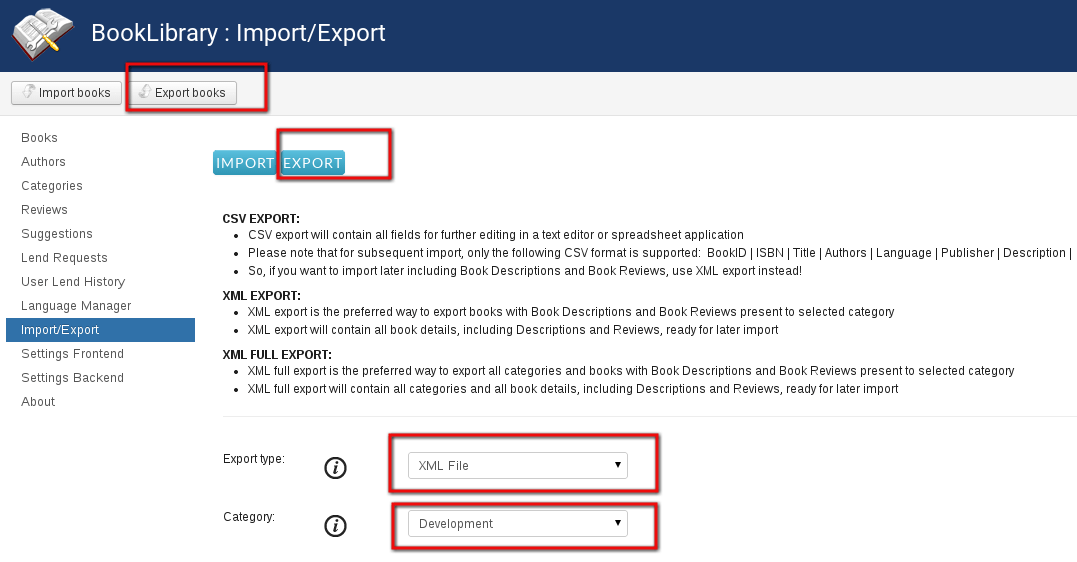
XML Export in Book Library
Now click the Export Books button in the top bar. You will see the following page:
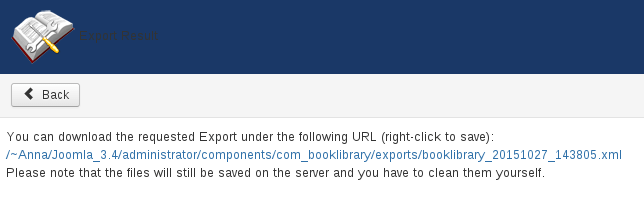
XML Export Link in Book Library
By clicking on the link, you can save the export file you just made to your local workstation. Change the name to reflect the category you are exporting.
XML Export from Book Library, book collection software
The XML file export can be opened with an appropriate text editor or XML editor of your choice and edited for subsequent import. Since XML files are quite human-readable, this is an excellent option. In the following screenshot we have opened the just exported XML file in PSPad, which is a fine freeware editor for Windows which supports ANSI, UTF-8 and has many cool options.
PSPad is highly recommended and available from http://www.pspad.com/
Make regular backups of your books
It is a good idea to do exports of your book categories every now and to keep them safe somewhere as a backup. This is certainly a good plan before changing Book Library version for example with an upgrade. With a small note of your Book Category names and these exports, you can always restore your Book Library content easily.
- We recommend exports to XML for this because: They will contain all fields from your Book Library System, including Book Descriptions and User Reviews
- They will give you the most flexible output (you can decide to later import into different categories, for example)
- They are totally database structure independent, so if there any changes in the Book Library database tables structure in a later version (which may happen when new functionality is added), then with XML exports available it will not ruin the effectiveness of your subsequent imports.
In the next article we will cover exporting books to Full XML in Book Library.
More Articles...
Page 2 of 6
we support payment systems