Entering books through ISBN in Book Library - eBook management software
Book Library - eBook management software is a best eBook software for library management, you can manage the Authors of books, e.g. fill in description of author, insert photo at backend. In this article we will be looking at the Books Manager in Book Library - eBook management software, and specifically at how to enter a book's ISBN (International Standard Book Number) and retrieve the book's information from Amazon with that.
Now when you have created categories, you can start entering books into Book Library - eBook management software. You can enter books in 3 ways inside Book Library:
- through ISBN (retrieving the book information from Amazon)
- manually, entering all book info by hand. Read how to enter books manually.
- and you can also use Book Library to enter eBooks. Read how to enter ebooks
We will cover these methods in the following articles, but we will start with the first.
How to Entering books through ISBN and fetching info from Amazon, in Book Library - eBook management software
Entering books through ISBN is the easy way, as all book details will be retrieved from the Amazon database you chose in Settings Backend.
Go to Component -> Book Library -> Books
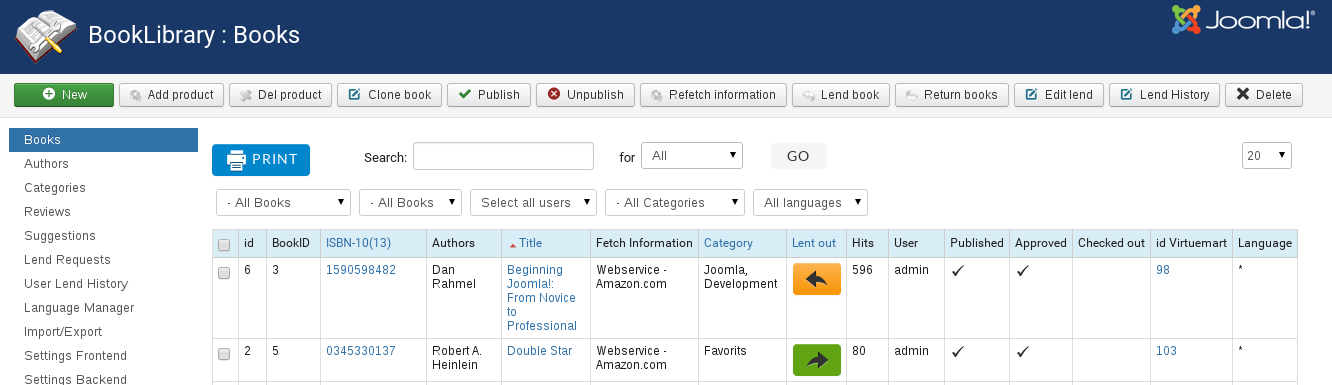
Books Manager in Book Library
Once you hit the New button, you will be presented with the book editing screen.
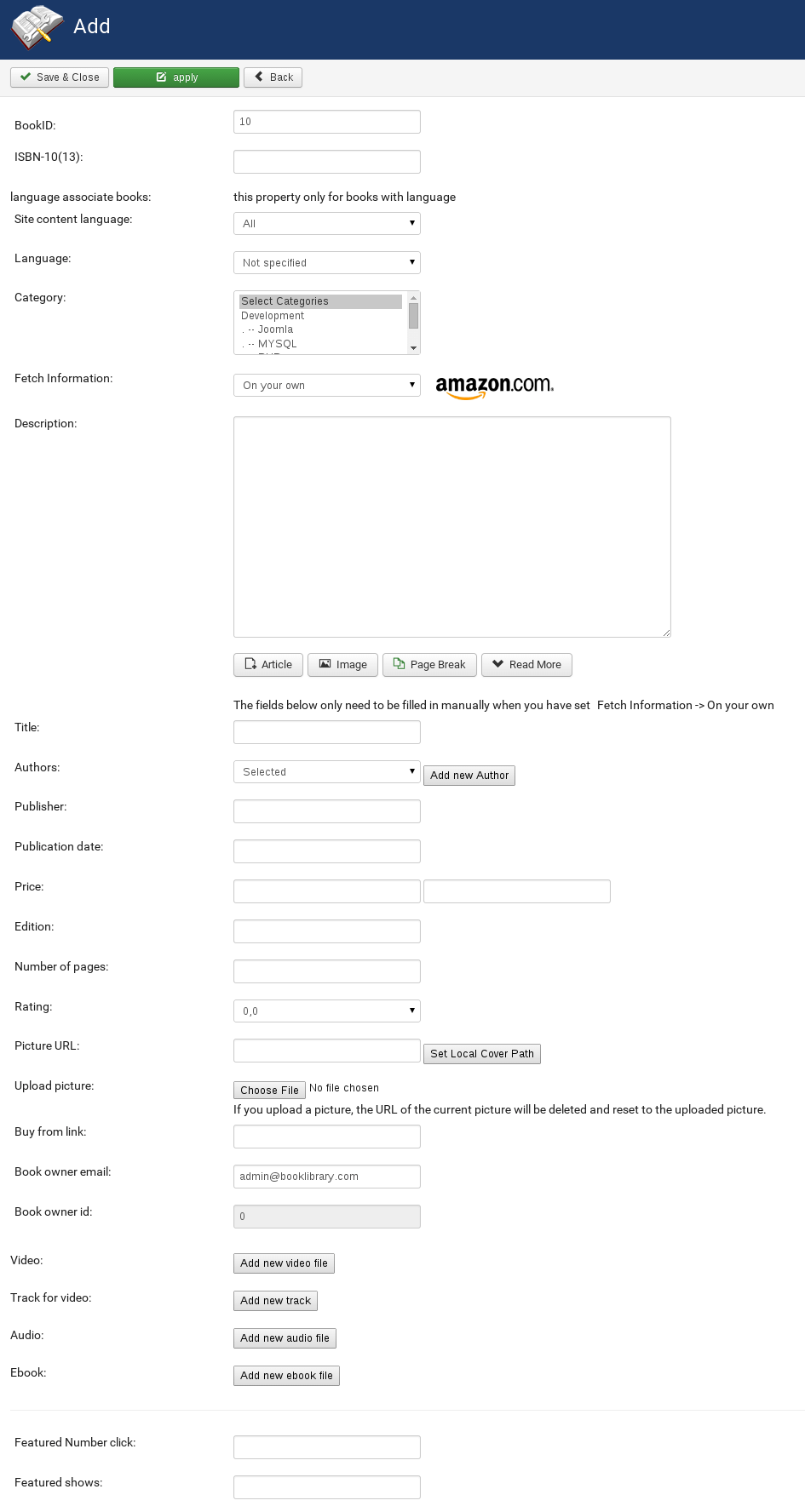
Adding new book into Book Library
In the next article on manual book entry we will have an explanation of the various entries shown in the New Book screen, but for entering the book details through ISBN only the first two (BookID and ISBN) are of importance. All other details will be pulled in from Amazon. Easy!
Flow for ISBN book entry:
- Enter the book's ISBN
- Select an Amazon host
- Select a category
- Save the book
- Repeat this for as many books as you want to enter
- Now select each book, edit the description, and do not forget to set the Information from: field to On your own.
- Save the book.
This will protect your edited entry from being overwritten by new information fetching, which would otherwise be performed at each page refresh.
Explanation of the fields and actions needed
- Book ID
This is the BookID for your internal reference. Fill in your own internal BookID here if you have set the option in Settings Backend for Auto-increment BookID to NO. If you have set that option to YES, you do not need to bother with this field.
Tip about internal reference IDs (BookIDs): To make it easier for your internal administration, it is a good idea to use a numeric prefix for certain categories, for example all books in the category "Joomla books" will have their BookID preceded by "01", all books in the category "MySQL books" will have their BookID preceded by "02", etc. You can then choose how many numerics you want to assign to books, so you end up with BookIDs like this for books in the "Joomla books" category: 01001, 01002, etc. You can also use the BookID field for indicating shelve storage location, or anything else you require.
- ISBN-10 (13)
This is the ISBN-10 or ISBN-13 book number. ISBN-10 will always work, from any Amazon site. ISBN-13 will work reliably from Amazon CA, COM, UK. - Book libraries will use books cataloged on ISBN
- ASIN is Amazon only (in fact, ASIN stands for Amazon Standard Identification Number), and not all people want to use Amazon
- ASIN permits other products besides books, which would cause all kind of problems inside the Book Library interface (other fields necessary in the tables for the details of the product, resulting in incompatible database fields)
Tip about searching ISBN numbers:
Almost every book on the planet has a unique identification number, called ISBN (International Standard Book Number). The ISBN is internationally used to identify books, and we will use it to pull in the book details from Amazon. Many book sites and libraries will show you the book's ISBN number, so look that up first before you enter a new book.
Almost every book on the planet has a unique identification number, called ISBN (International Standard Book Number). The ISBN is internationally used to identify books, and we will use it to pull in the book details from Amazon. Many book sites and libraries will show you the book's ISBN number, so look that up first before you enter a new book.
Example: finding a book's ISBN on Amazon
For example, on Amazon you can find the ISBN-10 or ISBN-13 book number under Product Details for each book. Just go to the Amazon website of your choice, use the Search function to find your book, and then look in the book description for Product Details. See the example below:
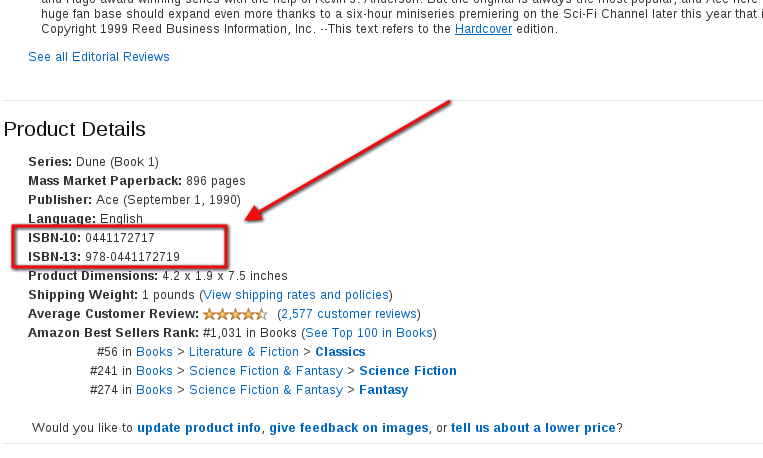
Finding ISBN in Amazon.com
About ASIN:
Book Library only supports ISBN, not ASIN, and for good reasons:
So to answer your questions: no, ASIN cannot be used with Book Library.
The steps Adding book with Amazon ISBN in Book Library - eBook management software
Now that you have your book's ISBN, fill it in.
Next, choose the Language the book is in, the Category the book will be in, and under Fetch Information the Amazon website you want to retrieve the details from.
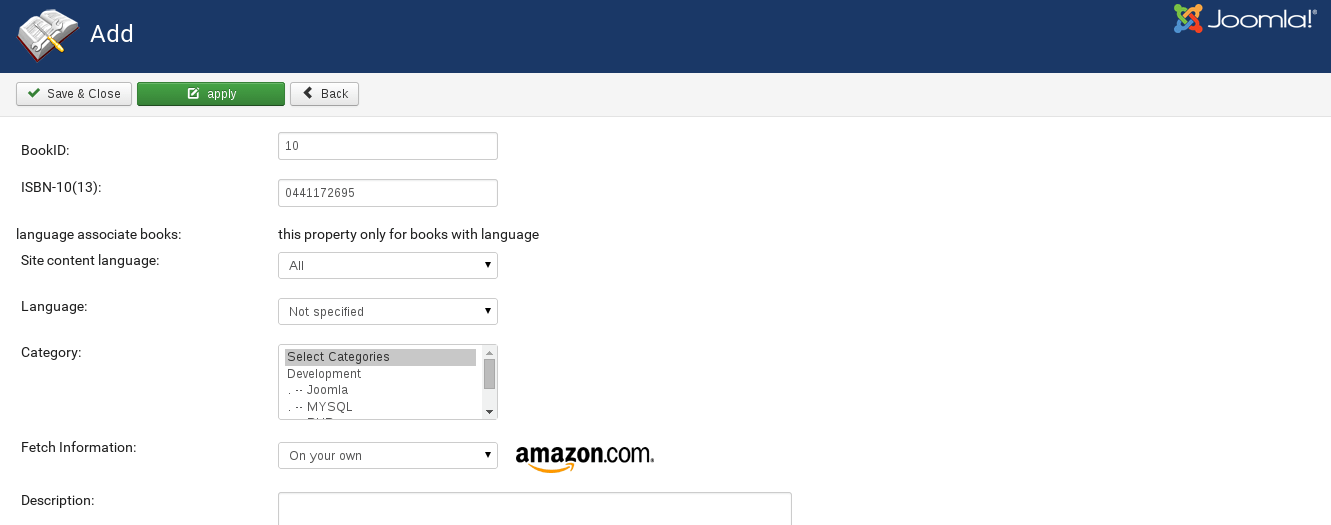
Adding book with Amazon ISBN in Book Library - best eBook software for library management
When you are done, save your new book entry.
The screen in Book Manager will tell you the books are there, published and with fetched details. That's all for the ISBN book entry.
Click the book's title, and you will be in the book details edit page. All available book details will have been retrieved from Amazon (through CURL and AWS). Now you can edit the book's description. If you are editing fetched book do not forget to set the Information from: field to On your own. This will protect your edited entry from being overwritten by new information fetching, which would otherwise be performed at each page refresh.
TIP: Book Library - best eBook software for library management allows for the use of external plugins inside the book descriptions. You can use this for a variety of purposes. We will look at some examples in a following article.
Save the book. Repeat for the other newly entered books. After saving, you will be returned to the Books Manager. The new books will still be unpublished. Select the newly entered books, and click on the Publish button.
As always in Book Library - best eBook software for library management, the affiliate link behind the Buy Now button will be hidden in the website frontend when you hover over it, where users will only see an internal Joomla URL. Inside BookLibrary this is then redirected to the real URL. This also protects the link with affiliate ID from being visible to download managers.
Tip: If you have many books you need to enter through ISBN, it is much handier to first look up all ISBN, then create a CSV file and import that.
That procedure will be covered in a next article under import.
Book Search in Book Library - eBook management software for library management
Book Library - eBook management software is a best software for library management and create public library website or any book store website. In this article we will look at the Book Search function in Book Library- eBook management software
Book Search in Book Library software for library management
In the frontend of the component you will see a Search Books and Advanced Search button in the Category View and in the Books List inside each category:
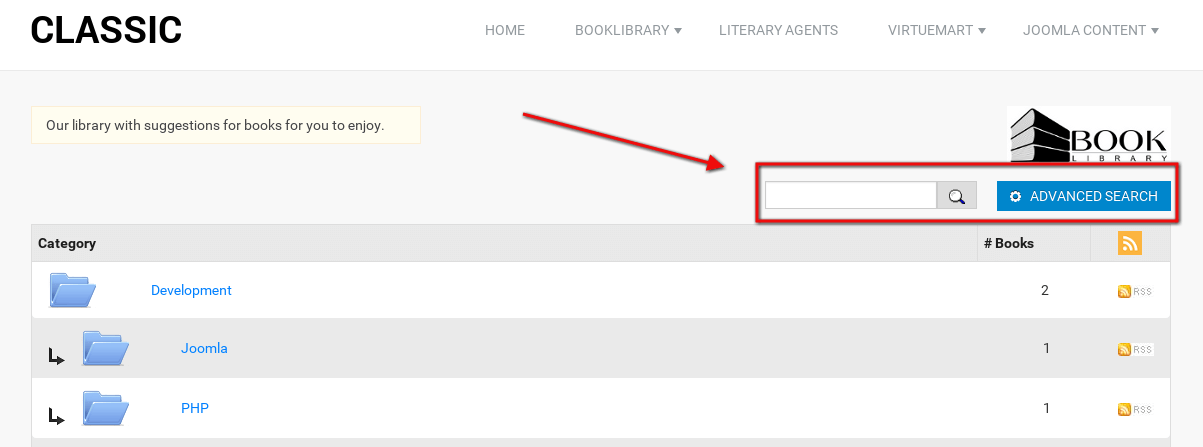
Search field and Advanced Search button. Screenshot is made from Classic Book Library Joomla template
Book Search page in Book Library - eBook management software for library management
Clicking the Advanced search button will take you to the Book Search form:

Advanced Search. Screenshot is made from Classic eBook Joomla template
Search All Categories (default) or Single Category
- By default the Search Books will search through all book categories. Just enter the keywords you want to search for.
- By using the dropdown box (which will show all book categories you have) you can restrict the search to a single category.
- Use price slider for choosing appropriate price of books
Advanced Book Search will currently search through:
- ISBN
- Authors
- Book Titles
- Book Descriptions
Next we will have a look at three methods of book entering in Book Library.
How to Manage Lend Requests in Book Library - book lending software
Book Library - Joomla book library component (extension) allows you to lend books from your online book catalog. In this article we will look at the Lend Request Manager in Book Library - book lending software and explain How to Manage Lend Requests in Book Library - book lending software.
Lend Request Management in Book Library - book lending software
Once a user submit Lend Request in the frontend, admin can manage it in the Admin backend. For this go to Components -> Book Library -> Lend Requests
You will see the following screen:
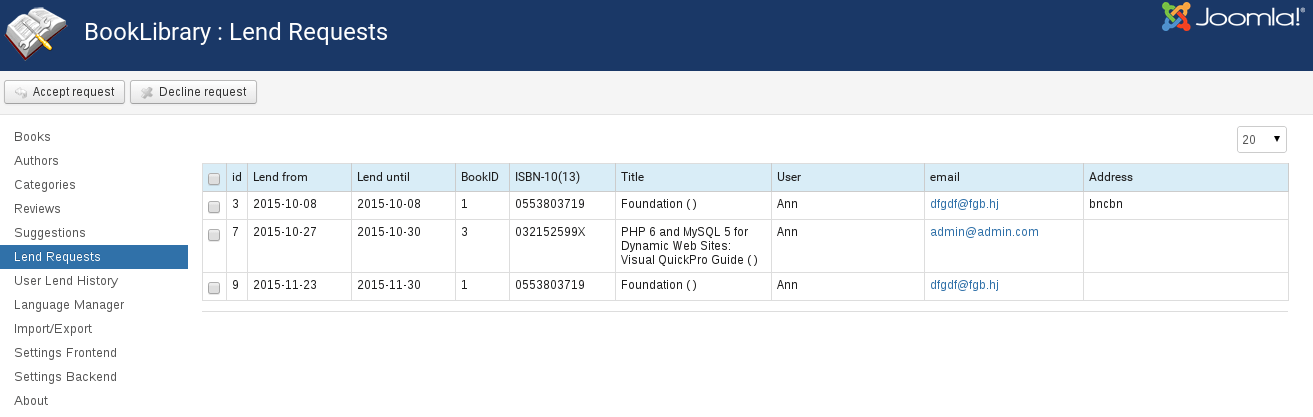
Lend Request. Screenshot is made from Classic Book Library template with Lend Request
All pending Lend Requests will be shown here (in this case only one). On the top bar, there are two buttons: Accept Request and Decline Request, which are fairly self-explanatory.
Reminders
The user's email address is clickable, so the admin can send reminders to the users easily from here.
Lend Request Flow in Book Library - book lending software
If the Lend Request is declined, the user will receive an email saying that the Lend Request was not accepted. If the Lend Request is approved, the user will receive an email confirmation stating that the request has been approved and that the books are ready to be picked up at the library's address.
Remark: You can find these texts in the Language Manager, where you can change them to you liking.
Book Availability indication in the backend of book lending software
In the Books Manager the book will now show up with a return date.
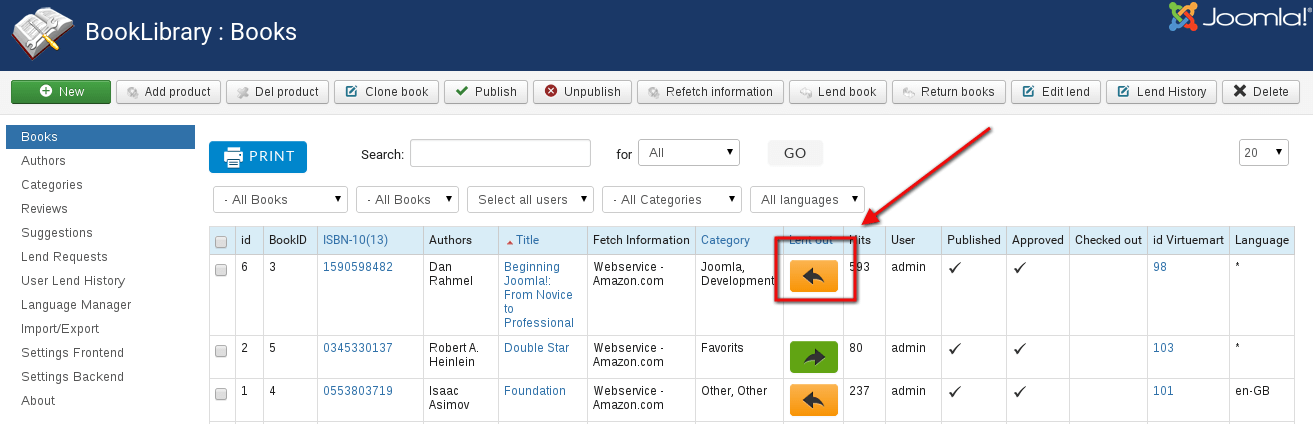
Book Availability Indicators. Screenshot is made from Classic - Book Library Joomla template build on book lending software"
The indicators and return date are clickable links, which will take you to the Return Books management page, from where you can check in books that were returned by the user: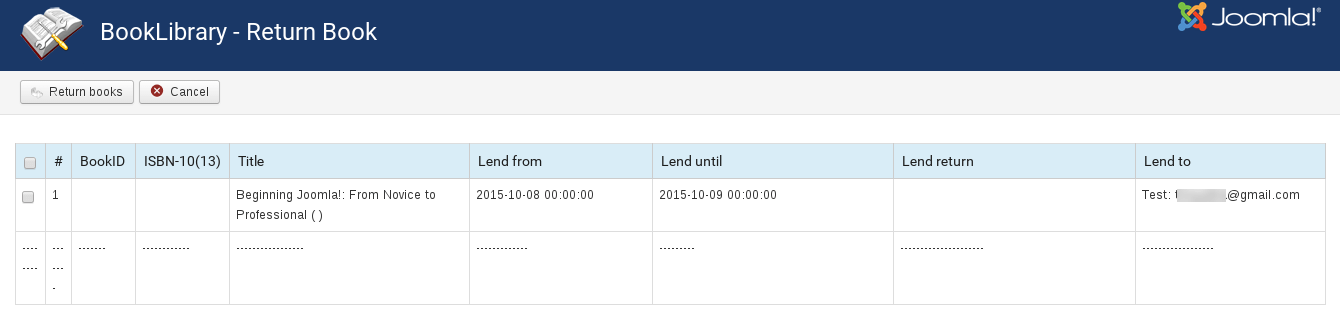
Return book. Screenshot is made from Classic - Book Library Joomla template build on book lending software"
Book Availability indication in the frontend
In the frontend of the website with Book Library - book lending software, the book details will now show that the book has been lent out, so that other visitors of the website know that the book is not available for lending between the dates mentioned.
That concludes the Lend Request Management cycle in Book Library - book lending software. Let's have a look at submitting Book Suggestions in Book Library now.
Submitting Lend Requests in Book Library - book lending software
Book Library - Joomla eBook software is a best book lending software for create online book library website, create public library website or any book store website. In this article we will take a look at the Lend Request submission from the frontend of Book Library - book lending software.
Submitting Lend Requests in Book Library - book lending software
In the previous articles we've seen how to submit reviews and manage reviews. Now we will describe the process of submitting lend requests in Book Library - book lending software. When you have configured Book Library, book lending software to allow users of your website to submit Lend Requests for books, the users can select books for lending by choosing Lend Request in the Book Details pages.
Lend Requests in Book Details View of book library system
On the book details page there is only 1 book in sight and therefore only 1 book available for the Lend Request. If the book is already lent out, there will be a new field on the Book Details page that will show Lent to: and Lent from-until: information:
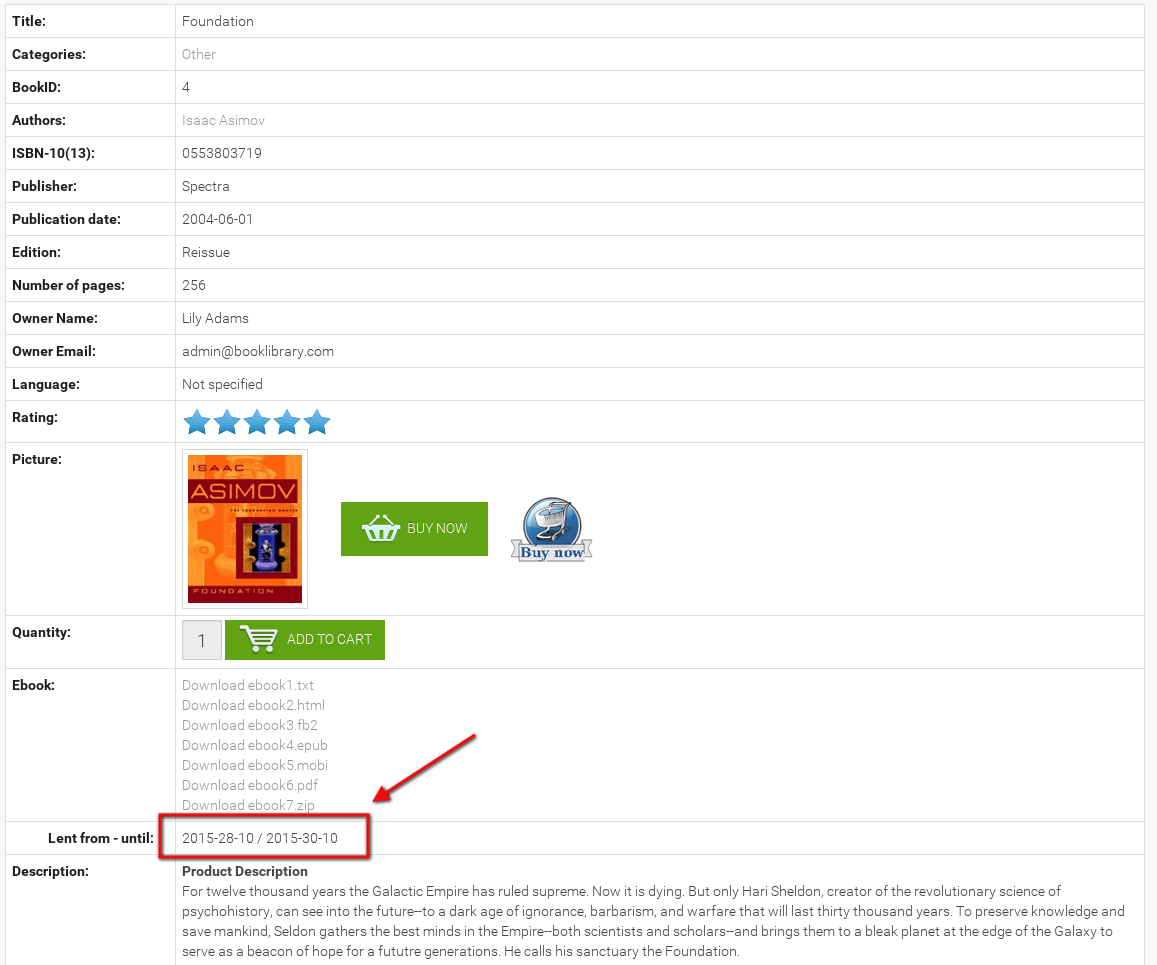
Lent out book. Screenshot is made from Classic - eBook Joomla Template
The user can request it by simply clicking Lend Request button.
Lend Request Form in Book Library - book lending software
When clicking Lend Request in book details view, the user will be presented with the following form:
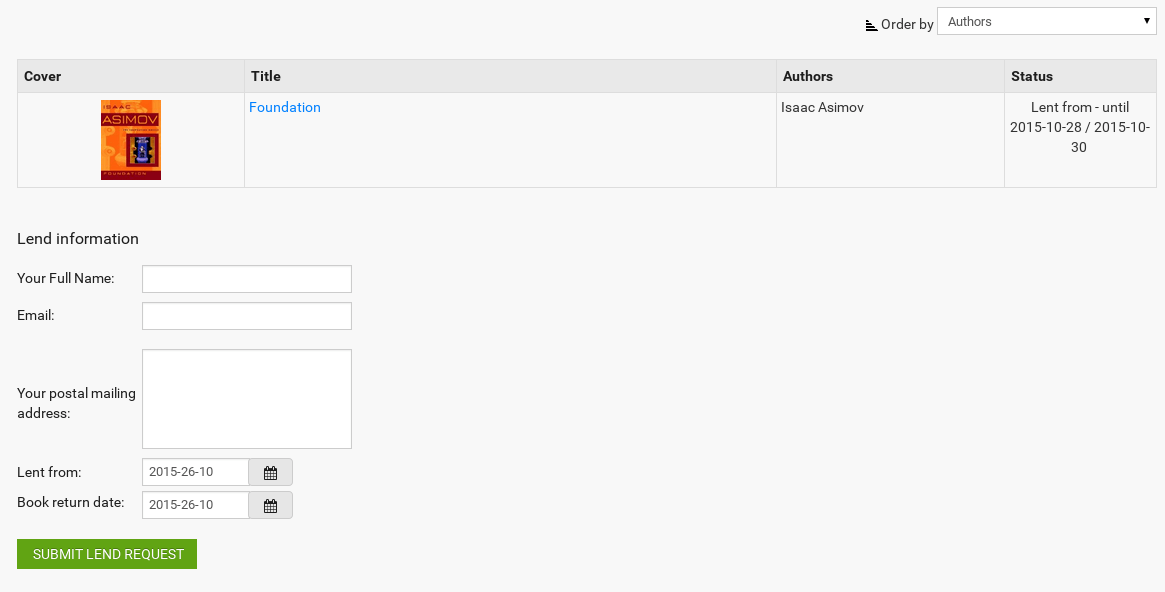
Lend Request form. Screenshot is made from Classic - eBook Joomla Template
-
To complete the Lend Request, the user needs to fill in their
- name
- email address
- postal address
- Lend from
- Book return date
The two small buttons next to Lent from and Book Return Date will open a calendar when clicked, to make it easier to select the dates.
Once everything is filled in, the user clicks on the Submit Lend Request button on the bottom of the form. A confirmation screen appears:

Confirmation screen. Screenshot is made from Classic - eBook Joomla Template
The text says: "Your Lend Request was stored in our database. We will check your request and inform you as soon as possible."
Remark: You can find this text in the Language Manager, where you can change it to you liking.
Lend Request Flow in Book Library - book lending software
If email notification was set in Settings Backend for Lend Requests, then the designated Library Manager will now receive a notification mail as well. The Library Manager then needs to approve the request in the Administration backend.
Once the lend request is approved, the user will receive an email confirmation stating that the request has been approved and that the books are ready to be picked up at the library address.
In the next article we will have a look at managing Lend Requests in Book Library
How to managing submitted book reviews in Book Library Management Software
Joomla book library component (extension) gives a great opportunities to manage your online personal library or public library. In this article we show how to managing submitted book reviews in Book Library Management Software
The book reviews which were submitted (see how to submit a review here) by the users of the website will sometimes need to be edited or otherwise managed by the Administrators. User submitted book reviews in Book Library, eBook library manager are stored together with the books and can be managed in the Shop version through the Reviews Manager, were all users submitted Book Reviews are visible on one administration page.
In the Admin backend, go to Components -> Book Library -> Reviews
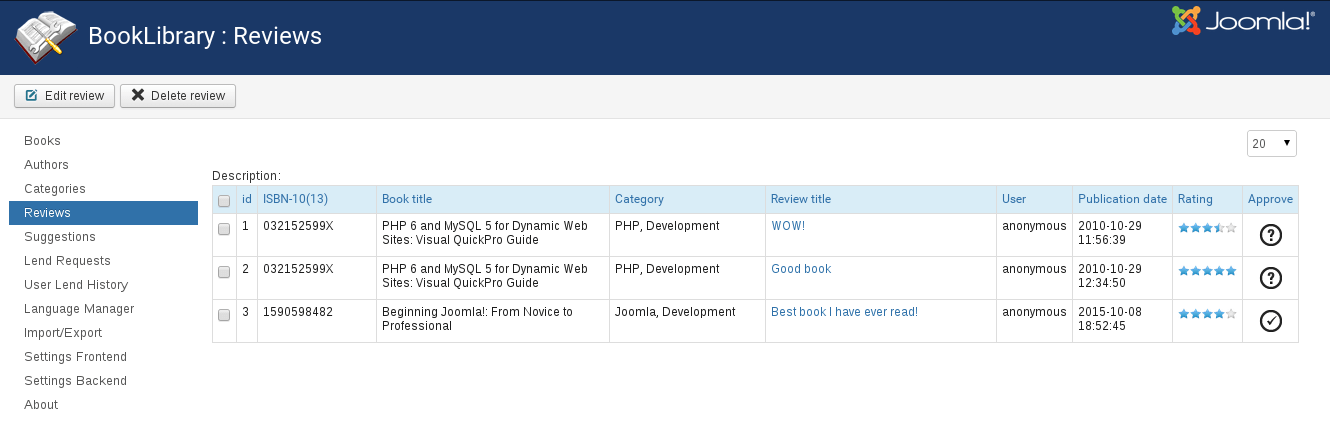
Review manager in the Admin backend. Screenshot is made from Classic eBook Joomla template
Here you will see all user submitted book reviews on a single page (the page shown has only 3 reviews). Select the review you want to edit or delete (checkmark). Once you have selected the review you want to manage, go to the top of the screen. You will see two icons there Edit Review and Delete Review.
- Edit Review
Clicking the Edit Review button will open the user submitted book review for editing. You will be presented with the following screen:
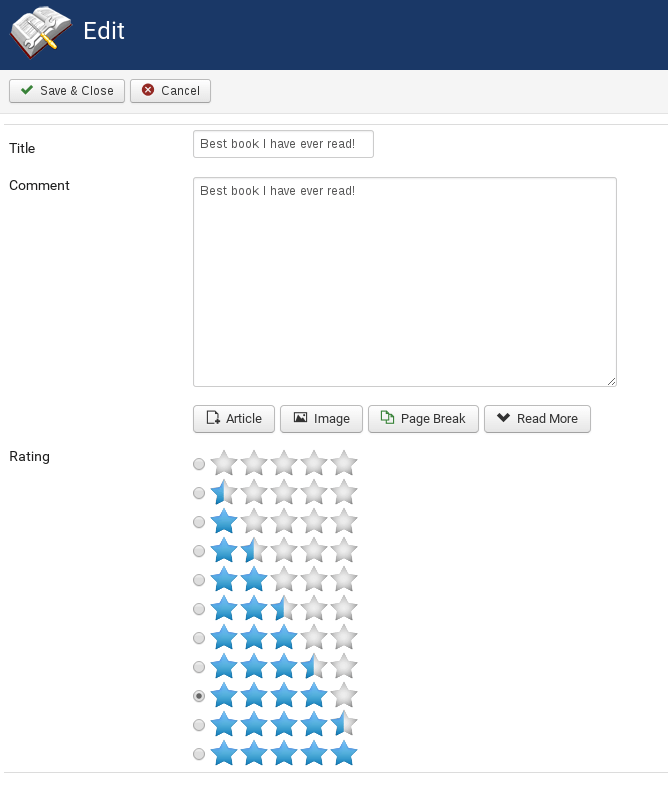
Review editing in the Admin backend of Book Library Management Software. Screenshot is made from Classic - eBook Joomla Template
Here you can edit anything you want in the submitted review. Once you are done editing, just click Save. You will return to the Review Manager page, where you can edit or delete other reviews if you want to.
- Delete Review
Clicking the Delete Review button will delete the user submitted book review you selected earlier.
WARNING:
There is no "Undo" button, so please make sure you really want to delete the review before you click! Once deleted, the review is gone forever.
That's all for now. In the next article we will describe the Submitting Lend Requests in Book Library.
More Articles...
Page 4 of 6

we support payment systems