Build Websites Easily with Joomla CCK Library
Building a Joomla website from scratch can take a lot of time, especially when you need to create forms, maps, testimonials, menus, search layouts, and other website sections. With Joomla CCK, you don't have to create everything manually. Just add any section to your website in a few clicks.
The OrdaSoft Joomla CCK Library allows you to import ready-made website elements with just a few clicks. You can import a complete template (complete website) or use individual modules and layouts, such as a contact form, map, about us section, testimonials, search form, gallery, menu, and many other elements. This makes Joomla CCK a convenient way to build a complete website much faster. In this tutorial, we'll show you how to import the Joomla CCK Library and start using its ready-made layouts on your website.
What Can You Import with Joomla CCK?
The Joomla CCK Library contains ready-made layouts and website elements that you can add to your Joomla website instead of building them from scratch. For example, you can import:
- Contact forms;
- Maps;
- About Us sections;
- Testimonials;
- Butons;
- Discount Sections;
- Features Sections;
- Pricing Tables;
- Social Icons;
- Statistics;
- Team Sections;
- Up Buttons.
You can also import a Joomla CCK - complete website template with layout and "sample data" and use it to build a website similar to the template demo. The important thing is that you don't have to import everything. You can choose what you need and use individual layouts in your own Joomla website.
Import Joomla CCK Library
1. Open Joomla CCK Import. First, log in to your Joomla Administrator panel. Then go to: Components → CCK → Import/Export. Here you will find the Import Library tab. This is where you can access the available Joomla CCK Library and import ready-made website elements.

2. Import the Joomla CCK Library. In the Import Library tab, you will see the available OrdaSoft Joomla CCK Library Layout. Click Import. The CCK Library will be imported into your Joomla CCK. After clicking Install, Joomla CCK will show you several options for handling the imported entities.

You can see options such as: Create a new entity, Merge with an existing entity or Skip.

If you are importing the library for the first time, select: Create a new entity. Then continue with the import.

What Is an Entity in Joomla CCK?
If you are new to Joomla CCK, the word Entity may sound complicated, but the idea is simple. An entity is a group that connects related layouts and data for a particular type of website content. For example, an entity can contain everything needed to work with a particular type of content.
A Shop Entity can contain layouts and data needed for a shop website.
A Book Entity can contain layouts and data needed for a book website.
The imported CCK Library Entity contains the layouts included in the OrdaSoft Joomla CCK Library. You don't need to worry about creating these layouts manually. Joomla CCK organizes them for you during the import.
3. Find Your Imported Layouts. After the import is finished, you can see all the layouts that were added to Joomla CCK. Go to: Components → CCK → Layouts. Here you will find the layouts from the Joomla CCK Library. This is where the real advantage of the library becomes clear. Instead of spending time creating every section yourself, you can simply select an existing layout and use it on your website. Everything is ready to use.


Display a Joomla CCK Layout on Your Website
Display CCK Layout Module
4. Add CCK Layout Module. Importing a layout is only the first step. Now you need to display it on your website. For this, Joomla CCK can use a Joomla module. Go to: Content → Site Modules. Click: New. Joomla will show you a list of available module types.

Select: CCK Display Layout. This module allows you to display one of your Joomla CCK layouts on a website page.
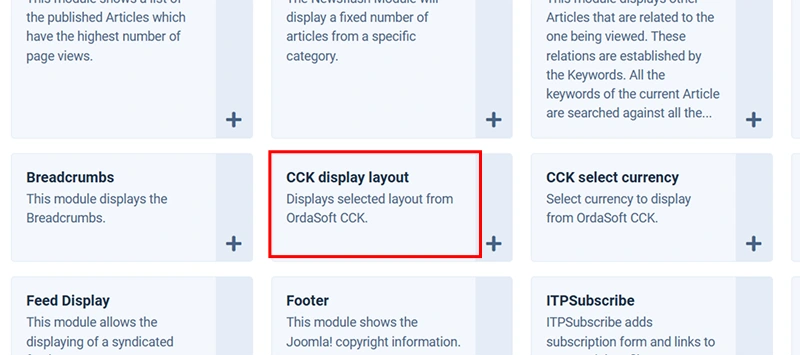
5. Select the Layout You Want to Display. After selecting CCK Display Layout, you will see the module settings. First, select the layout you want to display.

You can then select the specific item or content that you want the layout to display, depending on the layout you are using.

Fill information for module:
- Enter a module Title.
- Select a module position.
- Publish the module.
- Choose the pages where it should appear.
6. Choose Where to Display the Module. Configure the Joomla module itself.
The Position determines where the module will appear in your Joomla template. For example, you could place a testimonial module below your main content or put a search form in a sidebar.

7. Choose the Pages with Menu Assignment. Open the Menu Assignment tab. Here you can choose which pages should display your module. For example, you might want: About Us only on the About Us page. Contact Form only on the Contact page. Testimonials on the homepage. Map on the Contact or Locations page. This gives you complete control over where your imported CCK layouts appear. Finally, click Save & Close.

8. Now open your website and go to the selected page. Your imported Joomla CCK layout should appear there.

Display CCK Layout in Joomla Menu
You can show CCK Layouts on your website using Joomla CCK Layout Module and with Create menu to Joomla CCK Layout. Here is an example of how to do this with Joomla Menu.
1. Select Joomla Menu, in Joomla Menu manager.

2. Select Menu Item type. Menu Item type points to Show CCK Layout.


3. Select Layout. Select Layout in Tab Params.

Save and Close. Save your Menu and Open your Website to check how it looks.
Import a Complete Joomla Template
Joomla CCK is not limited to individual modules. You can use the Joomla CCK template to import ready-made website templates with all Layouts and "Sample data". This can save you time because a template can contain multiple layouts and website sections that are already prepared for you. Instead of creating a website section by section, you can import a ready-made template and then customize it for your project. You can start with a ready-made template and replace the demo content with your own information.
To Import any template, first log in to your Joomla Administrator panel. Then go to: Components → CCK → Import/Export. Here you will find the Import Template tab. Select tempate you like and press Import button. And follow same steps as for Import CCK Library.
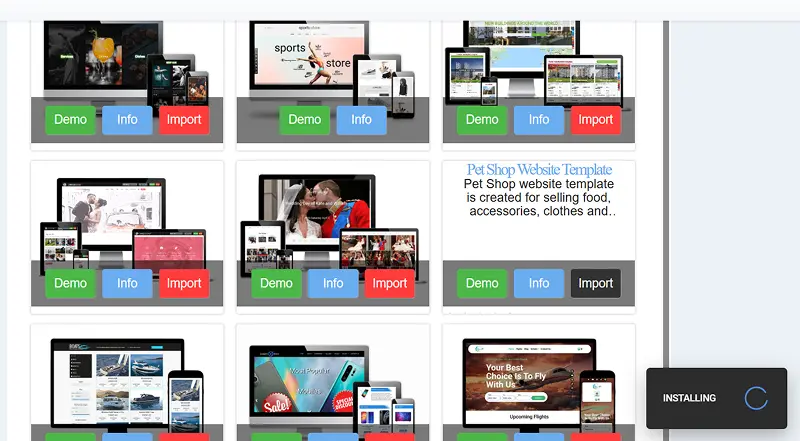
How to Recreate a Template Demo
When you import a template using the Joomla CCK Templates Library, you may notice that some layouts have specific words in their titles.
Layouts with "Module" in the Title. If a layout has "Module" in its title, it is intended to be used as a Joomla module. For example: Testimonials Module, Map Module, About Us Module. You can select these layouts when creating a CCK Display Layout module. This is useful when you want to recreate the sections shown in the original template demo. However, you are not limited to layouts with "Module" in their names. You can use other CCK layouts as modules as well.

Layouts with "Menu" in the Title. You may also see layouts with "Menu" in their titles. These layouts can be used to create menu-related sections and help reproduce the navigation shown in the template demo. You are not restricted to these layouts and can create your own Joomla menu items and connect them to the CCK layouts you need.

Build Your Website with Just a Few Clicks
The biggest advantage of the Joomla CCK Library is that you don't have to start every website from zero. You can import a complete template or simply choose the individual elements you need. For example, creating a business website. Instead of manually creating everything, you could import: About Us, Services, Testimonials, Contact Form, Map, Gallery. Then place each section where you want it on your website. The same approach works for a real estate website: Property Search, Property Listings, Map, Featured Properties, Contact Form. Or for a service website: Services, About Us, Testimonials, Gallery, Contact Form, Map. You simply choose the layouts you need, place them on your pages, and customize the content. The Joomla CCK Library is designed to make website building easier. With just a few clicks, you can import a complete Joomla CCK template or choose individual ready-made modules and layouts and add them to your website. Import the library, select the layout you need, create a CCK Display Layout module, choose its position and menu assignment, and publish it. That's it!
Customizing the content and creating a unique Joomla website
You can then continue customizing the imported content and create a unique Joomla website without having to build every component from the beginning. Check articles below.
Other documentations of Joomla CCK website builder:

we support payment systems