Joomla CCK Fields: Complete Guide to Custom Fields
Joomla CCK fields are one of the key features of OrdaSoft Joomla CCK. Fields allow you to create structured content, custom forms, product details, listings, and many other types of Joomla websites.
If you create a Joomla contact form, application form, booking form, product catalog, real estate website, advertising directory, or custom listing, you will use fields to collect and display information. For example, a product can have fields for its name, price, image, description, and URL. A property can have fields for its address, price, number of rooms, images, and other details.
Why Use Joomla CCK Custom Fields? Joomla articles can be created without custom fields. However, fields become especially useful when your website contains a large amount of content with the same structure. For example, imagine a website containing hundreds of:
- Products;
- Books;
- Real estate properties;
- Cars;
- Classified advertisements;
- Business listings;
- Events.
Instead of manually creating every page with a different structure, you can create the required layouts and fields once and reuse them for all your content. This helps keep your website consistent and makes managing large amounts of structured content much easier. With OrdaSoft Joomla CCK, you can use custom fields to create different types of Joomla content, including articles, blog posts, product catalogs, advertisements, forms, and other custom content. For this reason, OrdaSoft Joomla CCK can be used as a flexible Joomla website builder. If you have some suggestions about other necessary fields please visit our forum.
Joomla CCK Field Types
Joomla CCK provides a variety of field types that you can use to build custom content structures. The available field types include:
- Text Field
- Text Area Field
- Category Field
- Image Field
- Images Gallery Field / Images Slider field
- Number Field
- Date Field
- Url Field
- Checkbox Field
- Radio Button Field
- Select List Field
- Multi Select List Field
- Depended Field / Connected Select List Fields
- Rating Field
- File Field
- Audio Field
- Video Field
- Location Map Field
- Captcha Field
- Order By Field
- Price Fields
The fields available to you can depend on the layout you are creating. Some fields, layouts, and modules may already be included by default, while others can be added manually.
How to Add a Joomla CCK Field
The general process for adding most Joomla CCK fields is similar.
- Open the Add Instance Layout.
- Find the Fields section.
- Click Add New.
- Click New in the field management window.
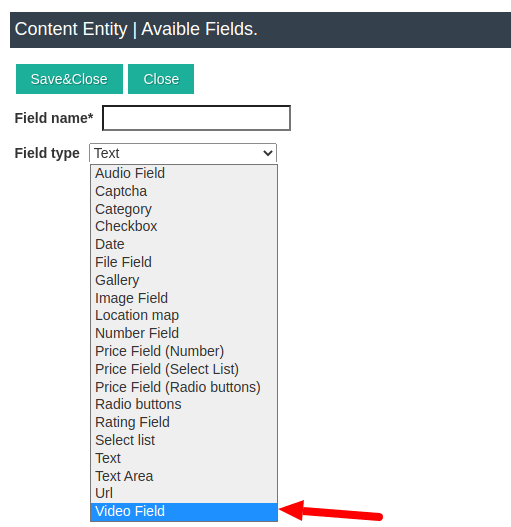
- Select the required Field Type.
- Enter a Field Name.
- Save the field.
- Add the field to your layout using Drag & Drop.
The exact settings available will depend on the selected field type. Now let's look at the different Joomla CCK fields in more detail.
Text Field in Joomla CCK
The Text Field is a basic field for entering a short amount of text. It can be used for information such as:
- Product name;
- Property title;
- Author;
- Location;
- Company name;
- Short description.
To add a Text Field:
- Select the Add Instance Layout.
- In the Fields section, click Add New.
- Click New.
- Select Text as the Field Type.
- Enter a Field Name.
- Click Save and Close.
When an Instance is edited, the user can enter a value into the field. The value can then be displayed on the website through a Show Layout.
Start working with Joomla CCK.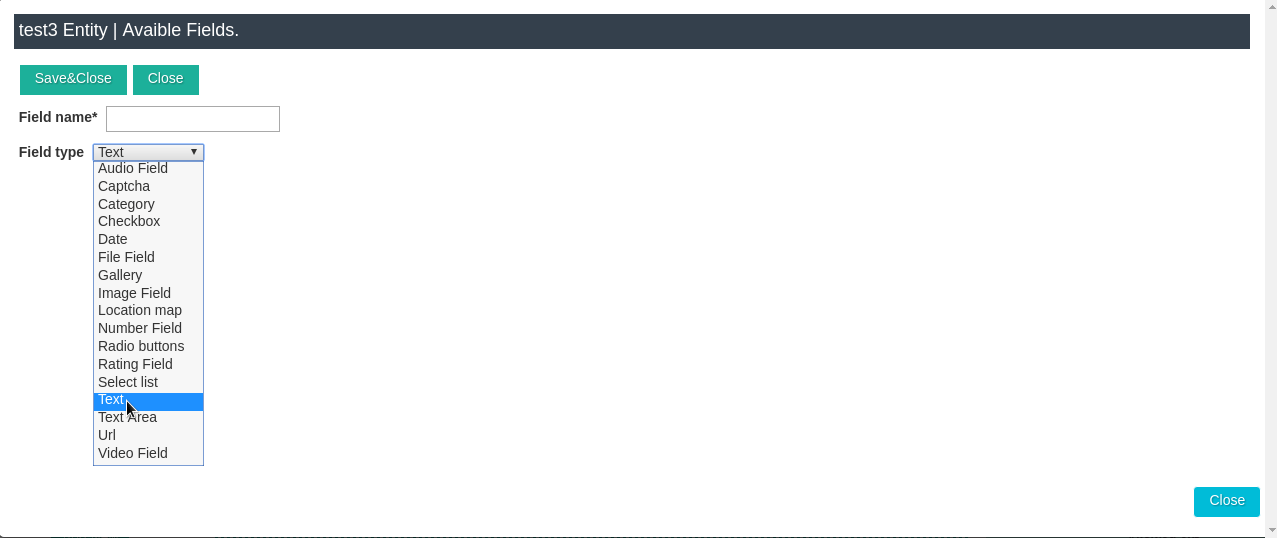


Text Area Field in Joomla CCK
The Text Area Field is designed for entering multiple lines of text. It is useful for longer content such as:
- Product descriptions;
- Property descriptions;
- Comments;
- Additional information;
- Notes;
- Blog content.
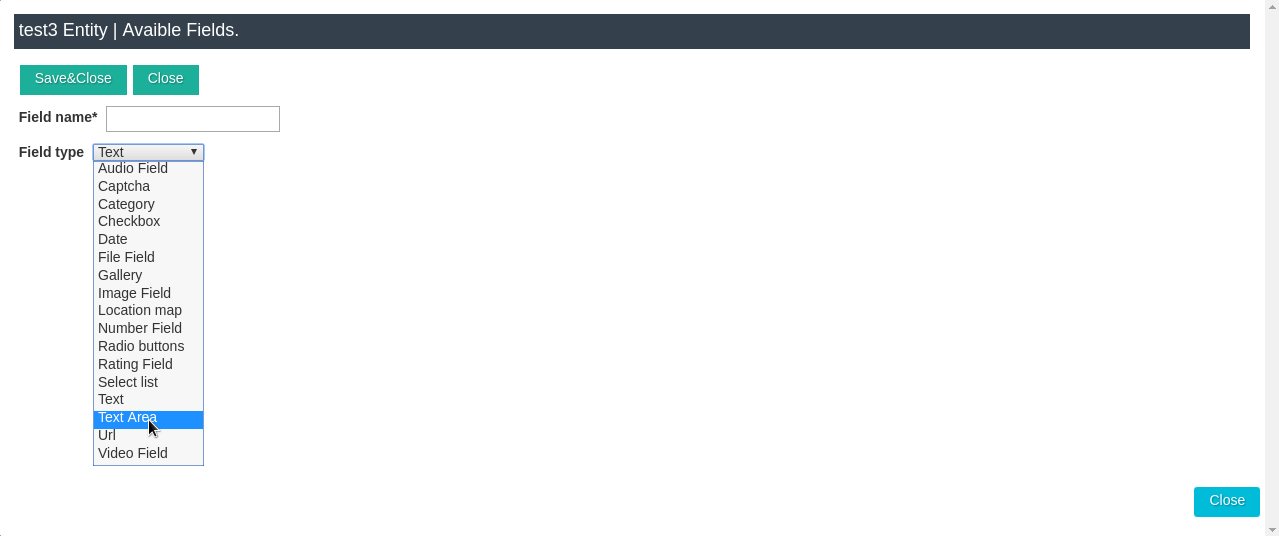
To add a Text Area Field, use the same process as for a Text Field:
Add Instance Layout → Fields → Add New → New → Text Area.
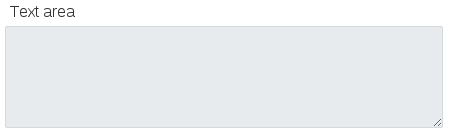
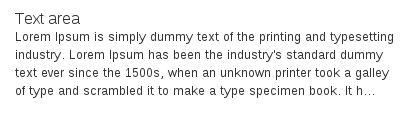
After creating the field, add it to the appropriate layout. The information entered into the Text Area can then be displayed on the frontend of your Joomla website.
Category Field in Joomla CCK
The Category Field allows you to assign an Instance to one or more categories. Categories are useful for organizing large amounts of content. For example, a car website could have: Cars, Trucks, Motorcycles, Electric Vehicles. A real estate website could have: Apartments, Houses, Villas, Commercial Properties.
To add a Category Field:
- Open the Add Instance Layout.
- Go to Fields.
- Click Add New.
- Click New.
- Select Category as the Field Type.
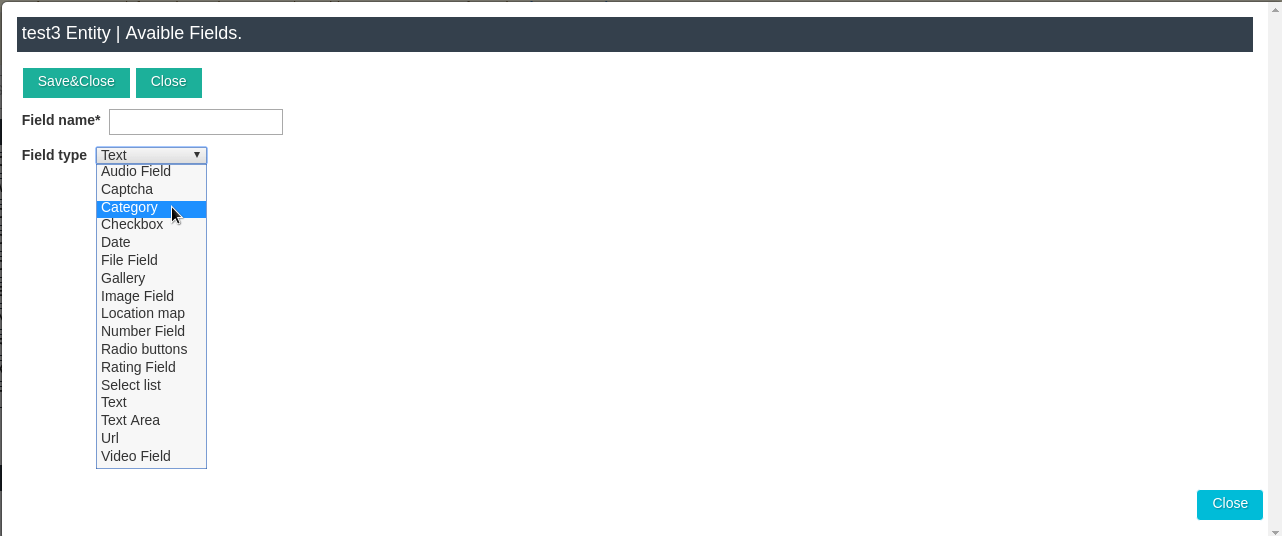
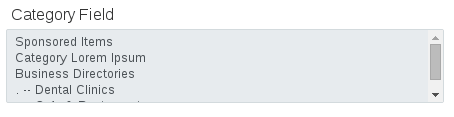

Category fields are connected to the Categories Manager, where you can create, edit, and manage your categories. A Joomla CCK category can include settings such as:
- Category Alias;
- Category Title;
- Parent Category;
- Category Entity;
- Category Image;
- Category Access;
- Published / Unpublished status;
- Category Description.
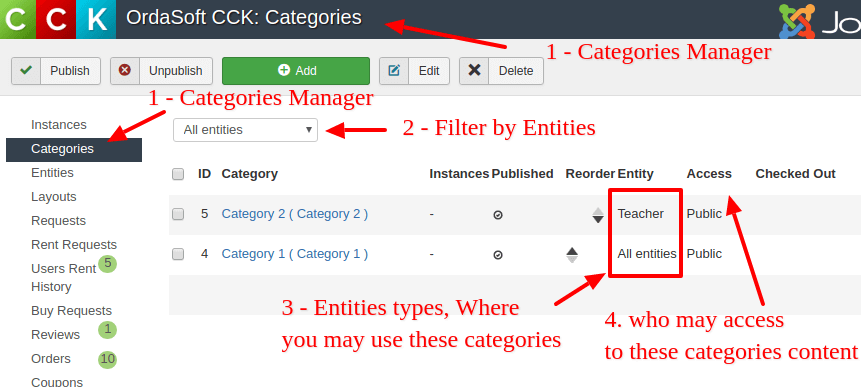
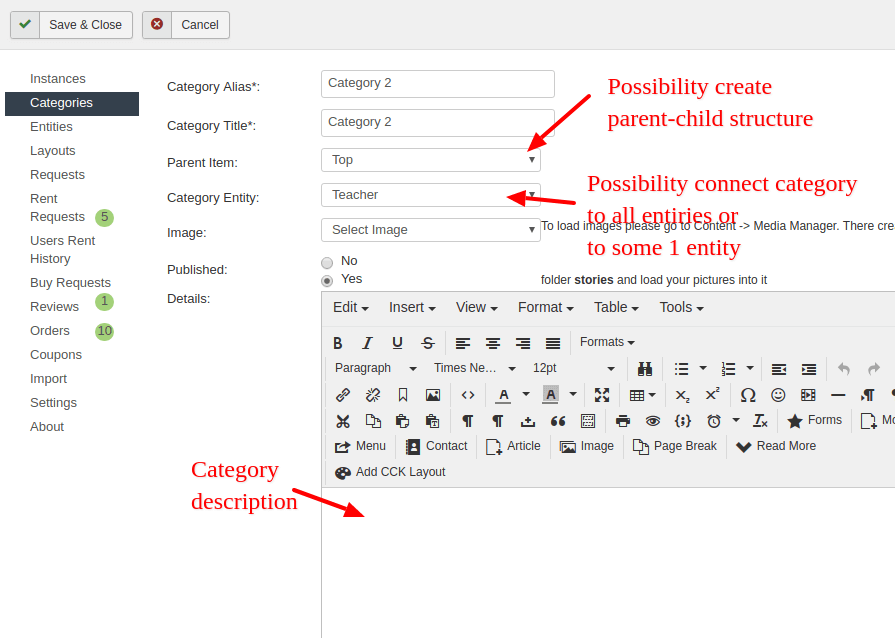
The Parent Category option allows you to create a hierarchical category structure. For example: Vehicles → Cars → Trucks → Motorcycles
Category Entity. A category can be connected to all entities or to a specific entity.
Category Access. You can control who has access to category content. Category access functionality needs to be enabled in the Entity settings and is available in the Pro version of Joomla CCK.
Joomla CCK also provides special layouts for displaying categories, including: Show All Categories Layout - displays all categories on the website. Show Category Layout - displays Instances connected to a particular category.
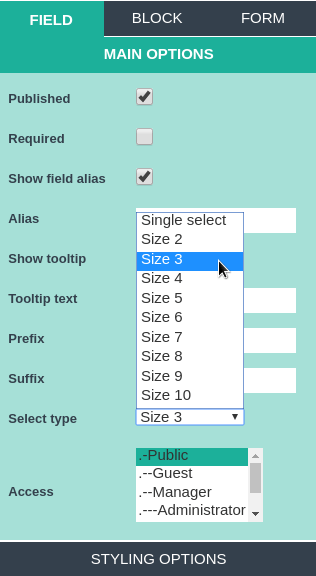
Image Field in Joomla CCK
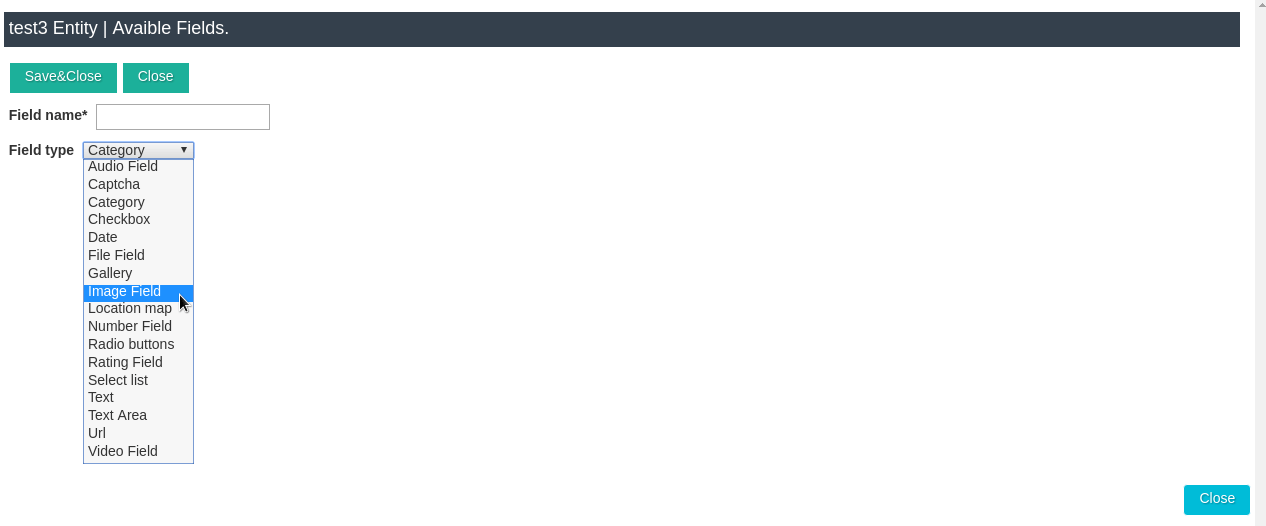
The Image Field provides an image upload option for Joomla CCK Instances. It can be used for:
- Product images;
- Property photos;
- Car photos;
- Profile pictures;
- Featured images;
- Other website content.
To add an Image Field: Add Instance Layout → Fields → Add New → New → Image. Once the image has been uploaded to an Instance, it can be displayed through your Joomla CCK Show Layout.

Images Gallery and Image Slider Field
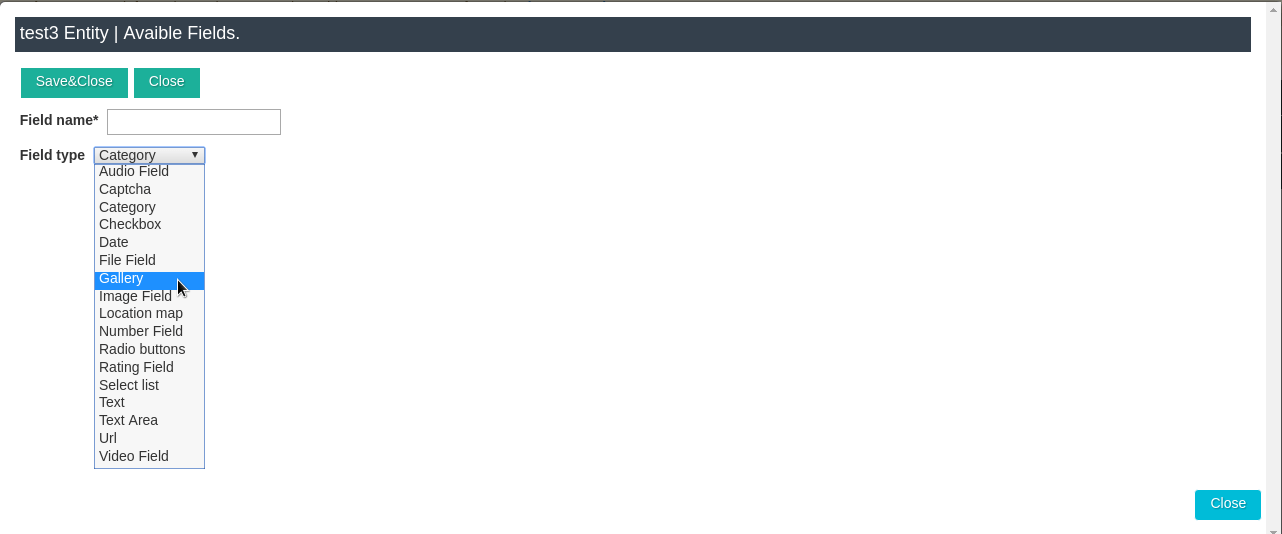
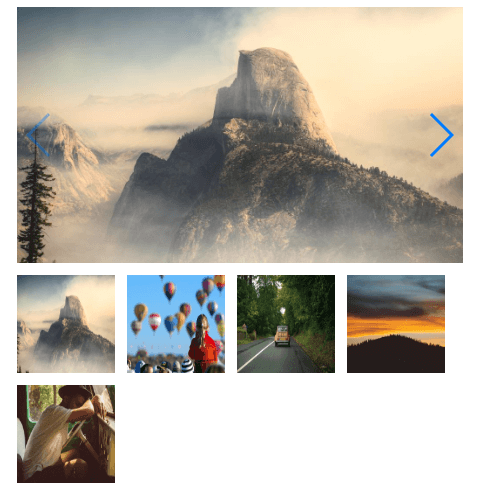
The Images Gallery / Images Slider Field allows you to manage multiple images within a single field. Instead of creating separate fields for every image, you can use one Gallery Field to store a collection of images. For example, a real estate listing could contain:
- Main property image;
- Kitchen photo;
- Bedroom photo;
- Bathroom photo;
- Exterior photo.
The Gallery Field can display these images in several ways. Available display options include:
- Gallery of Images;
- Images Slider;
- Gallery with Images Slider;
- Main Image Only.
How to Add a Gallery Field? Go to: Add Instance Layout → Fields → Add New → New → Gallery. After creating the field, add it to your layout. In the Joomla CCK Show Layout, you can configure how the gallery should be displayed. You can also adjust the size of: Main image, Slider, Image thumbnails.
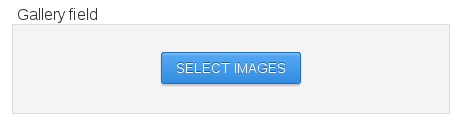
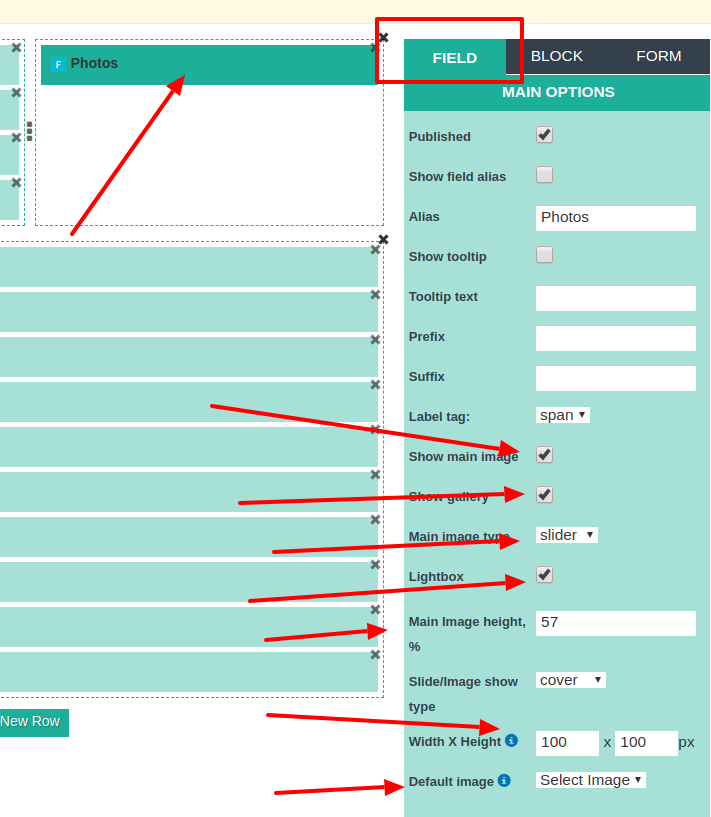
If the user does not upload an image, you can configure a default image. This helps keep your website design consistent even when some Instances do not have uploaded images.

Number Field in Joomla CCK
The Number Field allows you to store numerical values. It can be useful for:
- Prices;
- Property areas;
- Number of rooms;
- Product quantities;
- Vehicle mileage;
- Ratings;
- Other numerical information.
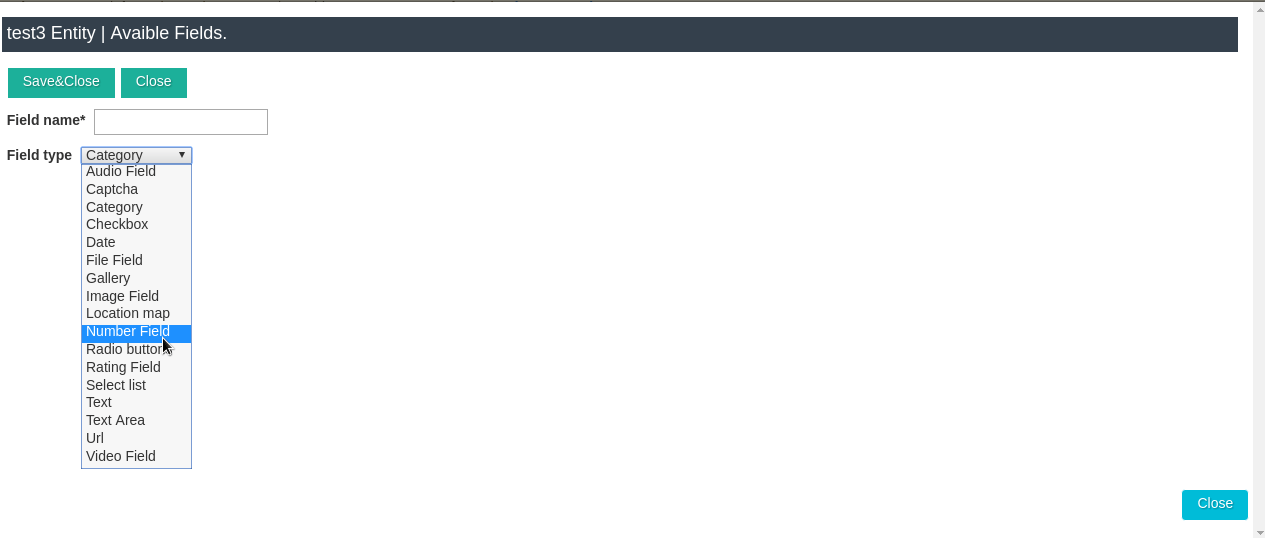
To add a Number Field: Add Instance Layout → Fields → Add New → New → Number. The value entered into the Number Field can be displayed on the frontend or used as part of a search or filtering system.

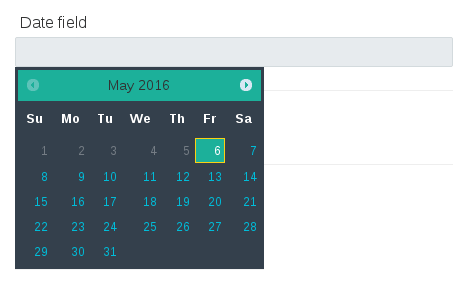
Date Field in Joomla CCK
The Date Field allows users to enter or select a date. It can be used for:
- Events;
- Appointments;
- Publication dates;
- Booking dates;
- Rental dates;
- Other date-based content.
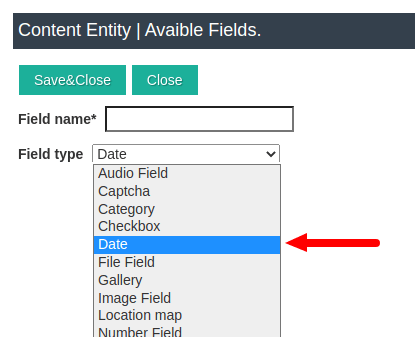
To add a Date Field: Add Instance Layout → Fields → Add New → New → Date. The selected date can then be displayed through a Show Layout or used by other Joomla CCK functionality, such as Calendar or booking layouts.

URL Field in Joomla CCK
The URL Field is designed for storing website addresses and links. It can be useful for:
- Product websites;
- Company websites;
- Social media profiles;
- External resources;
- Download pages;
- Affiliate links.
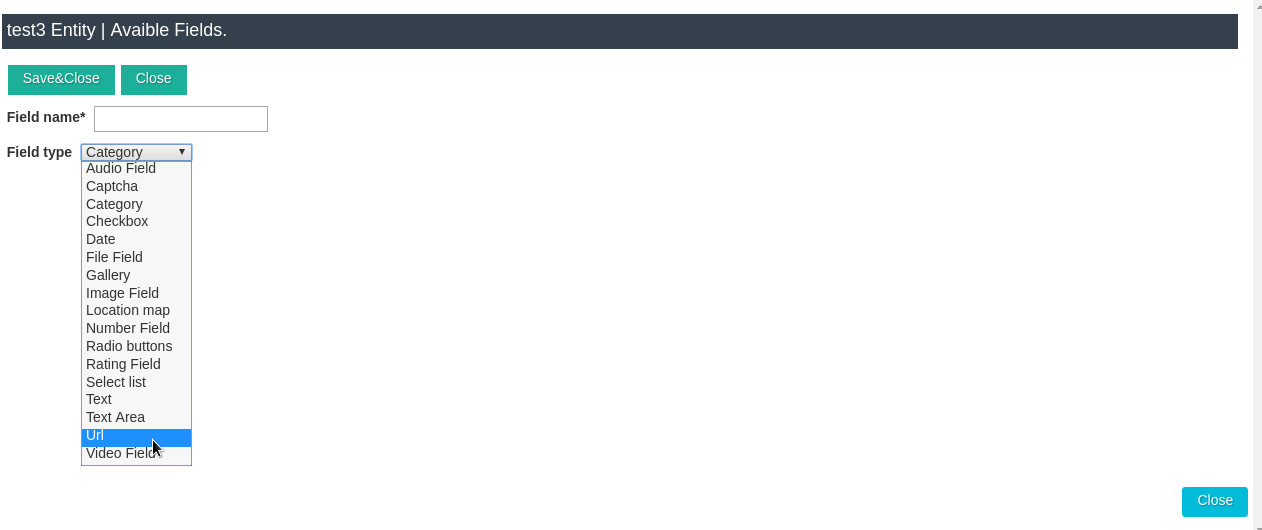
The field can automatically work with a specified protocol, such as https://. To add it: Add Instance Layout → Fields → Add New → New → URL. Enter the field name, save it, and add it to your layout.

Checkbox Field in Joomla CCK
The Checkbox Field creates a list of options that users can select. It is useful when users can choose multiple options. For example:
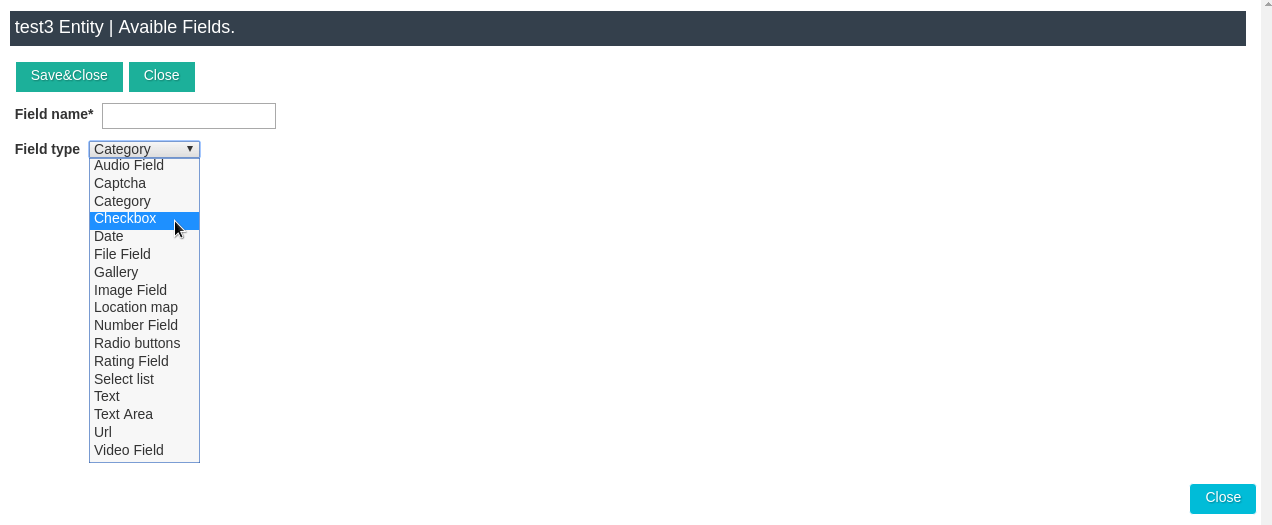

Features: Parking, Wi-Fi, Swimming Pool, Air Conditioning.To create a Checkbox Field: Add Instance Layout → Fields → Add New → New → Checkbox. Configure the available options and then add the field to your layout.
Radio Button Field in Joomla CCK
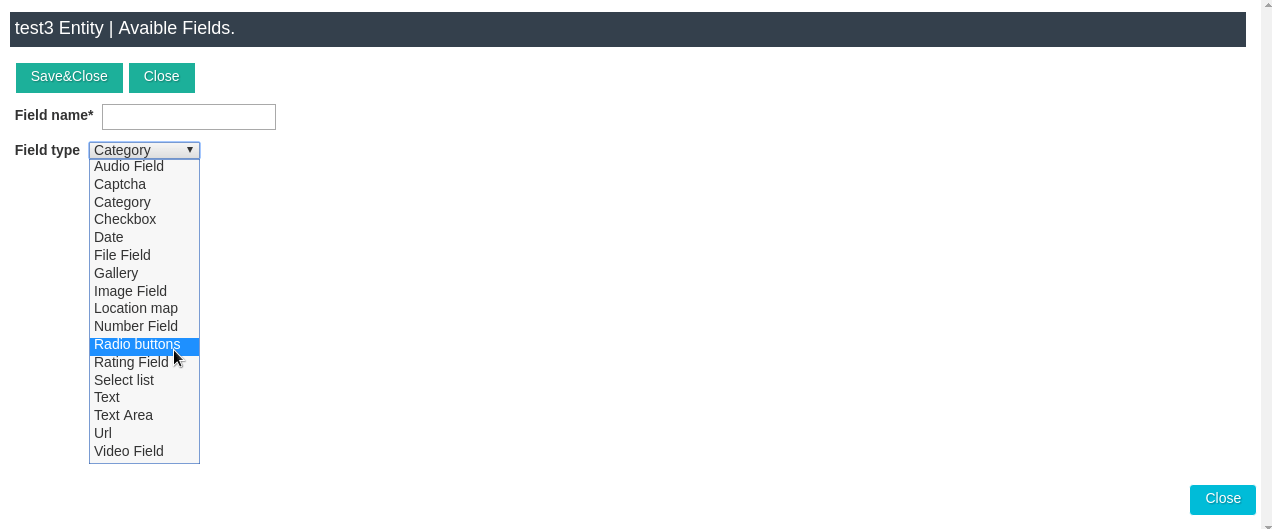
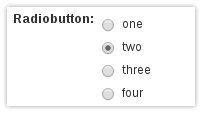
The Radio Button Field is useful when a user needs to choose one option from several choices. For example: Property Type: Apartment, House, Villa. Only one option can be selected. To add this field: Add Instance Layout → Fields → Add New → New → Radio Button. Add the available options and save the field.
Select List Field in Joomla CCK
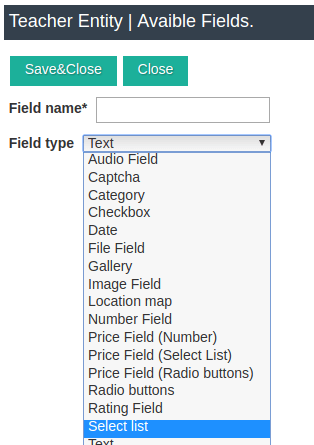
The Select List Field allows users to choose one option from a predefined list. It is similar to a radio button field, but the options can be displayed in a dropdown list. For example Choose a Brand: ToyotaFord, BMW, Audi.
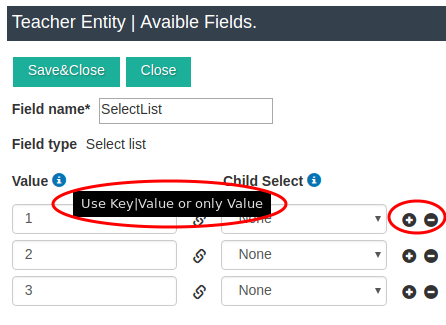
To create a Select List Field: Add Instance Layout → Fields → Add New → New → Select List. When configuring the field, add the required values to the list. The+ and - buttons can be used to add or remove list values.
Multi Select List Field in Joomla CCK
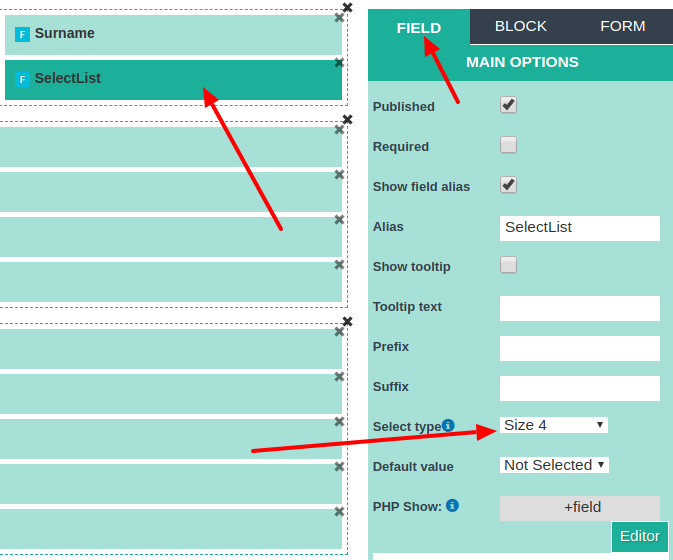
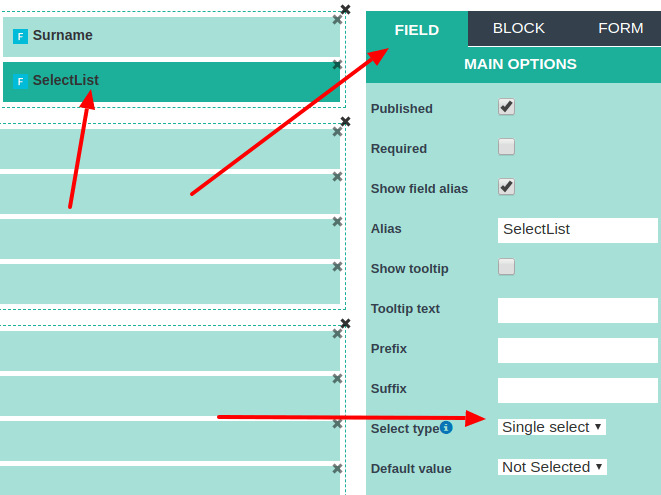
The Multi Select List Field allows users to select multiple values from a list. To create one, follow the same process as for a Select List Field. When configuring the Multi Select List Field in an Add Layout, set the Select Type to the required size. For example: Select Type: Size 6. This allows users to select multiple values from the available options.
Depended Field - Connected Select List Fields
The Depended Field, also called Connected Select List Fields, allows you to create related dropdown lists where one selection affects the available options in another list. For example: Make → Model. If a user selects: Toyota. the second list can display Toyota models.
To create a Depended Field:
- 1. Create multiple Single Select List fields.
- 2. Connect them using the Parent → Child relationship.
- 3. Use the Child Select setting to establish the connection.
- 4. Configure the fields as Single Select fields.
This functionality can be useful for creating:
- Vehicle Make → Model selectors;
- Country → State → City selectors;
- Product Category → Product Type selectors;
- Other related selection systems.
When configuring a Depended Field in a CCK Add Layout, make sure its Select Type is set to Single Select.
Rating Field in Joomla CCK
The Rating Field allows users to submit and display ratings. It is particularly useful for review systems. For example, visitors can rate Products, Properties, Services, Cars, Hotels, Other listings. The Rating Field can be used with Review Layouts and Show Instance Layouts.
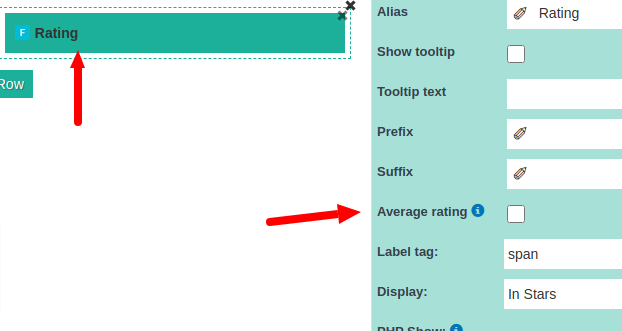
One useful option is the Average Rating setting. When connected to reviews, the Show Instance Layout can display the average rating calculated from the ratings submitted by users. In an Add Review Layout, visitors can select their rating. In a Show Review Layout, visitors can see the rating results submitted by other users.

File Field in Joomla CCK
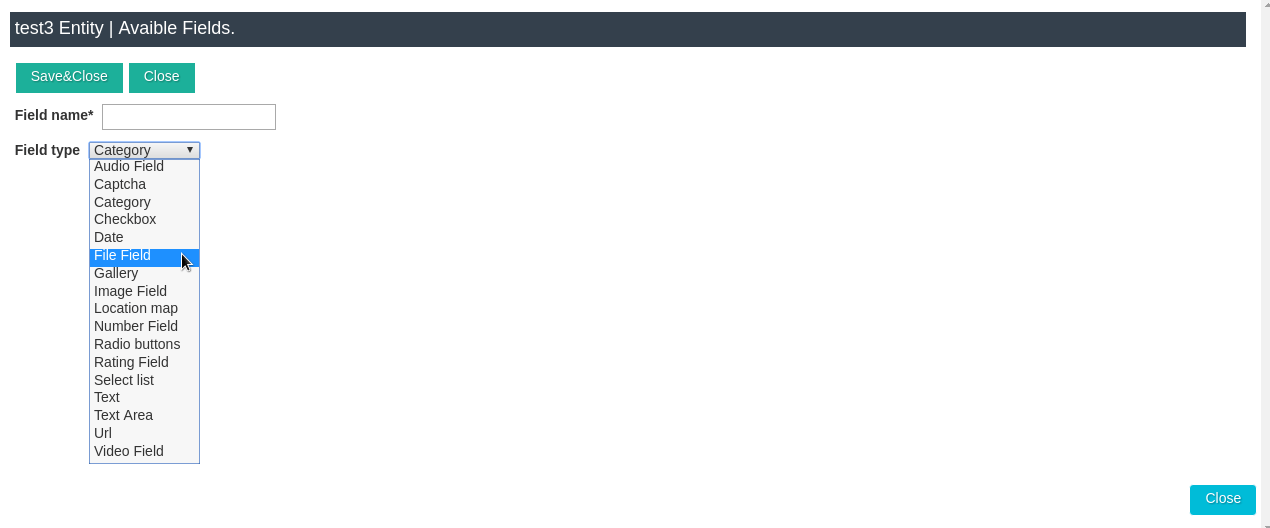
The File Field provides a general file upload option. It can be used when visitors or administrators need to attach files to an Instance. PDF documents, Manuals, Catalogs, CVs, Specifications, Other downloadable files
To add a File Field: Add Instance Layout → Fields → Add New → New → File. After creating the field, add it to your layout. The uploaded file can then be displayed or made available through the appropriate Show Layout.

Audio Field in Joomla CCK
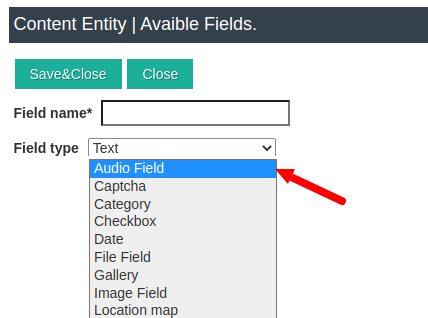
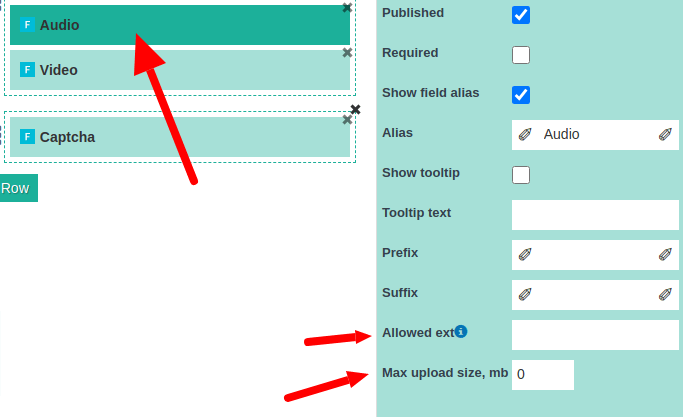
The Audio Field allows you to add audio content to your Joomla website. It can be used for: Music, Podcasts, Audio guides, Interviews, Sound recordings, Other audio files. When configuring the Audio Field in an Add Layout, pay attention to the upload settings. The Allowed Extensions setting defines which file extensions users can upload. The Max Upload Size setting defines the maximum permitted file size in megabytes.
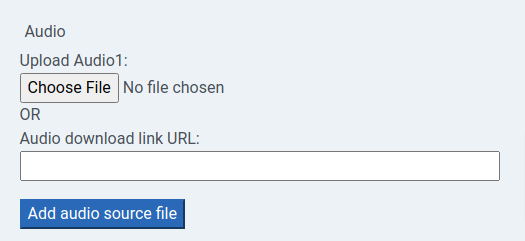
The Audio Field can be configured to use uploaded audio files or an audio file hosted elsewhere using a URL.
Video Field in Joomla CCK
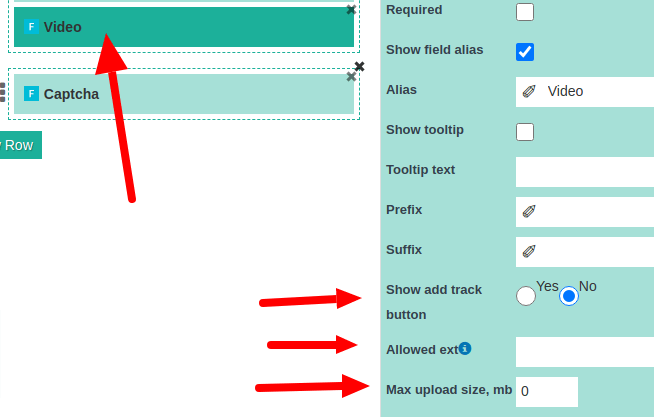
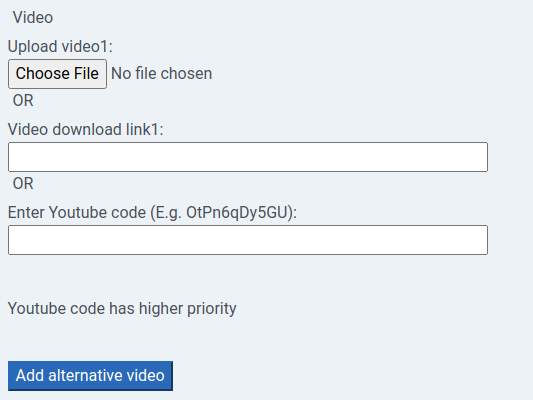
The Video Field allows you to add video content to Joomla CCK Instances. You can use it for Product videos, Tutorials, Presentations, Property tours, Promotional videos, Other video content. When configuring the Video Field, you can set options such as: Show Add Track Button. This option allows you to add a track file, such as subtitles for a video. Allowed Extensions. Defines which video file extensions users can upload. Maximum Upload Size. Defines the maximum file size allowed for uploaded videos.
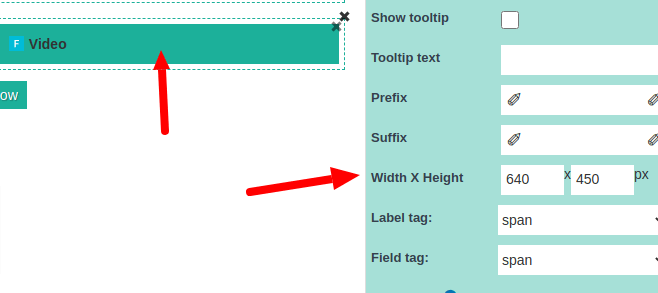
You can add videos using an uploaded file, an external video URL, or a YouTube link. If a YouTube video is provided, Joomla CCK displays the YouTube video according to the available YouTube settings. In a Show Layout, you can also configure the size of the video box.
Location Map Field in Joomla CCK
The Location Map Field creates an interactive Google Map with a marker. It is useful for websites where location information is important. For example:
- Real estate websites;
- Business directories;
- Contact pages;
- Restaurant websites;
- Hotel listings;
- Office directories;
- Local service websites.
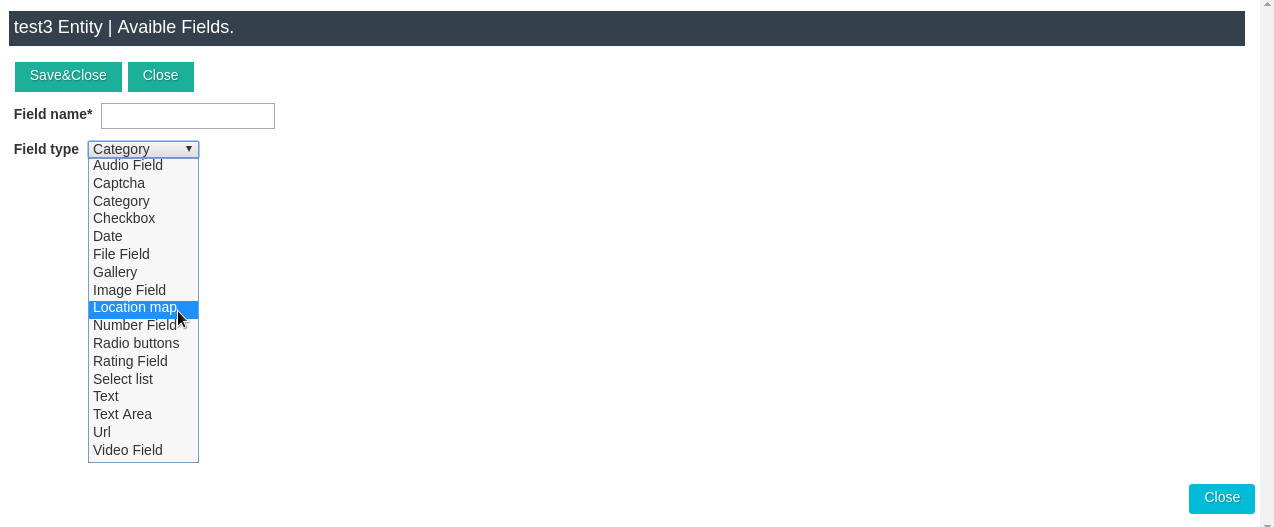
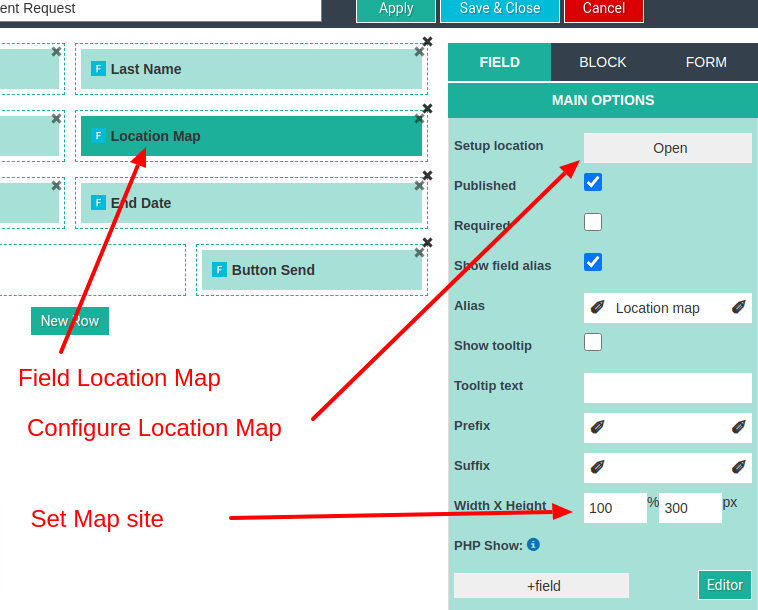
To add a Location Map Field: Add Instance Layout → Fields → Add New → New → Location Map.
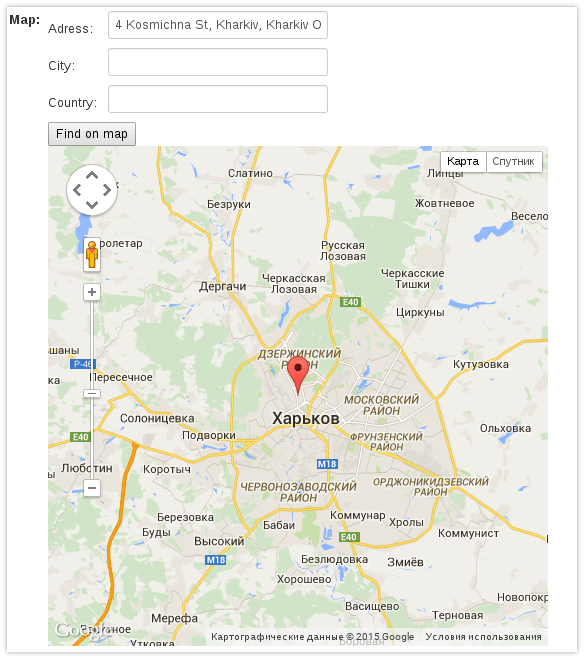
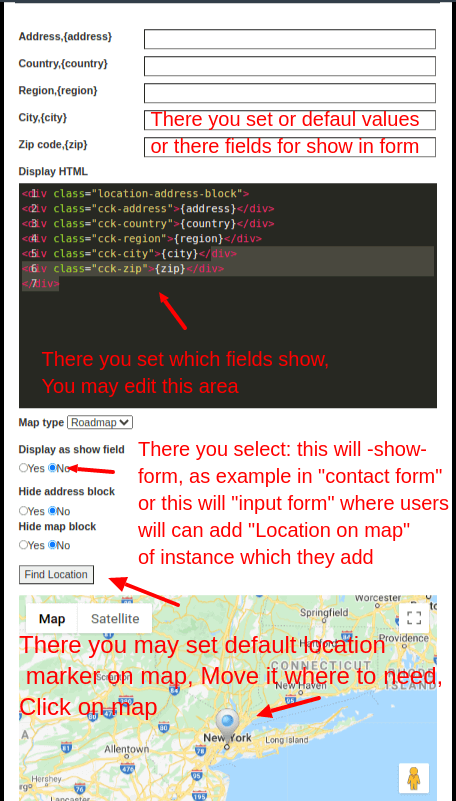
The Location Map Field can be used in two main ways:
The Show option is used when you want to display a location on your website. For example, you could display an office address on a contact page.
The Input option is used when users need to enter a location. For example, when creating a directory, a user could enter the address of their business and place it on the map.
Captcha Field in Joomla CCK
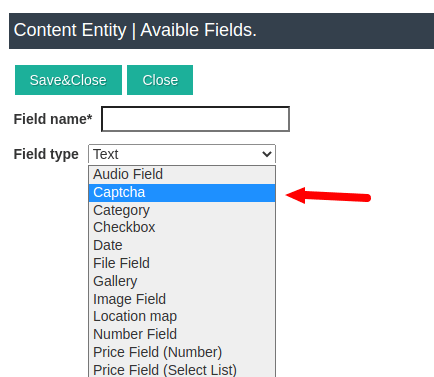
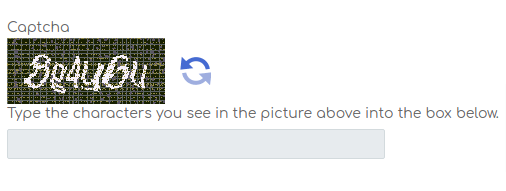
The Captcha Field helps protect Joomla CCK forms against spam. It is particularly useful for forms that can be submitted by visitors who are not registered users. For example, you can add CAPTCHA protection to: Contact formsm Application forms, Request forms, Listing submission forms, Other public forms The Captcha Field is designed for Add Layouts. You can add it using the same general field creation process as other Joomla CCK fields.
Order By Field in Joomla CCK
The Order By Field allows users to sort Instances. It is useful for layouts that display multiple Instances, including:
- Show All Instances Layout;
- Show Category Layout;
- Parent-Child Layout;
- Other listing layouts.
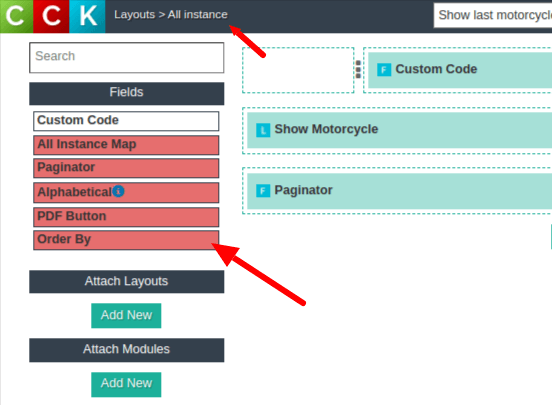
You can add the Order By Field to your layout using Drag & Drop from the Fields area.
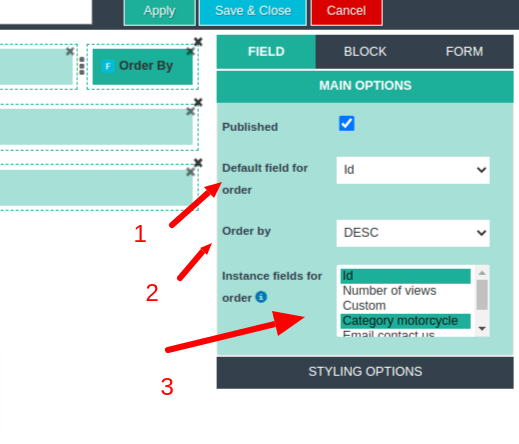
Order By Settings. There are several important settings:
Default Sorting Field. Choose which field should be used for the default sorting order.
Default Sorting Direction. Select the default direction, such as ascending or descending.
User Sorting Options. If you want visitors to control the sorting order, you can specify which fields they can use for sorting. This can make large Joomla CCK listings easier to browse and navigate.
Joomla CCK fields allow you to turn Joomla into a flexible platform for structured content. Instead of creating every page manually, you can create a reusable content structure with custom fields and layouts. For example, a real estate website could use:
- Text Field → Property name.
- Number Field → Price.
- Category Field → Property type.
- Image Gallery Field → Property photos.
- Location Map Field → Property location.
- Checkbox Field → Property features.
- Date Field → Available date.
- Rating Field → User reviews.
- Rent From / Rent To fields → Booking dates.
The same principle can be applied to products, cars, books, events, directories, advertisements, and many other types of Joomla websites.
Joomla CCK Fields provide a flexible way to create structured content and custom forms in Joomla. By combining different field types with Joomla CCK layouts, you can create reusable content structures that keep your website consistent and easier to manage. Whether you are building a Joomla product catalog, real estate directory, car listing website, business directory, booking system, review website, or custom Joomla website, custom fields give you the flexibility to define exactly what information each Instance should contain. Once you understand how Joomla CCK fields work, you can combine them with layouts, categories, search, maps, reviews, and booking functionality to build much more advanced Joomla websites.
Download Joomla CCK for free and create Joomla based website with Joomla CCK.Other documentations of Joomla CCK - joomla website builder:

we support payment systems