Ordasoft website development company

How to create Multilingual Joomla Website

Creating a multilingual Joomla website allows you to attract new audience by offering your content in multiple languages. Joomla provides built-in tools to manage multiple languages, making it relatively straightforward to set up a multilingual site. This article will guide you through the steps to create a multilingual Joomla website.
how to create multilingual joomla website

Before you start, ensure your Joomla installation is up-to-date. Running the latest version of Joomla helps a void compatibility issues and ensures you have the latest features.

Backup Your Website

Before making any major changes, it's wise to back up your website. Use a tool like Akeeba Backup to create a full backup, including files and databases.

Enable the Language Plugins

  • Log in to your Joomla administrator backend.
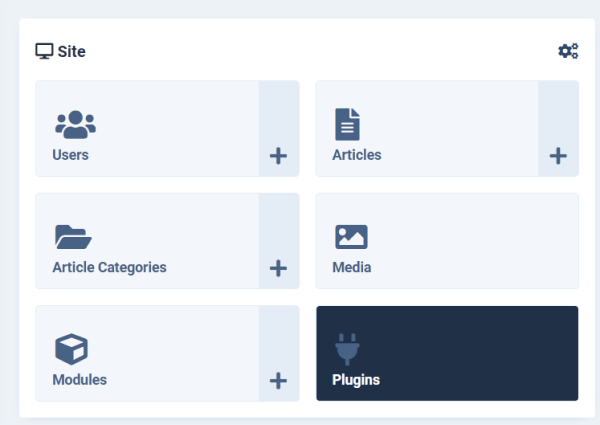
  • Go to "Site" > "Plugins."
  • multilingual joomla website to plugins multilingual joomla website to plugins

Search for and enable the following plugins:

  • "System - Language Filter"
  • "System - Language Code"
  • "System - Language Debug" (Optional, for debugging language issues)
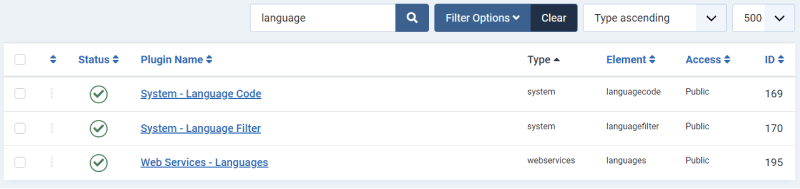
multilingual joomla website system languages multilingual joomla website system languages

To add new languages to your Joomla website, you'll need to install the corresponding language packs.

Install Language Packs

  • Navigate to "System" > "Manage" > "Languages"
  • multilingual joomla website manage languages multilingual joomla website manage languages
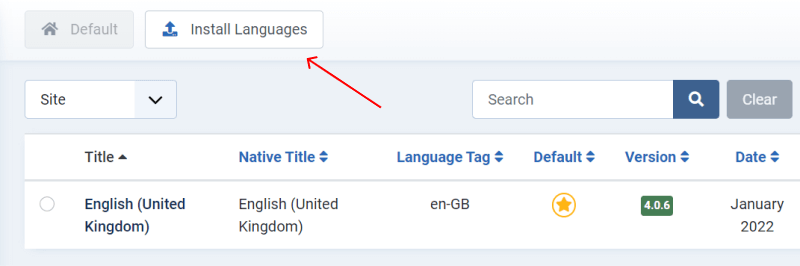
  • Click the "Install Languages" button.
  • multilingual joomla website install languages multilingual joomla website install languages
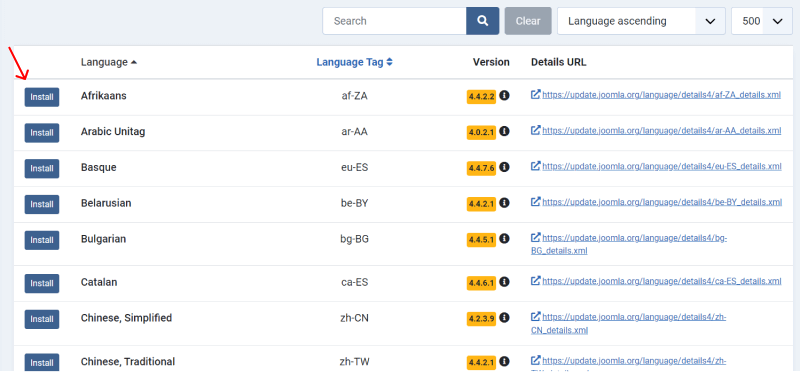
  • A list of available languages will appear. Select the languages you want to install and click "Install."
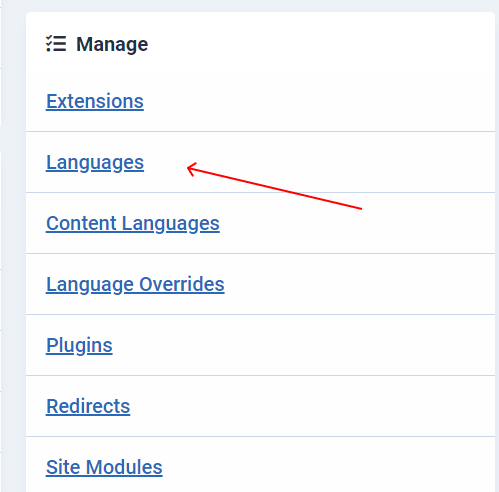
  • multilingual joomla website install chosen language multilingual joomla website install chosen language

Verify Language Installation

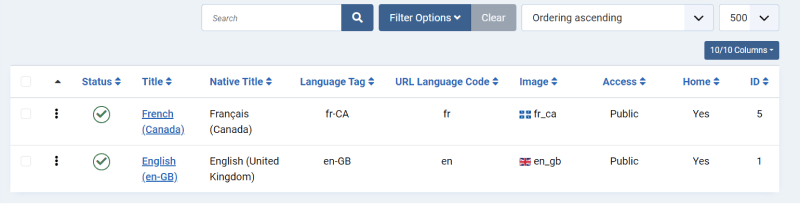
After installation, go back to "Manage" > "Languages" to ensure that the new languages are listed and installed correctly.

Configure Content Languages

Content languages allow you to define the languages in which your content will be available.

Set Up Content Languages

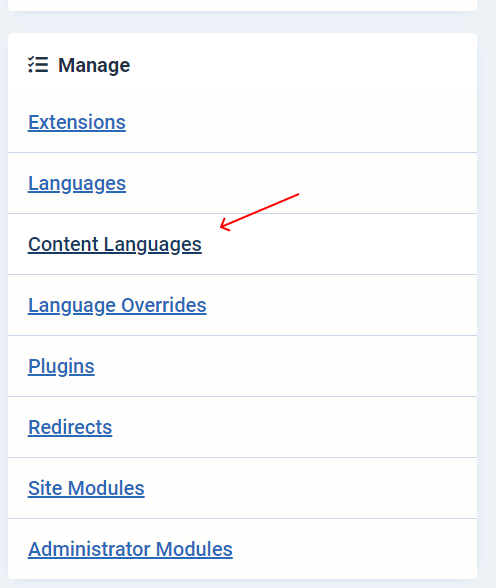
  • Go to "Extensions" > "Languages" > "Content Languages."
  • multilingual joomla website content languages multilingual joomla website content languages
  • Here, you'll see the default language already listed (e.g., English). Click "New" to add a new content language.
  • multilingual joomla website installed languages multilingual joomla website installed languages
    multilingual joomla website add new language manually multilingual joomla website add new language manually
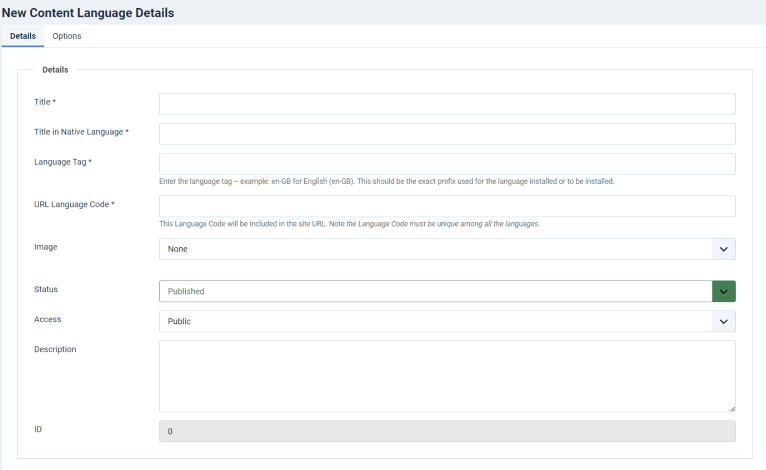
  • Fill in the required fields such as Title (e.g., French), Language Tag (e.g., fr-FR), URL Language Code (e.g., fr), Image Prefix (e.g., fr), and Status.
  • multilingual joomla website new content language multilingual joomla website new content language
  • Save and repeat for each language you want to add.
Create Language-Specific Menus

IMPORTANT

You need to create separate menus for each language to display language-specific navigation. If you have 3 languages, you need 3 Main Menus - one for each languages.

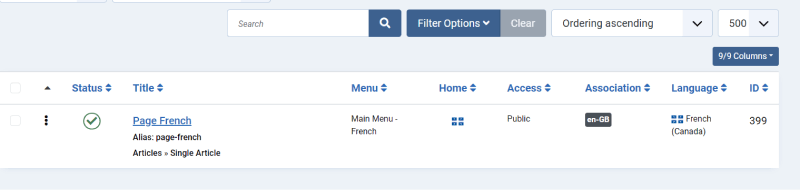
Make sure you have content labeled as "Home Page" for every language.

multilingual joomla website home page article multilingual joomla website home page article

Create New Menu

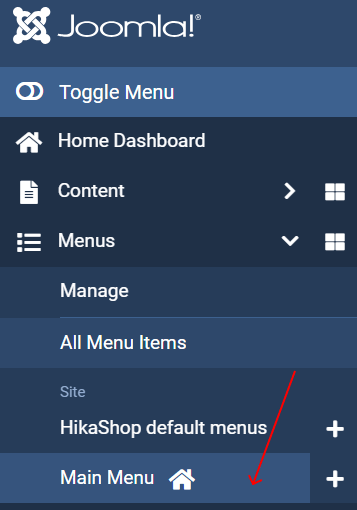
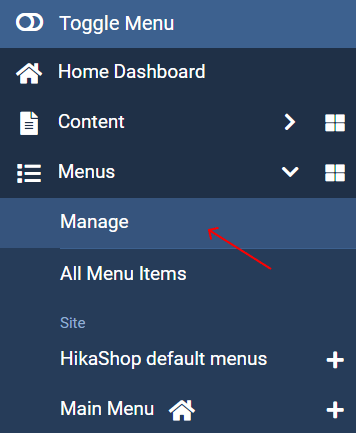
  • Go to "Menu" > "Manage" > "Add New Menu."
  • multilingual joomla website manage menu multilingual joomla website manage menu
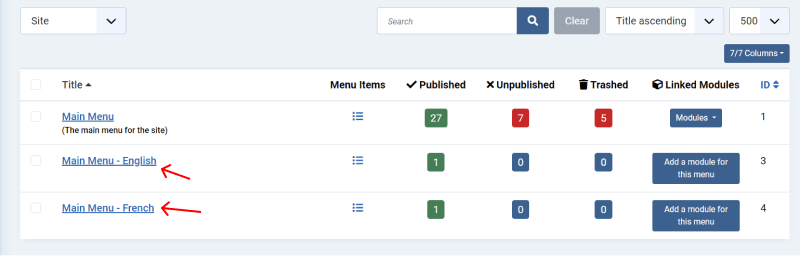
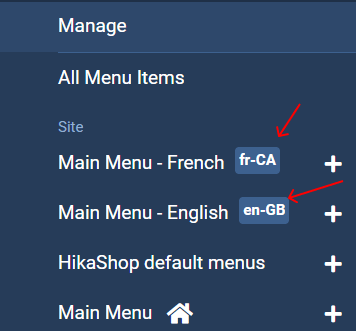
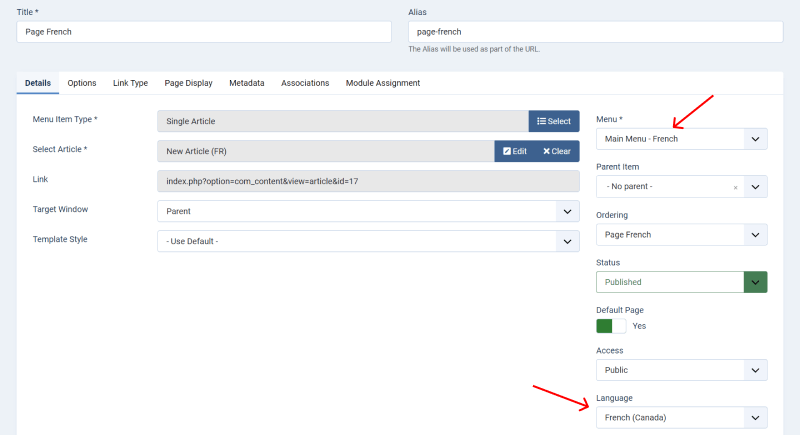
  • Create a new menu for each language. For example, create one menu named "Main Menu - English" and another named "Main Menu - French."
  • multilingual joomla website add main menu multilingual joomla website add main menu
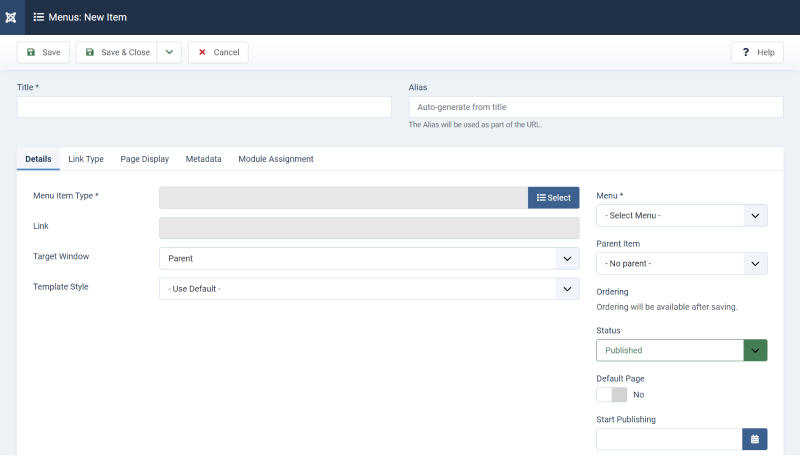
  • After creating the menus, add menu items to each one corresponding to the content in that language.
  • multilingual joomla website added main menus multilingual joomla website added main menus
  • And don't forget to set language. "Main Menu - English" → English Language, "Main Menu - French" → French Language etc.
  • multilingual joomla website add article french multilingual joomla website add article french
    multilingual joomla website add menu deatils multilingual joomla website add menu deatils

Associate Menu Items

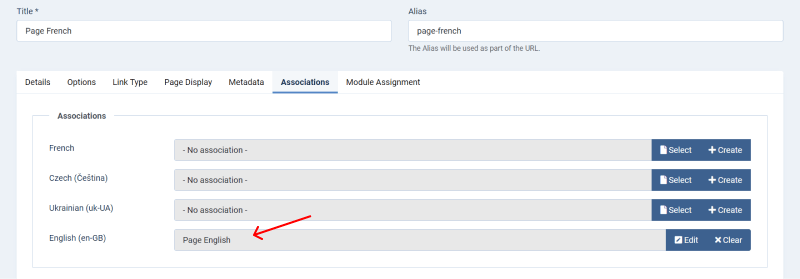
  • While adding menu items, you can associate them with corresponding items in other languages. This helps Joomla switch content based on the selected language.
  • Open a menu item and navigate to the "Menu Item Associations" tab.
  • multilingual joomla website add association multilingual joomla website add association
  • Select the corresponding menu item in another language and save.
Create Language-Specific Categories

To organize your content efficiently, create language-specific categories.

Create New Categories

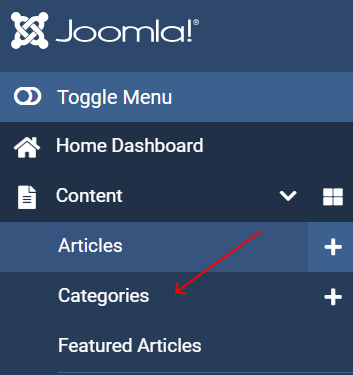
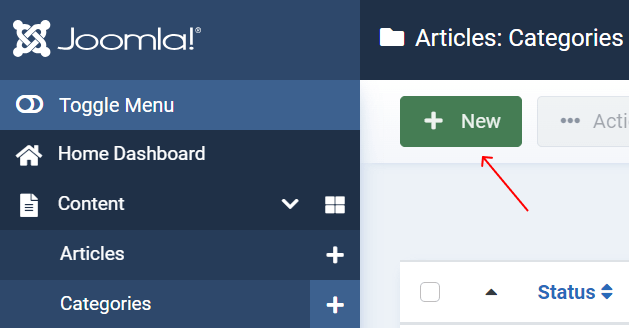
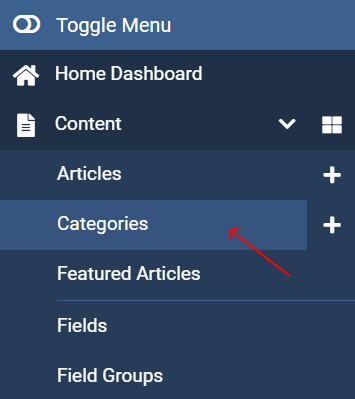
  • Go to "Content" > "Categories."
  • multilingual joomla website content categories multilingual joomla website content categories
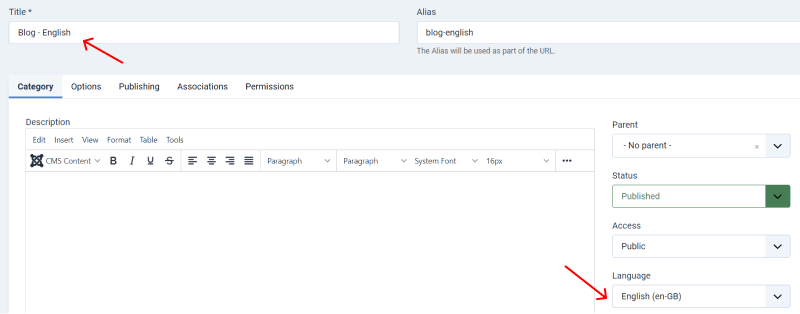
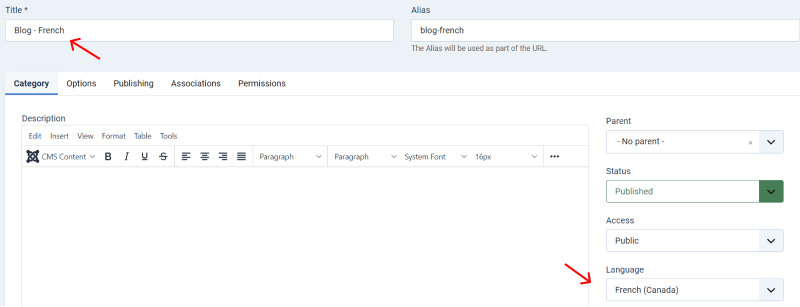
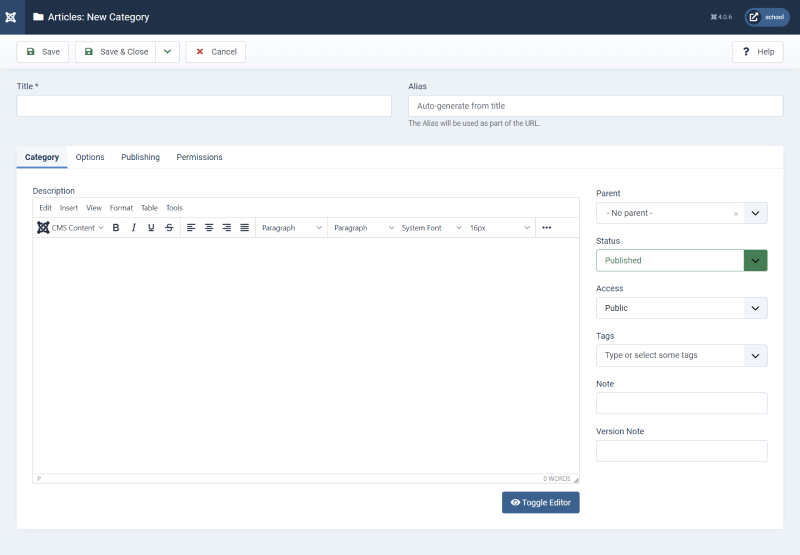
  • Click "New" to create a category for each language (e.g., "Blog - English," "Blog - French").
  • multilingual joomla website blog english multilingual joomla website blog english
    multilingual joomla website blog french multilingual joomla website blog french
  • Assign the appropriate language to each category.
Create Language-Specific Articles

With your categories set up, you can now create articles for each language.

Create New Articles

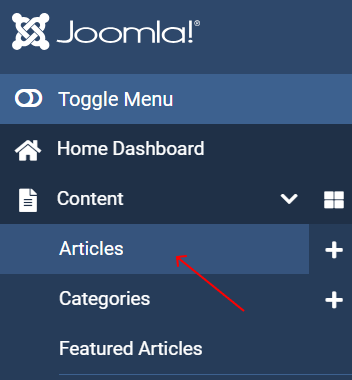
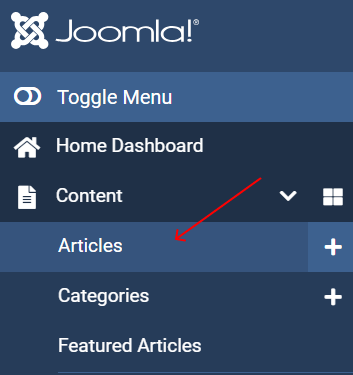
  • Go to "Content" > "Articles."
  • multilingual joomla website to articles multilingual joomla website to articles
  • Click "New" to create an article.
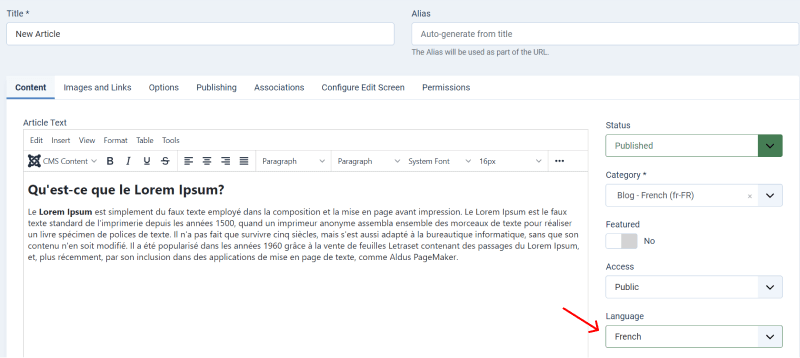
  • Select the language, category, and menu for the article.
  • multilingual joomla website language to french multilingual joomla website language to french
  • Create content in the specific language and save.
Set Up the Language Switcher Module

The Language Switcher module allows users to switch between languages on your site.

Enable and Configure Language Switcher

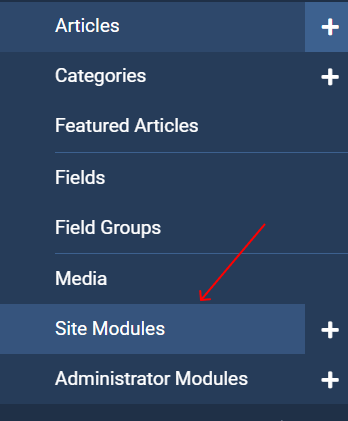
  • Go to "Extensions" > "Modules."
  • multilingual joomla website go to site modules multilingual joomla website go to site modules
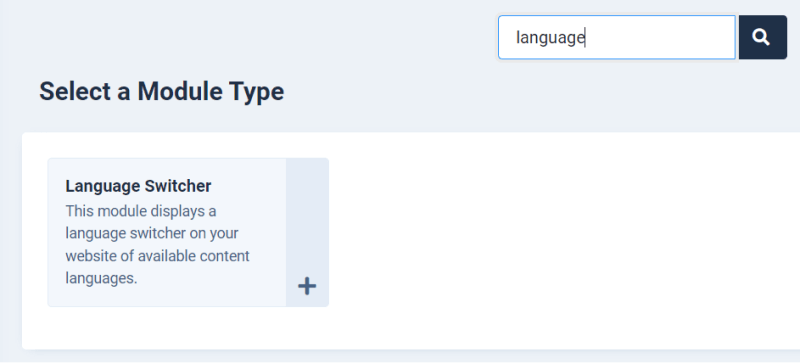
  • Click "New" and select "Language Switcher."
  • multilingual joomla website module language swithcer multilingual joomla website module language swithcer
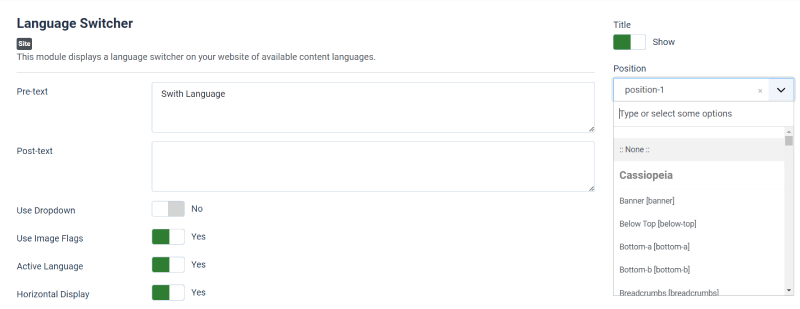
  • Assign the module to a position in your template (e.g., top, header).
  • multilingual joomla website swithcer position multilingual joomla website swithcer position
  • Set the module to "Published" and configure it according to your preferences.
  • Save the module.

Configure the Language Filter

The Language Filter plugin helps Joomla automatically detect and display the correct language based on the user's preference.

Test Your Multilingual Website

After completing the setup, it's essential to test your website to ensure everything is working correctly.

Test Language Switching:

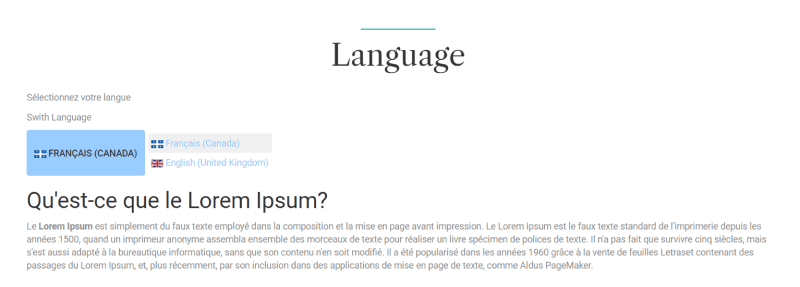
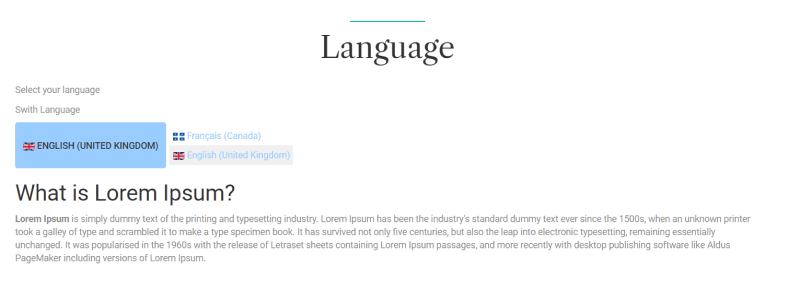
  • Visit your website frontend and use the Language Switcher to change languages.
  • multilingual joomla website frontend english multilingual joomla website frontend english
    multilingual joomla website frontend french multilingual joomla website frontend french
  • Check that the content, menus, and modules switch to the appropriate language.
IMPORTANT
  • Ensure that the URLs are correctly configured with language codes (e.g., /en/, /fr/).
  • Verify that the site generates correct hreflang tags in the HTML header for SEO purposes.

By following these steps, you can effectively manage and display content in multiple languages, offering a more inclusive experience for your global audience. Remember to regularly update and maintain your content to ensure consistency across all languages.
Other Tutorials for Joomla:

 
Ordasoft website development company

How to add an image to a Joomla article

add images to joomla article

Adding Images to Joomla Articles

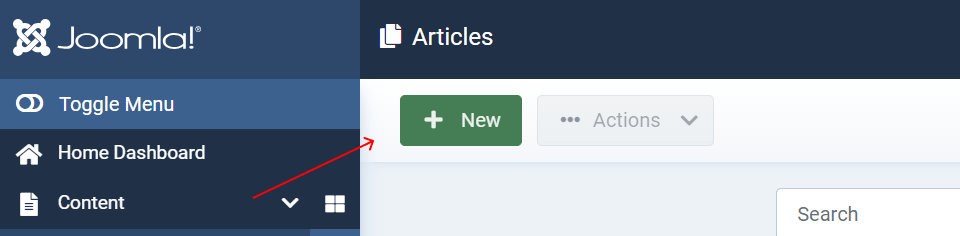
In the dashboard menu, go to "Content" and then "Articles".

create article in joomla all articles create article in joomla all articles

Choose the article you want to add an image to by clicking on its title to edit, or create a new article by clicking on "New".

create article in joomla new create article in joomla new

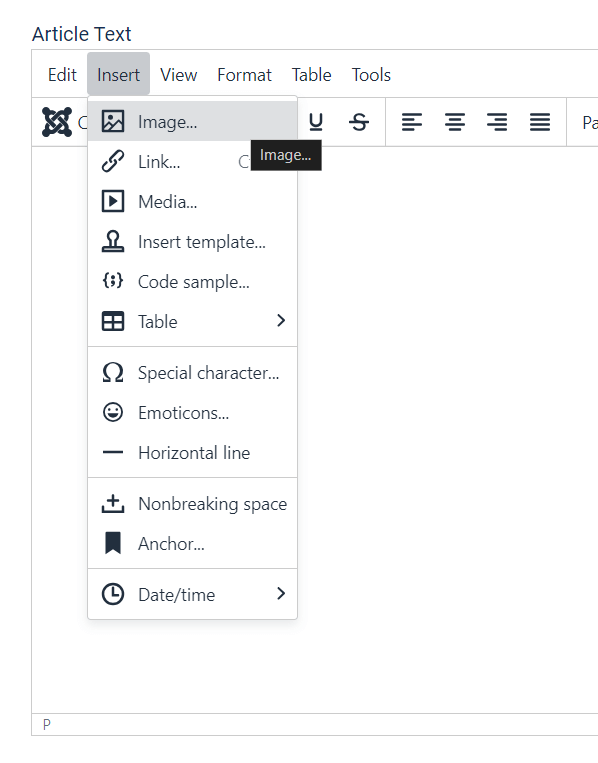
In the article editor, position your cursor where you want to insert the image. Then, click on the "Image" button in the editor toolbar.

create article in joomla insert media create article in joomla insert media

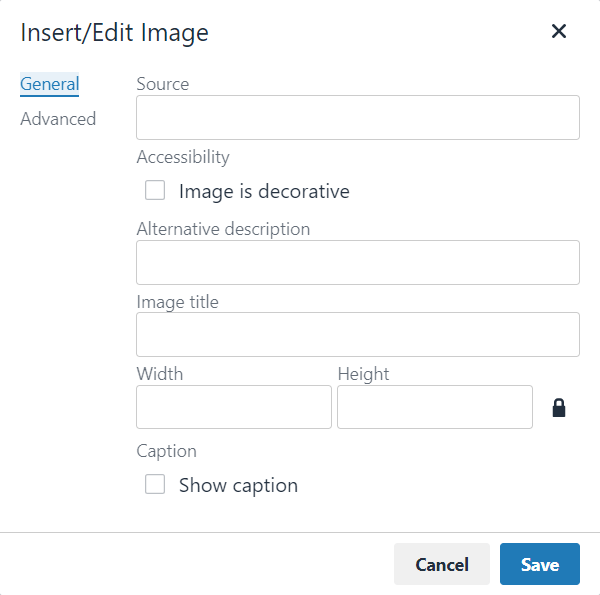
A pop-up window will appear where you can upload an image from your computer or select an existing image from your media manager.

create article in joomla insert image create article in joomla insert image

After selecting the image, you can set properties such as alignment, size, and linking options.

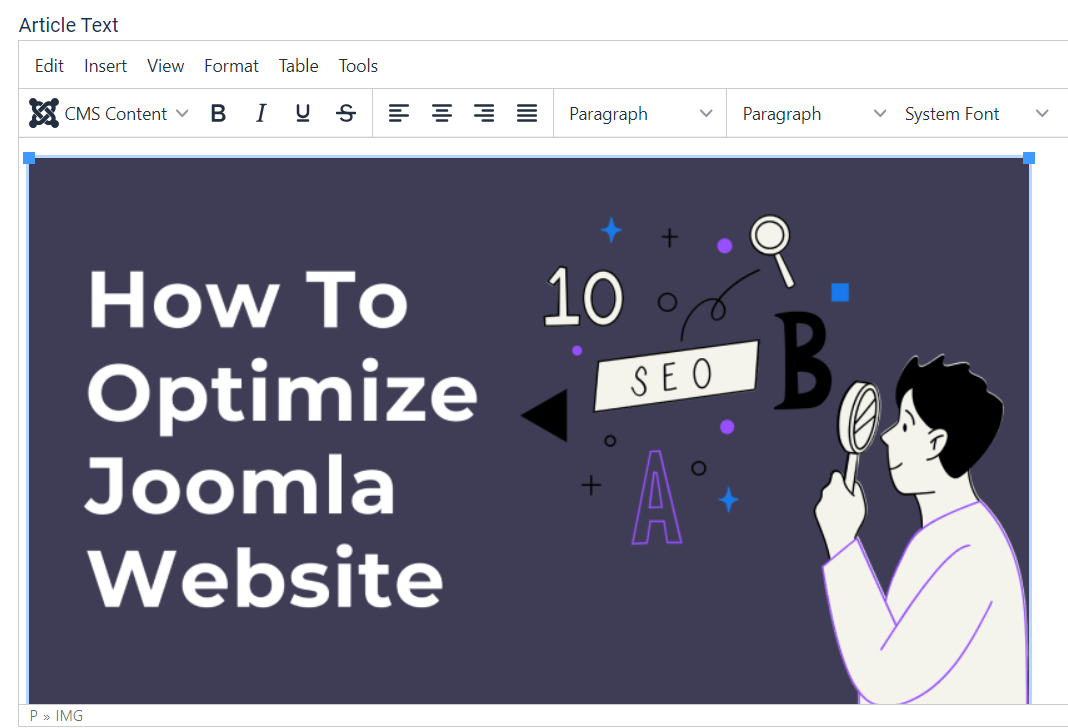
Once you've configured the image properties, click on the "Insert" button to add the image to your article.

create article in joomla images create article in joomla images

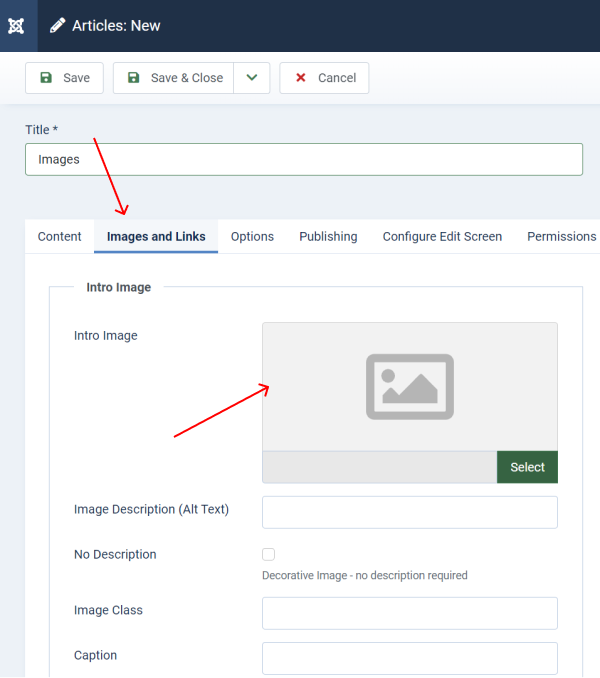
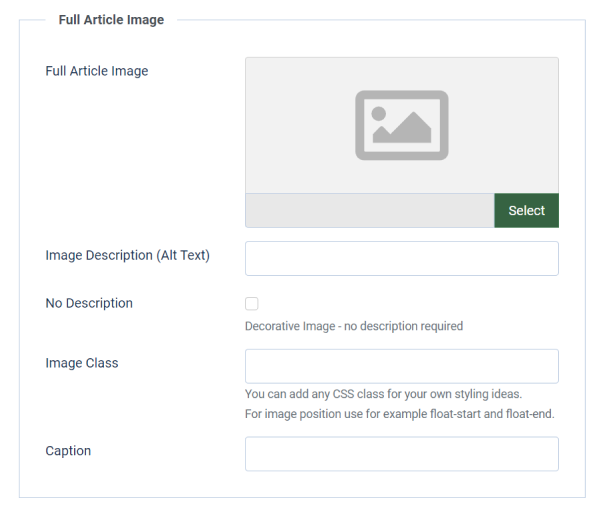
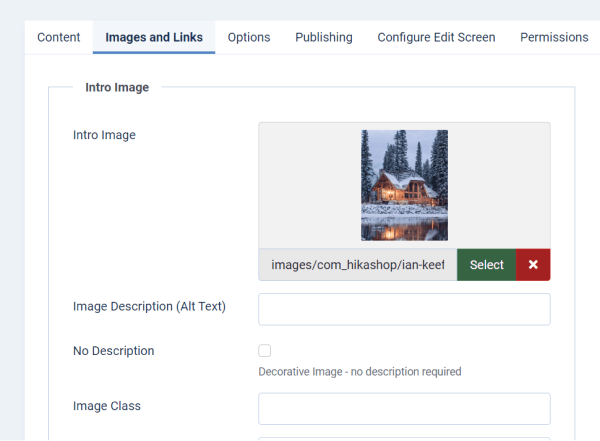
You can go to the tab "Images and Links", where you can set Intro Image for an article or add a full image for an article.

create article in joomla intro image create article in joomla intro image
create article in joomla full article image create article in joomla full article image

Upload an image and it will show on a page with other content.

create article in joomla add intro image create article in joomla add intro image

After adding the image, make sure to save your article.

Other Joomla Documentation:

 
Ordasoft website development company

How to Create Blog in Joomla

how to create blog in joomla

Creating a blog in Joomla involves setting up categories, articles, and possibly modules to display your blog content.

Set Up Categories

Navigate to "Content" and then "Categories".

create article in joomla all articles create article in joomla all articles

Click on "New" to create a new category for your blog.

create blog in joomla new category create blog in joomla new category

Enter the category details such as title, description, and any parent category if applicable.

create blog in joomla new category create blog in joomla new category

Save the category.

Create Articles

After setting up categories, go to "Content" and then "Articles". Check how to Create an Article in Joomla.

Configure Blog Layout

Navigate to "Menus" and then "Main Menu" (or any menu where you want your blog to appear).

create blog in joomla menu create blog in joomla menu

Click on "New" to create a new menu item.

create blog in joomla menu item create blog in joomla menu item

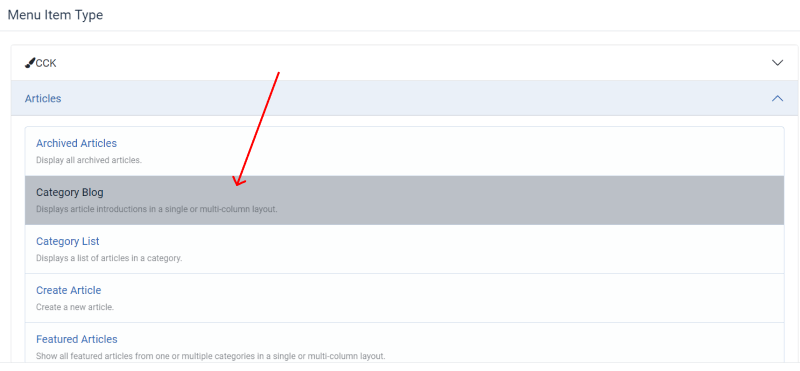
Choose the menu item type. For a blog, you typically choose "Category Blog" or "Featured Articles".

create blog in joomla category blog create blog in joomla category blog

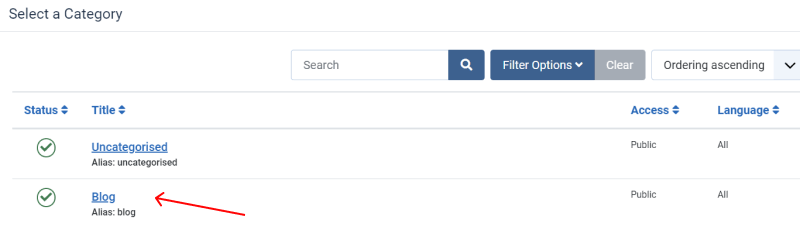
Select the category you created earlier.

create blog in joomla select category create blog in joomla select category

Configure the menu item settings such as the number of leading articles, columns, and other display options.

Save the menu item.

Customize Blog Appearance (Optional)

You can further customize the appearance of your blog by using Joomla templates and modules. For Example, you can use Joomla CCK for blog. Read the article How to make a blog website using Joomla CCK

Install and activate a Joomla template that supports blogging.

Customize the template settings to match your branding and preferences.

Use Joomla modules to add elements like a search bar, category list, or social media links to your blog sidebar or footer.

Publish Your Blog

Once you've set up your blog, you can start publishing articles by creating new articles in Joomla and assigning them to the appropriate categories. Your blog posts will automatically appear on the frontend of your Joomla website according to the layout you configured.

That's it! You've successfully created a blog in Joomla. You can continue to add more content, customize the layout, and enhance the functionality of your blog as needed.

Other Joomla Documentation:

 
Ordasoft website development company

How to create an article in Joomla

create article in joomla main

Navigate to the Article Manager

From the top menu, hover over "Content."

Click on "Articles" from the dropdown menu. This will take you to the Articles Manager, where you can view, edit, and create articles.

create article in joomla all articles create article in joomla all articles

Create a New Article

In the Articles Manager, click the "New" button located at the top left of the page. This will open the article editor.

create article in joomla new create article in joomla new

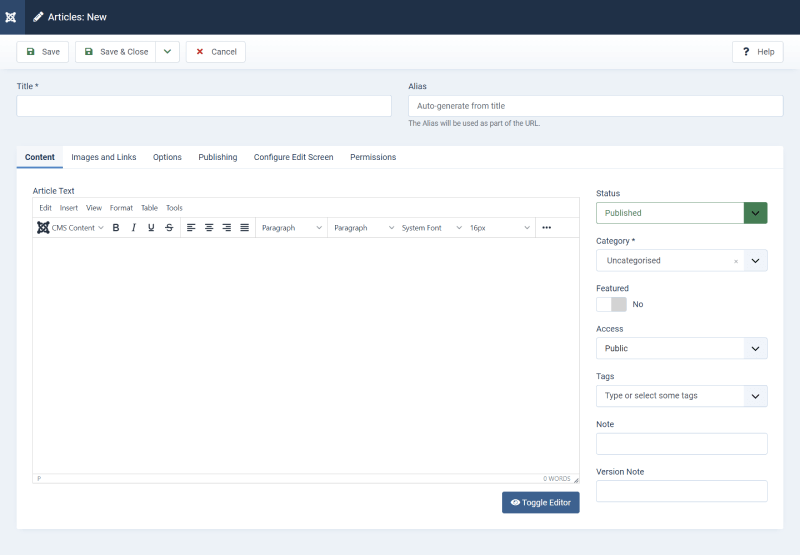
Fill in Article Details

Title: Enter a title for your article in the "Title" field. This will be the main heading for your article.

Content: In the large text area, write the content of your article using the WYSIWYG (What You See Is What You Get) editor. You can format text, add links, images, and other media using the toolbar above the text area.

Category: Assign the article to a category. Categories help to organize your articles. If you haven't created a category yet, you can create one by clicking "Category" in the left sidebar under "Content" and then "New."

Tags: Optionally, add tags to your article to help with searchability and organization.

Publishing Options: Set publishing dates, author information, and access levels in the "Publishing" tab.

Metadata: Add metadata like meta description and keywords in the "Metadata" tab for SEO purposes.

create article in joomla edit article create article in joomla edit article

Save Your Article

Click "Save & Close" to save your article and return to the Articles Manager.

Publishing the Article

Status: Ensure the status is set to "Published" if you want the article to be immediately available on your website.

Featured: Optionally, set the article as "Featured" if you want it to appear on the front page or a specific featured articles section.

Viewing the Article on Your Website

Front End: Go to the frontend of your website and navigate to the category or menu item where your article should appear.

Menu Links: If the article does not appear, you might need to create a menu link. Check How to Create Menu in Joomla CCK or How to Create Mega Menu in Joomla CCK

Other Joomla Documentation:

 
Ordasoft website development company

How to Secure Joomla Website

how to secure joomla website

These days, no one can tell that securing your website isn't important. Keeping your website secure means you get to decide who can access and change things on your site. Think about all the personal information that might be on your website. Whether it's your own info or your visitor's, like names, email addresses, or even payment information, you want to keep it safe.

Moreover, a secure website helps you to build trust with your visitors. When people see that your website is secure, they're more likely to feel comfortable sharing their information and doing business with you.

Additionally, securing your website can protect it from viruses and malware. These bugs can infect your site and cause all sorts of problems, from slowing it down to crashing it completely.

A secure website can even improve your search engine ranking. Search engines like Google prefer to show secure websites to their users because they want to keep users safe. Also, if you want to rank your website higher in any search engine, you can read our article about Website Optimization

Keep Joomla Updated

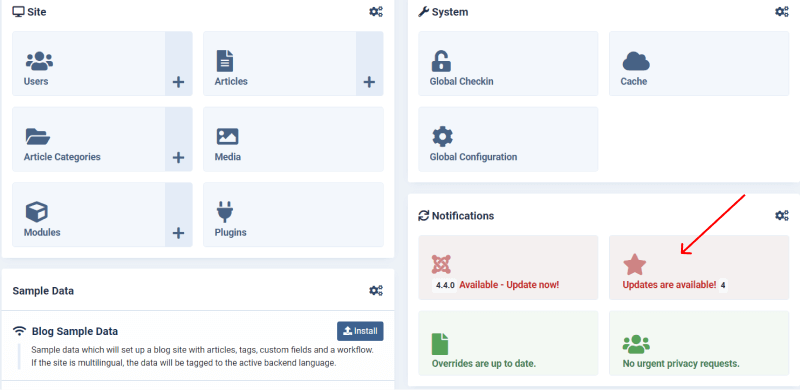
Make it a habit to check for updates for both Joomla's core software and any installed extensions or plugins. You can do this by logging into your Joomla administrator backend. When updates are available for Joomla's core software, you'll see a notification in your Joomla administrator backend. Simply follow the prompts to initiate the update process. Joomla usually provides a one-click update option, making it easy to keep your core software up to date.

joomla secure website updates joomla secure website updates
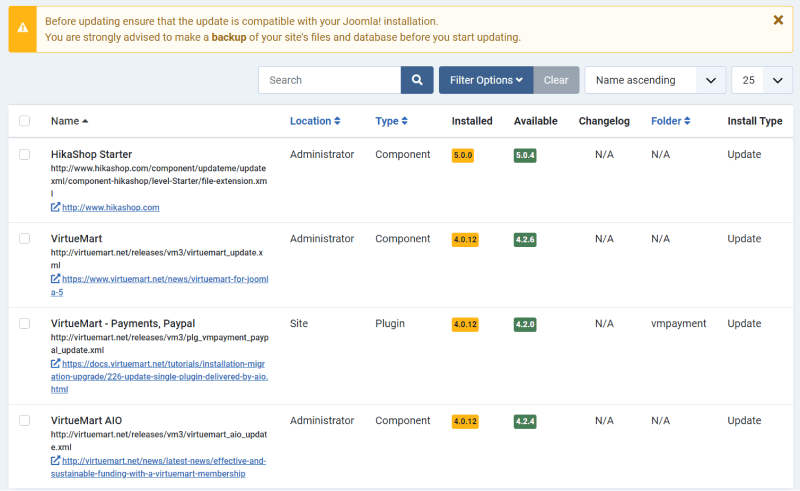
joomla secure website update extensions joomla secure website update extensions

Backup Your Website

Before performing any updates, it's important to create a backup of your website. This ensures that if anything goes wrong during the update process, you can easily restore your site to its previous state. Schedule regular backups of your Joomla website and database. In case of a security breach or data loss, you can quickly restore your website to a previous state.

Secure Hosting

Choose a reliable hosting provider that offers security features such as regular backups, firewalls, intrusion detection systems, and malware scanning.

Use Strong Passwords

Use complex passwords for your Joomla admin accounts, database, FTP, and hosting control panel. Avoid using easily guessable passwords and consider using a password manager.

Change Default Settings

Change default usernames, database prefixes, and other default settings to make it more difficult for attackers to exploit known vulnerabilities.

Enable Two-Factor Authentication (2FA)

Enable two-factor authentication for your website's admin panel if your platform supports it. 2FA adds an extra layer of security by requiring users to provide a second form of verification, such as a code sent to their phone, in addition to their password.

Use Original Extensions from Official Websites

Only install extensions from trusted sources, and regularly update them to the latest versions. Remove any unused extensions to minimize potential attack vectors.

Use Joomla Extension to Secure your Website

It's important to choose extensions that are regularly updated and supported by reputable developers to make sure your website is protected.

Akeeba Backup

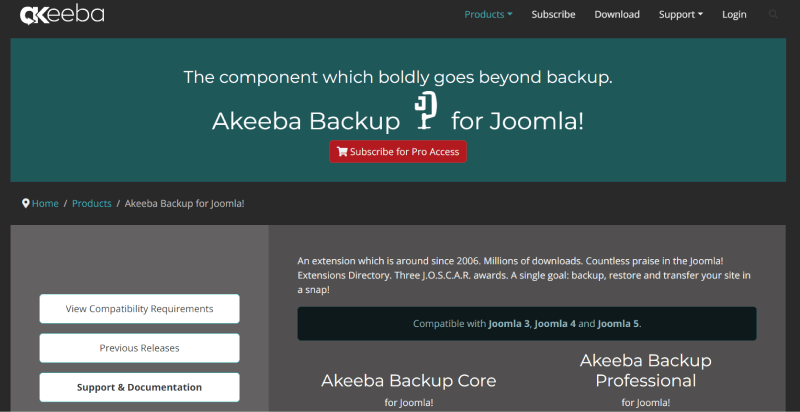
joomla akeeba backup

Akeeba Backup is a popular backup solution for Joomla that allows you to create full site backups, including files and database, with just a few clicks. Regular backups are crucial for recovering your website in case of data loss or security breaches. Akeeba Backup also offers features like automatic backups and remote storage options for added convenience and security.

Admin Tools

joomla admin tools

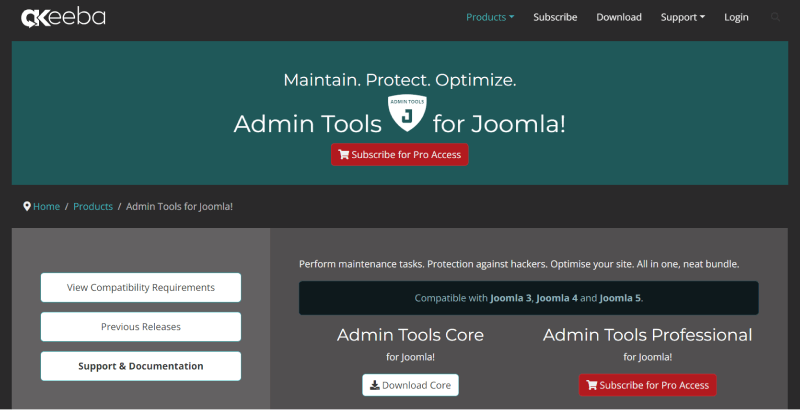
Admin Tools is a comprehensive security extension for Joomla that offers a range of features to help protect your website. It includes tools for securing your administrator area, blocking malicious IP addresses, monitoring file changes, and implementing additional security measures such as CAPTCHA and Two-Factor Authentication (2FA). Admin Tools also includes a Web Application Firewall (WAF) to protect against common security threats.

RSFirewall!

joomla rsfirewall

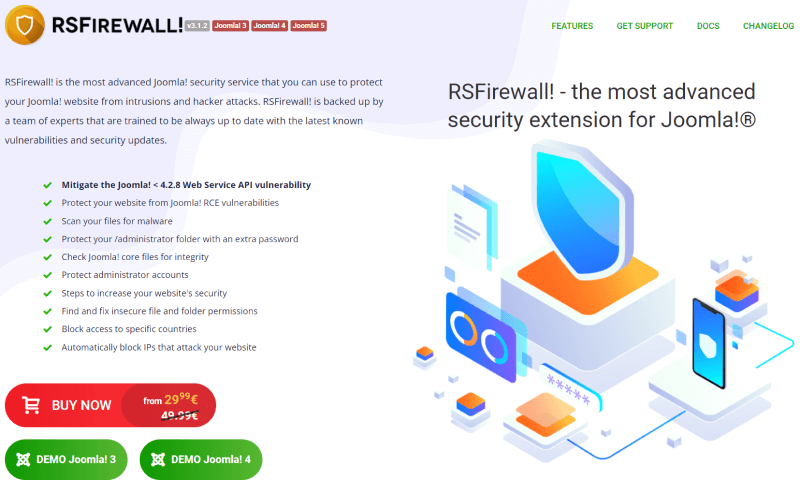
RSFirewall! is a powerful security extension for Joomla that helps protect your website against security threats and vulnerabilities. It includes features such as file integrity monitoring, malware scanning, IP blocking, and protection against SQL injection and cross-site scripting (XSS) attacks. RSFirewall! also provides regular security updates to keep your website protected against the latest threats.

Secure File Permissions

Set appropriate file and directory permissions to prevent unauthorized access to sensitive files. Joomla recommends setting directories to 755 and files to 644.

HTTPS Encryption

Enable HTTPS encryption for your website to secure data transmission between your users and the server, protecting against eavesdropping and man-in-the-middle attacks.

Before enabling HTTPS, you need to obtain an SSL (Secure Sockets Layer) certificate for your website. Many web hosting providers offer SSL certificates, and some may even provide them for free through services like Let's Encrypt.

  • Log in to your Joomla administrator backend.
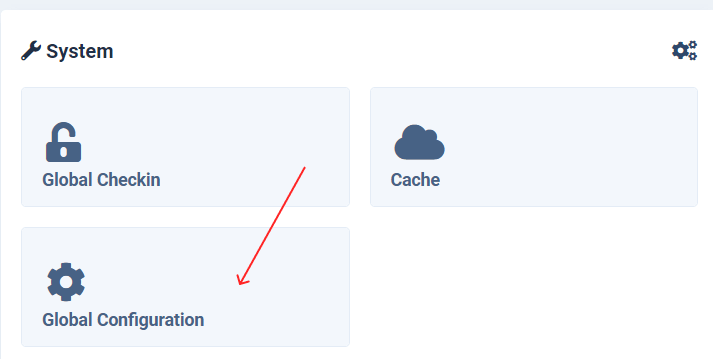
  • In the Joomla administrator menu, go to "System" > "Global Configuration".
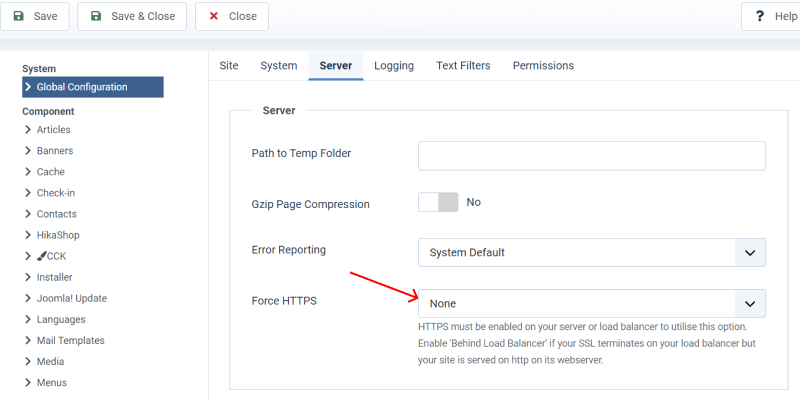
  • In the Global Configuration screen, navigate to the "Server" tab.
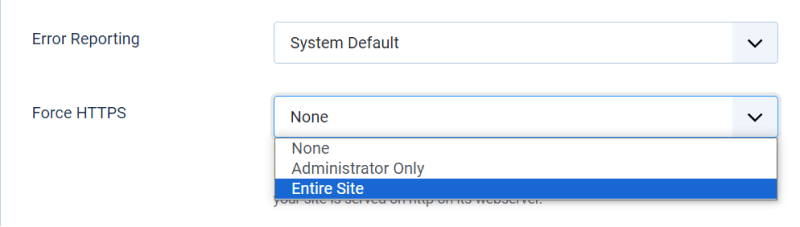
  • Look for the "Force HTTPS" option. This option forces Joomla to use HTTPS for all communication. Enable this option by setting it to "Entire Site".
joomla secure website global configuration joomla secure website global configuration
joomla secure website https settings joomla secure website https settings
joomla secure website https force joomla secure website https force

Implement Web Application Firewall (WAF)

Consider using a WAF to monitor and filter HTTP traffic to your Joomla website, protecting it from common web attacks such as SQL injection and cross-site scripting (XSS).

Monitor for Security Issues

Regularly monitor your Joomla website for security issues using security scanning tools and services. Set up alerts for suspicious activity.

User Permissions

Limit user permissions to only what is necessary for each user role. Avoid giving unnecessary administrative privileges to users.

Add .htaccess file

Adding and configure .htaccess - file to {yours-site}/administrator folder. This file may look like below:

SetEnvIf Request_URI ".css$" AdminUri
SetEnvIf Request_URI ".js$" AdminUri

AuthType Basic
AuthName "Restricted Access"
AuthUserFile /home/secure_passwords
Require valid-user

# Add the exceptions for matched URL's
Order Deny,Allow
Deny from all
Allow from env=AdminUri
Satisfy any

This file limit access to site admin only the valid users. The file "secure_passwords" - you may create with help "htpasswd" - apache utilite.

Other Tutorials for Joomla:


Page 3 of 8


100cms.org banner
»